

Description
1) Presentation:
This blender addon is designed to provide tools to help optimizing city sceneries, retrieved via the Google Earth Decoder Tool, made by u/Jonahex111.
I updated the tool to make it work again: Retrieve the last dll here: https://flightsim.to/file/39900/gogole-earth-decoder-update
This addon is coded in Python, and sources are available here: https://github.com/Thalixte/Google-Earth-Decoder-Optimization-Tools.
2) Prerequisites:
Blender 2.83 or superior
Optional: to reduce the number of texture files, you can get the Lily texture Packer. Download version 1.1.x if you use Blender 2.83. If you use Blender 3.x, you can use the last version. Reducing the number of texture files reduce the loading time of the scenery, and can reduce stuttering related to texture streaming inside the sim
Optional: once your package has been successfully built, you can further reduce its size by using the "Optimize the built package by compressing the texture files" entry of the addon menu. To do so, you have to download the Compressonator tool from GPUOpen.
No need to install nodejs anymore, no need to install MsfsToolkit Blender addon. If you installed MsfsToolkit addon in Blender, check that it is compatible with your Blender version, especially the export to Gltf 2.0 feature.
This addon do not request Google Earth API anymore to retrieve the tile coords.
3) Installation or update:
Download the Google-Earth-Decoder-optimisation-tools.zip archive. In Blender, open the preferences window: Edit > Preferences..., then select the Add-ons tab. Click on the Install... button, then browse to the archive you have just downloaded. Once installed, enable the addon.
If everything worked correctly, you should see a new menu in Blender, called "Google Earth Decoder Optimization Tools".
Important! If you update from a previous version, make sure to restart blender before using the tools.
4) Usage:
Open the "Google Earth Decoder Optimization Tools" menu in Blender.
Choose an action from the menu entries:
- Initialize a new Msfs scenery project:
This script creates the MSFS structure of a scenery project, if it does not already exist.
Once created, you can copy the result of the Google Earth decoder Output folder into the PackageSources folder of the newly created project.
You can also create the structure, then in the Google Earth Decoder tool, point the Output folder to the PackageSources folder of the project.
The structure is the same as the one provided in the SimpleScenery project of the MSFS SDK samples. - Optimize an existing Msfs scenery project:
This script optimizes an existing Google Earth Decoder scenery project (textures, Lods, CTD fix).
If you installed and enabled the Lily Texture Packer Blender addon, and you ticked the "Bake textures enabled" checkbox in the tool menu (section PROJECT), the textures of the project are merged per tile lods, which significantly reduce the number of the project files.
It fixes the bounding box of each tile in order for them to fit the MSFS lod management system.
This script also adds Asobo extension tags in order to manage collisions, road traffic, and correct lightning. - Clean the unused files of the msfs project:
This script cleans the unused files of the MSFS scenery project.
Once you removed some tiles of a project, use this script to clean the gltf, bin and texture files associated to those tiles. - Merge an existing MSFS scenery project into another one:
This script merges the tiles of a MSFS scenery project into another MSFS scenery project.
In the MERGE section, select the project that you want to merge into the project indicated in the PROJECT section. - Update the position of the MSFS scenery tiles:
This script calculates the position of the MSFS scenery tiles.
If you are not satisfied with the resulting positions, you can setup a latitude correction and/or a longitude correction in the TILE section. - Update LOD min size values for each tile of the project:
This script updates the LOD min size values for each tile of the project.
In the LODS section, you can setup each minsize value of each LOD level.
According to the MSFS SDK documentation, the selection process is as follows:
starting from LoD 0, going down, the first LoD with a minSize smaller than the model's current size on screen will be selected for display.
The selection will also take into account forced and disabled LoDs as configured by the model options. - Fix lightning issues on tiles at dawn or dusk:
This script fixes the lightning issues on tiles at dawn or dusk.
To do so, it adds a specific Asobo extension tag ("ASOBO_material_fake_terrain") in the gltf files corresponding to the tiles Lod levels. - Optimize the built package by compressing the texture files:
This script optimizes the built package of a MSFS scenery project by compressing the DDS texture files.
For the script to process correctly, the package must have been successfully built prior to executing the script. - Add a collider for each tile of the project:
This is an extra optimization of the scenery, wich is totally optional. When the scenery is optimized using the "Optimize an existing Msfs scenery project" script, the collision detection tags and the road tags are included in all the lods, which can produce CPU overload (even if my tests indicate that this is not really significant, in my config with a relatively old Intel(R) Core(TM) i7-4790K CPU @ 4.00GHz). This script removes the collision and road tags for all the LODs, and creates a specific transparent collider that embeds those tags for each tile of the project. Each collider object is created from the less detailed lod tile to decrease the CPU overload. - Remove the colliders for each tile of the project:
This script removes all the colliders objects that have been created with the "Add a collider for each tile of the project" script. It also reverts back the road and collision tags for all the lods.
If you want to donate, you will always be welcome to help me continue with more projects and update the existing ones https://paypal.me/Thalixte.
Google Earth Decoder Optimization Tools (GEDOT) - Blender Addon
A Blender addon designed to optimize city sceneries retrieved via the Google Earth Decoder Tool. This tool helps reduce loading times and stuttering by merging texture files and optimizing scenery projects for Microsoft Flight Simulator. Source code available on GitHub. Compatible with Blender 2.83 or higher.



Avis des utilisateurs
17 avis
Historique des versions
Remove tiles with no lods to prevent MSFS building errors
Similaires
Paris
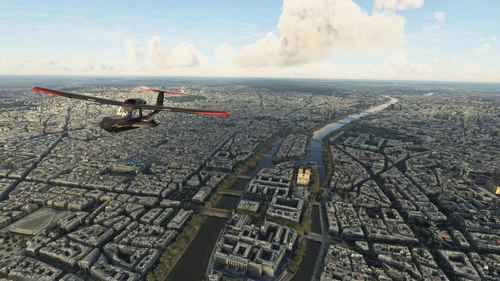
Explore the iconic cityscape of Paris in Microsoft Flight Simulator. This detailed add-on captures the essence of the French capital, featuring famous landmarks and architectural marvels. With accurate GPS coordinates, immerse yourself in the beauty of Paris, known for its historical significance and vibrant culture. Download now and experience the City of Light from a whole new perspective.
par Thalixte
Google Earth Decoder update
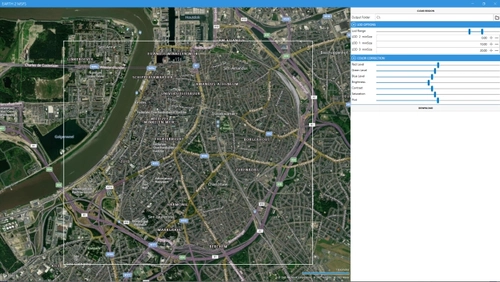
Google Earth tiles evolve, and it is now necessary to ensure that the data retrieved are the latest ones (even in some rare case, the latest data can remove some existing tiles). When you use the Google Earth decoder tool, the tiles retrieved are not necessarily the last ones available on Google servers. To fix it, i created a fork of the GoogleMapsTools.dll used by the Google Earth Decoder tool, that ensure you to retrieve the last version of the Google Earth tiles.
par Thalixte
Nice
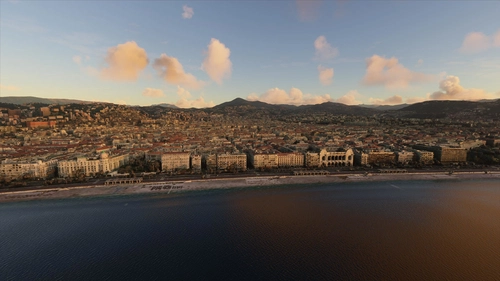
Explore the beautiful city of Nice, France in Microsoft Flight Simulator with this detailed add-on. Enjoy the stunning Mediterranean coast, historical landmarks, and famous promenades like Promenade des Anglais. Immerse yourself in the rich cultural history of Nice, a must-visit destination for millions of tourists every year.
par Thalixte

Stockholm
Explore the vibrant capital of Sweden with this detailed scenery add-on for Microsoft Flight Simulator, showcasing Stockholms iconic landmarks, including the stunning archipelago and historic palaces. Immerse yourself in the cultural, economic, and political hub of Sweden, home to top universities, the Nobel Prize ceremonies, and a rich history dating back to the Stone Age. Discover the citys intricate metro system, host to unique station designs, and enjoy a true-to-life flight experience over this bustling Scandinavian metropolis.
par Thalixte
Connectez-vous pour participer à la discussion
Se connecterCommentaires(178)
over 1 year ago
I would like to convert my 2020 seceneries to 2024. thannks
almost 2 years ago
about 2 years ago
Traceback (most recent call last):
File "C:\Program Files\Blender 3\3.5\scripts\modules\addon_utils.py", line 333, in enable
mod = __import__(module_name)
File "C:\Users\HexHyte\AppData\Roaming\Blender Foundation\Blender\3.5\scripts\addons\Google-Earth-Decoder-optimisation-tools\__init__.py", line 52, in
from .UI import menu
File "C:\Users\HexHyte\AppData\Roaming\Blender Foundation\Blender\3.5\scripts\addons\Google-Earth-Decoder-optimisation-tools\UI\__init__.py", line 19, in
from .menu import *
File "C:\Users\HexHyte\AppData\Roaming\Blender Foundation\Blender\3.5\scripts\addons\Google-Earth-Decoder-optimisation-tools\UI\menu.py", line 22, in
from utils import Settings, get_sources_path
ImportError: cannot import name 'get_sources_path' from 'utils' (C:\Users\HexHyte\AppData\Roaming\Blender Foundation\Blender\3.5\scripts\addons\utils\__init__.py)
over 1 year ago
about 2 years ago
I followed your tutorial on /github to the letter and all the options went well on an import of a small part of MOUANS-SARTOUX (south France) (later I will try the MERGE function...)
A question to ask yourself: how to edit the import in BLENDER, rework it and reinject it into MSFS? Thank you in advance for your response.
about 2 years ago
I use Blender 3.5 and I installed and activated the GEDOT add-on but I notice when I launch the "Blender Preferences" window, I do not see the MSFS building package tools section described in your tutorial.
Do you see what is happening?
Thanks
Best regards,
Regis1958
over 2 years ago
I'm trying to install your tools in Blender using the procedure on your GEDOT page but I'm stuck in the "Warmup the Blender addon" section. Indeed, when I click on "fspackagetool.exe", present in MSFS SDK\tools\bin, (even in administrator mode), nothing happens, neither in Blender, nor elsewhere. I don't see anything appear in the Blender preferences menu as can be seen in your video.
Have I misunderstood the procedure?
THANKS
Good evening
Regis1958
about 2 years ago
What version of Blender do you use ?
Best regards,
about 2 years ago
Thank you for your reply
I'm using version 3.5.
Furthermore, I installed the "MSFS glTF extension" add-on but it didn't change anything: I still can't install fspackagetools.exe in Blender.
Finally, when I open the GEDOT menu in Blender, the first 2 items seem to work but from the 3rd (create the terraform...), I get the following error message:
"Python: Traceback (most recent call last)
File "C:\Users\RexDek\AppData\Roaming\Blender\3.5\scripts\addons\Google-Earth-Decoder-Optimization-Tools-main\UI\operator\panel.py",line 35, in invoke
self._save_operator_context(context, event)
File "C:\Users\RexDek\AppData\Roaming\Blender\3.5\scripts\addons\Google-Earth-Decoder-Optimization-Tools-main\UI\operator\panel.py",line 48, in_save_operator_context
panel_props.setting_sections = self.starting_section
TypeError: bpy_struct: item.attr = val: enum "OPENSTREETMAP" not found in ('PROJECT','AUTOMATIC_BUILD') "
Best regards,
over 2 years ago
I installed and activated GEDOT in Blender. I followed the "Arcachon scene" procedure described on the GEDOT page but I cannot find the "Number of parallel Blender tasks" field.
So if I run the optimization process anyway, I don't get the result described on the page and the optimization process fails.
Do you see what is happening?
Thank you so much
Régis1958
over 2 years ago
over 2 years ago
Unfortunately, every time I try to enable it, it fails and Blender gives me an error message, whether it's version 4.1 or 3.5.
I'll try to figure out what's going on.
Best regards
about 2 years ago
Can you check this ?
over 2 years ago
Would you please have a look and see if it can be fixed? Thanks.
over 2 years ago
Those unknown tiles can correspond to tiles where there is no 3d data. Normally, it shoudn't block the build. You can safely remove them in the editor.
I personnally have those, and remove them in the editor.
I don't think it is related to the last updates, as i managed this week to create a new scenery successfully.
However, do you use my tools available on the platform, or the tool available on Github (https://thalixte.github.io/Google-Earth-Decoder-Optimization-Tools/) ?
over 2 years ago
I'm trying to add your addon in Bender 4.1, using the procedure in paragraph no. 3, but nothing happens and I don't see the addon appear, so I can't activate it.
Is this a Blender version issue?
Thanks a lot
Regis1958
over 2 years ago
I did not test on Blender 4. I personnally still use Blender v3.5.1.
I vould suggest you to use Blender v3.5.1 instead.
Best regards,
over 2 years ago
Thank you for that answer.
I will try to find version 3.5 of Blender.
Otherwise, it's also possible that I misunderstood a detail in the installation procedure.
Best regards