

Description
💬 It is very difficult to respond to every comment as I don't get notifications when comments are added or replied to and I don't check this site as often as I should. For faster help please use the Contact page on Gafware.com.
NOTE: Due to constant false positives from various virus scanners I have removed the setup program. Now you get to install the files manually.
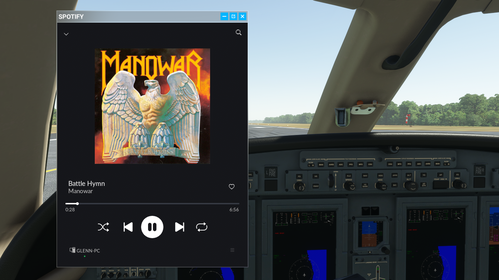
Ever dreamed of flying like a renegade, cranking up the tunes while you skim the clouds and push your plane to its limits? With FSRadio, that fantasy comes to life! Channel your inner Doug Masters from Iron Eagle as you plug in your virtual "Walkman" and hit play, blasting your favorite tracks while keeping your headset tuned to the cockpit. FSRadio transforms Microsoft Flight Simulator 2020 into the ultimate audio experience, seamlessly blending audio from local radio stations around the globe or your own Spotify playlists with your cockpit communications. Whether you're soaring over mountain ranges or cruising through bustling cities, FSRadio is fully VR compatible, immersing you in both the sounds and the sights of your journey. Who says flying has to be all business?
But it’s not all fun and games—FSRadio is loaded with powerful flight tools. Navigate the skies with a built-in GPS map, complete with customizable waypoints and real-time tracking. Planning your flight has never been easier. You can even set up waypoints on the fly and let FSRadio's heading bug follow your route, syncing up seamlessly with autopilot for a smooth journey. Need real-time weather updates? FSRadio has you covered. Access METAR reports at the click of a button, complete with text-to-speech support for hands-free flying, and overlay detailed weather data like pressure, wind, temperature, and precipitation with Open Weather Map integration. Plus, with Open AIP support, you'll get detailed navigation overlays, showing airports, airspaces, and navigation aids right on your GPS map. Best of all, these features can also be displayed on your Logitech® Pro-G Flight Instrument Panels (FIP), bringing your cockpit experience to the next level with fully interactive and customizable displays. You can also access all functions easily by assigning keyboard shortcuts or joystick buttons, allowing for complete control at your fingertips without ever leaving the cockpit. Whether you're plotting your course or checking the skies ahead, FSRadio ensures you're flying smarter, not just louder.
Features
- Display and listen to "local" radio stations as you fly around the world.
- Switch to "Spotify" mode to listen to your favorite tracks.
- Add and edit your own Internet radios streams.
- Enable "Radio Distance Failure Effect" to have the radio stream begin cutting out after it dips over the horizon. Based on aircraft alititue, transmitter altitude and a generic 2,000 ft. tower hight, as well considering atmospheric rarefaction.
- View your flight histories and what you were listening to.
- View the "Active Flights" to see where other users are and what they are listening to.
- Check out your top played songs and stations as well as the global top ten songs and stations.
- All knobs movable by left click and dragging or by using your mouse wheel.
- Easily add and recall favorites for both Spotify and radio stations.
- Change the button lighting colors.
- Easily manage running and closing with MSFS 2020 without locating and editing any XML files.
- Start playing the last station or Spotify song when you start your aircraft, just like your car does.
- Power is linked directly to the aircraft master battery switch.
- Pause music when entering menus.
- Use joystick buttons/sliders/rotaries/axes and hotkeys for most functions, including volume control.
- Support for Logitech Flight Instrument Panels.
- Logitech X56 controllers use the same button lighting color.
- GPS map with customizable waypoints. Heading bug for autopilot will follow your active waypoint.
- Open AIP support for airport, navigation aids, and airspaces overlays. An Open AIP Client ID is required. It is free at: Open AIP Clients Portal
- Open Weather Map support for pressure, wind, temperature, clouds, and precipitation overlays. An Open Weather Map API Token is required. It is free at: Open Weather API Keys
- Retrieve METAR for your current location. Includes text-to-speech support. An Aviation Weather API Token is required. It is free at: Aviation Weather API Keys
- Search locations and easily set waypoints between them.
- Text message between other FSRadio users.
- And much more...
Installing
- Download the latest installer package.
- Extract the contents to a location of your choosing.
- (Optional) Extract "gafware-ingamepanel-radio.zip"" into your MSFS 2020 Community folder. Note: If you skip this step and leave the zip file in the same folder as FSRadio.exe, FSRadio.exe will extract the zip file for you to your community folder. This option is for users who use a different location for their community files rather than the default location.
- (Optional) You will need to provide your own Spotify developer keys for Spotify to function. Run FSRadio and click on the Settings icon in the lower right corner. Note: This is optional. The radio will function without the need for Spotify. Spotify is just an added bonus.
- (Optional) Visit the Spotify Developer Dashboard to create or find your Spotify developer keys. Ensure that your Spotify application has a Redirect URI for http://localhost:51000 and http://localhost:51000/ (yes, you need one with and without the trailing slash). This URI is used to pass the Authentication Token from Spotify back to FSRadio.
Running
FSRadio will run in the system tray. Right click on the system tray icon to show or close the server application. Additionaly, you may double-click on the system tray icon to show it. FSRadio will pop up the first time it is launched. Subsequent launches of FSRadio will load minimized into the system tray. After entering your Spotify developer keys, FSRadio will open an embedded browser in order for you to authenticate and give permissions for it to pull information from your Spotify account. After that, refreshing the token should happen without any user intervention. If, for some reason, FSRadio is unable to get a token it will popup and show the embedded web browser. This usually occurs if you need to reauthenticate with Spotify, e.g., your Spotify password changed.
Updating
Click "Check For New Version" under the "Help" menu often to keep up to date.
F.A.Q.
Q. Do I still need Spotify installed?
A. Yes you do. The Spotify interface is simply a remote control that controls Spotify. If you want to hear Spotify in your headphones along with the MSFS 2020 game sound, you will need to have Spotify installed and running on the same computer.
Q. Why do I need to provide my Secret ID as well as my Client ID?
A. By default Spotify authentication will pass the authorization token back to your web browser via a URL hash. Because we can't authenticate from within MSFS, because of the aforementioned iFrame issue, we have to get the authentication from a URL parameter. Since URL hashes are not visible to the server we must provice the Secret ID so that Spotify passes the token back as a standard URL parameter.
Q. What port(s) does FSRadio use?
A. 2112 and 2113 for localhost (127.0.0.1) and 443 to the outside world (gafware.com).
Q. If I forward ports 2112 and 2113 from my router and open an incoming firewall rule, can an external browser access FSRadio?
A. No. Binding is to localhost (127.0.0.1) only.
Q. I am not seeing any radio stations no matter my location, even places like New York City.
A. Ensure you can connect to cloud.gafware.com on port 443. If you are using a VPN, ensure your VPN can connect to that port, otherwise, try disabling your VPN.
Q. My favorite streaming radio station is not listed. Can I add my own stations?
A. Yes you can. Simply right click on the list view and select "New Station..."
Q. Will other users see stations that I add?
A. No. Only you have access to the stations that you add, though I reserve the right to move them to the public list if I like them.
Q. If I delete a station, does that affect all users?
A. No. Adds, deletes, and updates only affect you.
Q. Can I use a base64 encoded image string for the station icon?
A. Absolutely! If there is one thing that I can't stand it is broken image links. This method elminates that issue.
Q. Can FSRadio start and stop playing when I start and stop my plane, like what happens when I start and stop my car?
A. Yes. You can enable those options in the settings.
Q. How do I close FSRadio?
A. By default closing FSRadio, either by right clicking the icon on the task bar or by clicking the X close button, will minimize FSRadio to the system tray. To actually force FSRadio to quit simply right click on the system tray icon and select "Exit." In addition, you can also enable FSRadio to automatically exit when MSFS 2020 shuts down.
Q. I installed FSRadio on a different computer and now I have lost all my favorites and custom stations.
A. You will need to copy your UserId out of the System Registry on the original computer and copy it into the System Registry on the new computer. The registry key is located at "Computer\HKEY_CURRENT_USER\Software\Gafware\FSRadio\UserId". I am not responsible for any unexpected problems that may arise from you editing your system registry.
FSRadio
Have you ever wanted to be so distracted that you fail to aviate, navigate and communicate? Well now you can plug your "Walkman" in-line with your headset just like Doug in Iron Eagle. With FSRadio you can display a VR compatibale Spotify in-game remote and Internet radio station controller (based on geo location) in Microsoft Flight Simulator 2020 toolbar panels.




Avis des utilisateurs
9 avis
Historique des versions
Added MSFS 2024 Steam support. Microsoft store version supported in previous version update. Added custom Community folder support.
Connectez-vous pour participer à la discussion
Se connecterCommentaires(118)
5 months ago
3 months ago
9 months ago
the call back URLs can no longer be http://localhost:{port}, and must be http://127.0.0.1:{port}
It sounds stupid but Spotify blocks it now.
https://developer.spotify.com/documentation/web-api/concepts/redirect_uri
9 months ago
9 months ago
Tried to set to 127.0.0.1 for all the urls at Spotify dev portal, but it did not help.
about 1 year ago
over 1 year ago
over 1 year ago
I use FSRadio 1.3.7 with MSFS 2024.
I did some testing and found that FSRadio 1.3.7 works perfectly when I change the region and language settings of Windows from German to US English.
After contacting the Author of FSRadio (Gafman) he found the source of the problem and fixed it with FSRadio 1.3.8. Now you should be able to use this great App while flying with MSFS 2000/2024 regardless what languge settings you use.
You could find the 1.3.8 Update here:
https://gafware.com/Home/Download
Thanks Gafman for your great support!
almost 2 years ago
almost 2 years ago
almost 2 years ago
almost 2 years ago
The Map and Spotify playback work beautifully.
To all fellow VR pilots: If you’re enjoying this app, please consider donating. Supporting talented developers like Gafman ensures continued improvements and shows our gratitude for their work. Even small contributions can make a big difference.
With this update, the app has become even better, and I highly recommend it to all VR enthusiasts!
Small issue: When I start playing internet radio and then switch to Spotify, I can’t seem to stop the radio, pressing pause on internet radio does not pause the music, which results in both audio streams playing simultaneously.
Request: Is there any way that I can access my personal Spotify playlists?
almost 2 years ago
All of your personal playlists should be available. That is the default mode for Spotify.
almost 2 years ago
almost 2 years ago
I got Spotify to work fine, but could not get any radiostations. I pinged gafware.com, but no reply so maybe that's the issue. I also tried to manually add stations for where I had the stream URL, but somehow the OK/add button was inactive.
almost 2 years ago
about 2 years ago
Two Stars for the Idea.
almost 2 years ago