
Description
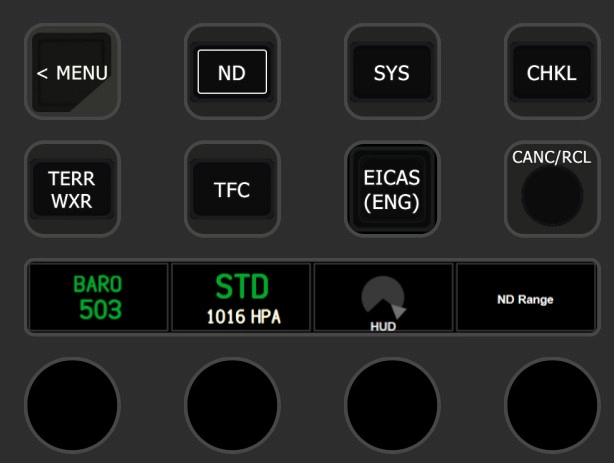
Here are the StreamDeck Profiles I created with my PilotsDeck Plugin for the WorkingTitle B787 Aircrafts (that means Stock, HorizonSim, Kuro, 4Simmers).
It contains Buttons & Switches from the Overhead, MIP/Glareshield, MCP, TCP and CDU (with Full Keyboard) to support normal Flight Operations! Including the GSX Menu on your StreamDeck and GSX Service Automations!
They are designed for my SD/XL/Plus Setup:
- MSFS-WT-B787 => The SD Profile which only has supplementary Functions: Changing Views, Monitoring/Calling GSX, UTC Clock and the TCP
- MSFS-WT-B787-Plus => SD+ Profile with mostly everything (possible) that makes Sense to control via the Encoders: MCP, EFIS, Display-Brightness, Lights
- MSFS-WT-B787-XL => The XL Profile with all Functionalities. Besides specific Folders for the different Panels/Areas it has Folders for the different Flight-Phases with the most critical/common Controls needed for that Phase.
That means you need at least the StreamDeck XL (or SD+) to get any Use out of it. Please don't ask for SD-Only Profiles - it just got too much to maintain. But you can still use the Plugin and the other Files from this Package to build your own SD Profile customized for your Needs!
The Profiles are for your own and private Usage. You are not allowed to republish / reupload them or any other Package-Content anywhere.
Some of Icons are from Guenseli's Icon Pack - Credits & Thanks to him!
Requirements & Setup
Requirements:
- You need to have at least Version 0.8.6 of my PilotsDeck Plugin installed & running. If you upgrade from a Version earlier than 0.8.0, I recommend to do a clean Installation:
- Make a Export of the Profiles you created with PilotsDeck
- Remove the Plugin via the Installer and then Install it again.
- The Profiles require the Fonts "Digital 7" and "Alte Din 1451 Mittelschrift" installed on your System - you can find them freely in the Internet
- The Profiles require the Font "Pilot" from the WorkingTitle Package - search for the File \"b78x.ttf\" in your Official Packages Folder!
Installation:
1) Open the Profile Manager App from the Plugin and drop the downloaded zip-File on the Arrow. Check the Readme for Details.
2) Hit Install and add the Profiles to the StreamDeck Software by the Link presented in the App (choose the correct Deck in the StreamDeck Software)
3) If you had the Profiles installed before (and did not rename them), the Profile Manager will automatically remove the old Profiles and rename the new Ones (removing the Copy from the Name)
4) For Upgraders: Remove the WT787_* and GSX_AUTO Lua Scripts from your FSUIPC7 Directory & Configuration.
Setting up the Views:
The Buttons to change Views are based on the vJoy Driver - you can only use these if you have installed that optional Plugin Dependency.
They are mapped to Custom Cameras in MSFS. Map the vJoy Buttons to the "Load Custom Camera" Bindings and Save/Create your Custom Cameras for the respective Button/View (CTRL + ALT + Number). If you already have Custom Cameras defined for the 787, map the vJoy Buttons accordingly and/or change the Mapping in the Profiles which Button is triggered.
The preconfigured Mappings are:
| vJoy Button# | Mapping in MSFS | Title in Profile |
| 1 | Load Custom Camera 1 | Captain |
| 2 | Load Custom Camera 2 | Overhead |
| 3 | Load Custom Camera 3 | Pedestal |
| 4 | Load Custom Camera 4 | MIP |
| 5 | Load Custom Camera 5 | CDU |
| 6 | Load Custom Camera 6 | EFB |
| 7 | Load Custom Camera 7 | Eng L (Passenger, front of Engine) |
| 8 | Load Custom Camera 8 | Eng R (Passenger, front of Engine) |
| 9 | Load Custom Camera 9 | Wing L (Passenger View, behind Wing) |
| 10 | Load Custom Camera 0 | Wing R (Passenger View, behind Wing) |
| 11 | Toggle External View | External |
| 12 | Toggle Cockpit View | Cockpit |
Usage
I hope/think most Buttons should be self-explanatory. They are generaly configured in such a way to trigger the most common Action in the respective Phase. If applicable, they have a long Press for Off, Reset or a second Key:
- For Example the Anti-Ice or Hydraulic Knobs have a Long-Press to turn them Off
- The MCP-Displays are also Buttons. The Speed Display for Example does Speed-Intervention on a normal Press and toggles between SPD/MACH on a Long-Press. On the SD+ that is split on the Encoder (Intervention) and the Touch-Display (SPD/MACH)
- The SD+ has different Pages. You can use the Buttons to navigate between them, or use the Swipe-Feature to go to the next / previous Page - for Example for a quick Switch from MCP to EFIS.
- In the TCP Folder on the SD: When you do a Long Press on the Frequency, the Display will switch to the Transponder and the LSK Key changes to enter the Transponder Number. Do a Long Press again to change back to display (and enter) the Frequency.
- In the TCP Folders on the XL: The Display will automatically switch to the VHF L Frequencies or Transponder when you press the VHF or XPDR TCP-Keys (on the StreamDeck)
GSX Menu & Automations
The included GSX Script allows you to use the GSX Menu from your StreamDeck. So please disable the GSX In-Game Menu (=Icon not white in the Toolbar), else the Menu will constantly pop-up.
In the GSX Folder (or SD Profiles's Main Page) you have an Action called "Smart Button" which shows the current Phase/State and automatically calls the "next" Service when pressed. Which Service that is will be displayed in Orange (if there is something to call). For Example you can use it to request Push-Back and after the Push-Back to confirm the Engine Start.
Note that this Script does also GSX Service Automations (like Fenix2GSX) - for the B787 (and other Aircrafts) all Automations except Reposition will be enabled (no Worries on the Fenix - it will disable the Automations there). To get a full Integration with Fuel- and Payload-Synch, you need to have my Tool WorkingTitle2GSX installed. It is not needed to use this Package - you can continue to instant-load the Aircraft via the CDU!
If you do not want that or want to choose which Automations to run, you can change the Settings per Session in the Script Settings Folder (XL only) or by holding the Smart Button for longer than 1s. To change the Defaults, either change them in the Script File -OR- (recommended) create a GSX-User Script to set your own Defaults (makes your Life easier on Updates).
For a more detailed Explanation, check the Description of the GSX Package!
GSX Flow
Just a short Summary:
- Refuel is called as soon as the NAV-Lights are on and Jetway/Stairs are connected
- Catering is called together with Refuel
- Boarding/Loading is called when Refuel is completed
- Stairs (only) will be removed after Boarding is finished
- Switching on the BEACON will remove Ground-Equipment (Attention: also Chocks and GPU, so watch out!)
- Start Push via the Smart-Button, Select the Direction in the Menu, Confirm Push with the Smart-Button
- On Arrival, pre-select your Gate
- As soon as the Engines are stopped, Brakes set and Beacon is off, Deboard/Unload is called
- After Deboard is finished, it will wait for 150s and then triggers GSX to reload SimBrief and calls Refuel again (Switch off the Nav-Lights to delay Refuel)
Dépendances
PilotsDeck/StreamDeck Profile for WorkingTitle B787
Customize your piloting experience with PilotsDeck/StreamDeck Profiles tailored for the Working Title B787 aircraft, offering a range of buttons, switches, and controls for various flight operations within the cockpit. Choose from different profile options designed for different StreamDeck setups to enhance your simulation immersion. Ensure you meet the requirements and follow the installation instructions to optimize the functionality of these profiles on your StreamDeck setup.

Avis des utilisateurs
1 avis
Historique des versions
- Updated the Profiles for PilotsDeck 0.8.6 (Font-Scaling-Issue) - GSX SmartButton can now be used to toggle Automation (hold for 1s) and the whole Script (hold for 3s)
Similaires
PilotsDeck - A StreamDeck Plugin
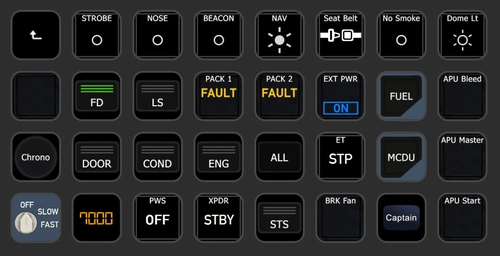
PilotsDeck is a StreamDeck plugin that offers the ability to trigger cockpit controls and display control states on your StreamDeck as text, images, or bars/arcs. It is open-source, free, and designed for advanced sim-users across major platforms like MS Flight Simulator, X-Plane, and Prepar3D. The plugin supports various StreamDeck models and simulates connections through FSUIPC or UDP sockets for seamless integration. With predefined profiles available for popular aircraft, PilotsDeck aims to streamline flight operations for a smoother and tailored flying experience.
par Fragtality
PilotsDeck/StreamDeck Profile for Fenix A320
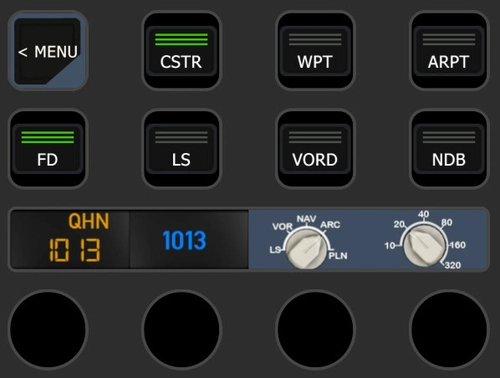
Customize your Fenix A320 experience with PilotsDeck/StreamDeck Profile featuring comprehensive controls for Overhead, MIP/Glareshield, Pedestal, FCU, MCDU, and DCDU. Choose between SD, SD+, and XL profiles designed for specific StreamDeck setups, enhancing your flight operations. Requirements include FSUIPC7, a registered copy of FSUIPC7, and Font installation, ensuring optimal performance with Fenix 2.0.0.407. Explore the detailed installation instructions and set up automatic Lua-Files for seamless integration into your flight simulator setup.
par Fragtality
PilotsDeck/StreamDeck Profile for GSX Pro & Any2GSX
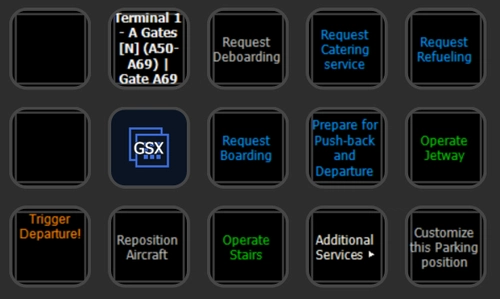
Full interactive GSX Menu on the StreamDeck! You can do everything now from your StreamDeck - the GSX In-Game Menu can be disabled in the Toolbar.
par Fragtality
PilotsDeck/StreamDeck Profile for FBW A32NX
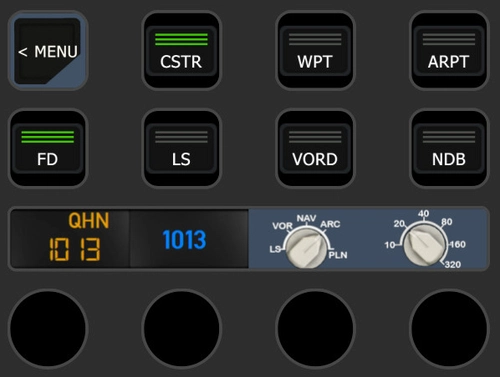
Enhance your piloting experience with PilotsDeck/StreamDeck Profile for FBW A32NX, featuring dedicated buttons for Overhead, MIP/Glareshield, Pedestal, FCU, and MCDU controls. Three profile options cater to different StreamDeck sizes, providing a comprehensive setup for normal flight operations. Custom images, Lua files, and detailed installation instructions are included, ensuring seamless integration with the FBW A32NX. Explore additional functionalities, such as automatic Lua script setup, custom camera mappings, and GSX menu integration for enhanced simulation realism.
par Fragtality
Connectez-vous pour participer à la discussion
Se connecterCommentaires9
BUT: There will be a Version in the Future that does not require FSUIPC anymore. Some of the Features are already in the Dev-Version of the Plugin (e.g. the Plugin now as an own Lua Engine), but that is currently undergoing a Rewrite - so it will still take some Time until I can redo my Profiles with all the new Stuff and Possibilities ;)
i have the latest FSUIPC and Stremdeck software.
Since I don't receive Notifications on Replies: I'll watch that Comment only for the next 24 Hours. After that use either GitHub or PM to contact me for Assistance (with a reasonable Description!)
Why is it that extracting Files and some lightweight Text-File editing is so complicated for you? (In the Context of a *free* Product and Usage of external Hardware with a Flight Simulator)