

Description
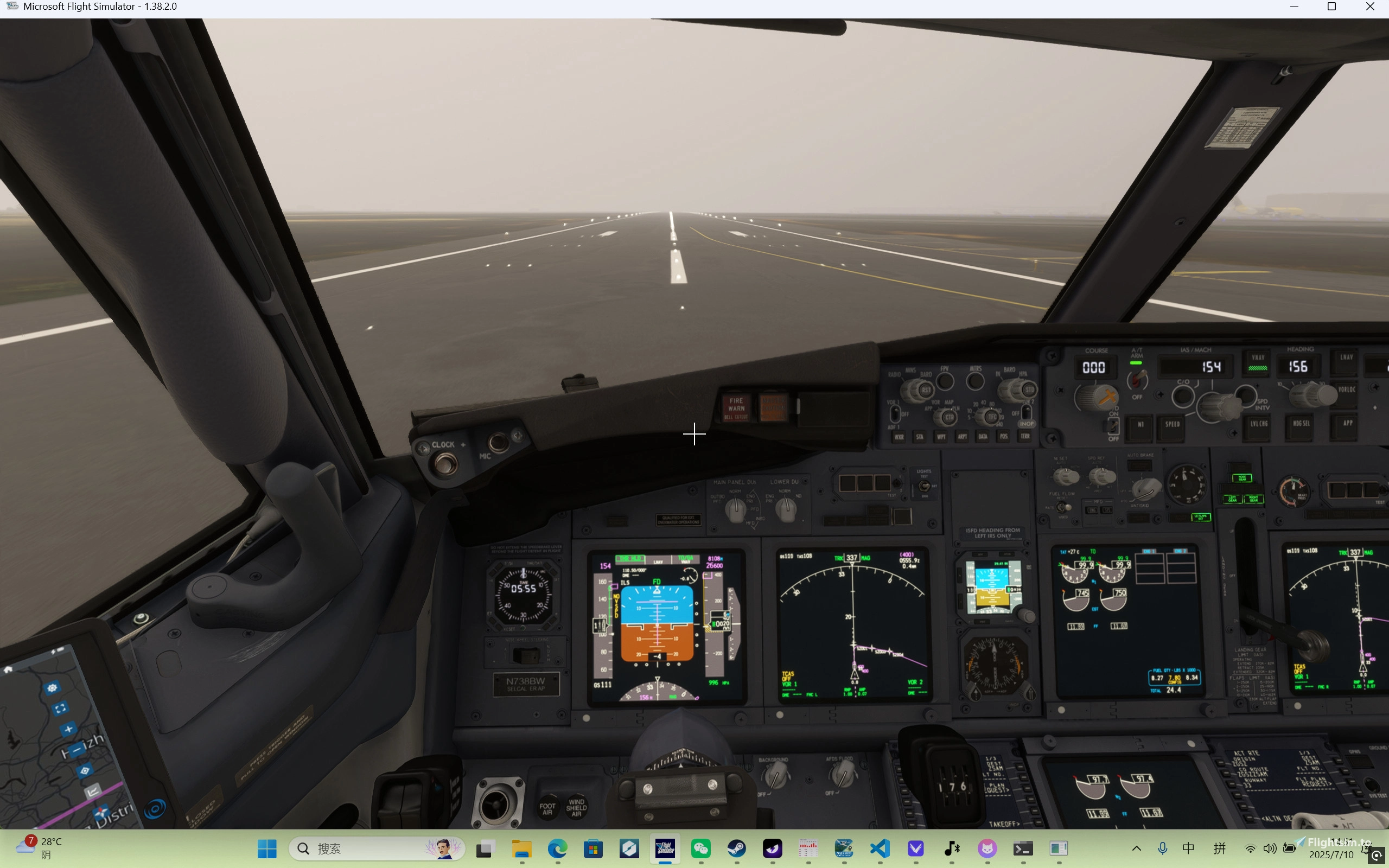
A tool that converts your mouse into a virtual joystick, designed specifically for Microsoft Flight Simulator (MSFS). Control aircraft pitch and roll intuitively by moving your mouse across the screen.
Github page:Weichenleeeee123/BetterMouseYoke-for-MSFS
Features
🎮 Core Features
Full-Screen Control Area - Use the entire screen as the joystick control area for maximum precision.
Adaptive Screen Size - Automatically detects and adapts to any screen resolution.
Real-Time Joystick Output - Converts mouse movements into standard joystick signals via the vJoy driver.
🔄 Intelligent State Management
Active Mode - Mouse controls the joystick, responding in real time.
Locked Mode - Joystick stays at a specified position, mouse moves freely.
Center Dead Zone - When locked near the screen center, the joystick automatically recenters.
Ground Rudder Mode (New)
Hold Left Mouse Button - In "Active Mode", hold the left mouse button to enter ground rudder mode.
Rudder Control - Horizontal mouse movement will exclusively control the rudder (Z-axis) for easy ground maneuvering.
Attitude Hold - Pitch and roll attitude will be locked at the current position when entering this mode.
Smooth Constraint - The mouse will be smoothly "snapped" to a horizontal line, providing a fluid single-axis control experience.
🎯 Visual Feedback
Center Crosshair - A white crosshair marks the screen center (joystick neutral position).
Locked Crosshair - A yellow crosshair shows the current locked joystick position.
Ground Rudder Axis - A cyan horizontal line is displayed in ground rudder mode, indicating the rudder control range.
Transparent Overlay - Does not interfere with other applications.
System Requirements
Required Software
Python 3.7+
vJoy Driver - Virtual joystick driver
Microsoft Flight Simulator or any other flight simulator supporting joystick input
Python Dependencies
PyQt5
pyautogui
keyboard
pyvjoy
Installation Steps
1. Install vJoy Driver
Download and install the vJoy driver
Run the vJoyConf.exe configuration tool
Enable at least one virtual joystick device (Device #1 recommended)
Ensure the device status shows "OK"
2. Install Python Dependencies(optional)
pip install PyQt5 pyautogui keyboard pyvjoy
3. Run the Program
Usage
Basic Operations
🔑 Hotkey Controls
Ctrl+F - Toggle between active and locked modes
ESC - Fully exit joystick mode
📱 Operation Flow
Start the Program - Run python main.py
Press Ctrl+F to Activate - Mouse jumps to the screen center, entering active mode.
Move the Mouse - Control the joystick by moving the mouse on the screen.
Hold Left Mouse Button - Enter ground rudder mode. The mouse is smoothly constrained to a horizontal line, and horizontal movement controls the rudder.
Release Left Mouse Button - Exit ground rudder mode and resume joystick control.
Press Ctrl+F to Lock - Lock the current joystick position, mouse regains free movement.
Press Ctrl+F to Reactivate - Mouse jumps back to the locked position, continue control.
Press ESC to Exit - Fully exit joystick mode and reset all statuses.
⚙️ Custom Configuration
Edit the config.py file to adjust these parameters:
# Dead zone parameters
DEAD_ZONE_FACTOR = 0.002 # General dead zone size
CENTER_DEAD_ZONE_FACTOR = 0.01 # Center dead zone size
# Visual styles
CENTER_CROSS_SIZE = 20 # Center crosshair size
LOCKED_CROSS_SIZE = 15 # Locked crosshair size
# Rudder control parameters
RUDDER_AXIS_WIDTH = 400 # Display width of the rudder axis on screen (pixels)
Technical Principles
Screen Center → Joystick neutral position (16384, 16384)
Screen Edge → Joystick maximum deflection (0-32767)
Proportional Mapping → Maintains aspect ratio to avoid control distortion
State Management
Inactive ──Ctrl+F──→ Active Mode ──Ctrl+F──→ Locked Mode
↑ │
└──────────Ctrl+F──────────────────┘
Any State ──ESC──→ Fully Exit
Mouse Smoothing (New)
Smoothing Algorithm - Uses a linear interpolation algorithm to smoothly guide the mouse towards the target horizontal line in the vertical direction.
Adjustable Strength - The smoothing_factor parameter allows adjusting the strength of the snapping effect for more natural mouse movement.
Common Issues
vJoy Device Not Found
vJoy initialization failed: No available vJoy device found
Solution:
Make sure vJoy driver is correctly installed
Run vJoyConf.exe and enable at least one device
Restart your computer
Check if the device is occupied by other programs
Program Unresponsive
Solution:
Check if antivirus software is blocking the keyboard hook
Run the program as Administrator
Ensure PyQt5 is properly installed
Joystick Control Inaccurate
Solution:
Adjust dead zone parameters in config.py
Check if screen resolution is detected correctly
Ensure the joystick settings are correct in MSFS
License
This project is licensed under the MIT License. See the LICENSE file for details.
Contributing
Issues and Pull Requests to improve this project are welcome!
Enjoy your flight experience! ✈️
BetterMouseYoke for MSFS
BetterMouseYoke is a utility that transforms your mouse into a virtual joystick within Microsoft Flight Simulator (MSFS). It allows for intuitive aircraft control by tracking mouse movements for pitch and roll. Key features include full-screen joystick control, adaptive screen size, and ground rudder mode. This add-on also offers real-time joystick output and visual feedback overlays to enhance user interaction.


Historique des versions
Aucun historique de version disponible.
Connectez-vous pour participer à la discussion
Se connecterCommentaires3