
Description
Ramp Status Monitor - GSX Ground Ops Dashboard
Stop guessing and start monitoring!
Note: This project was formerly known as GSX Reader. We have rebranded to Ramp Status Monitor (RSM) to better reflect the tool's evolution from a simple data utility into a comprehensive, EFB-style ground operations dashboard.
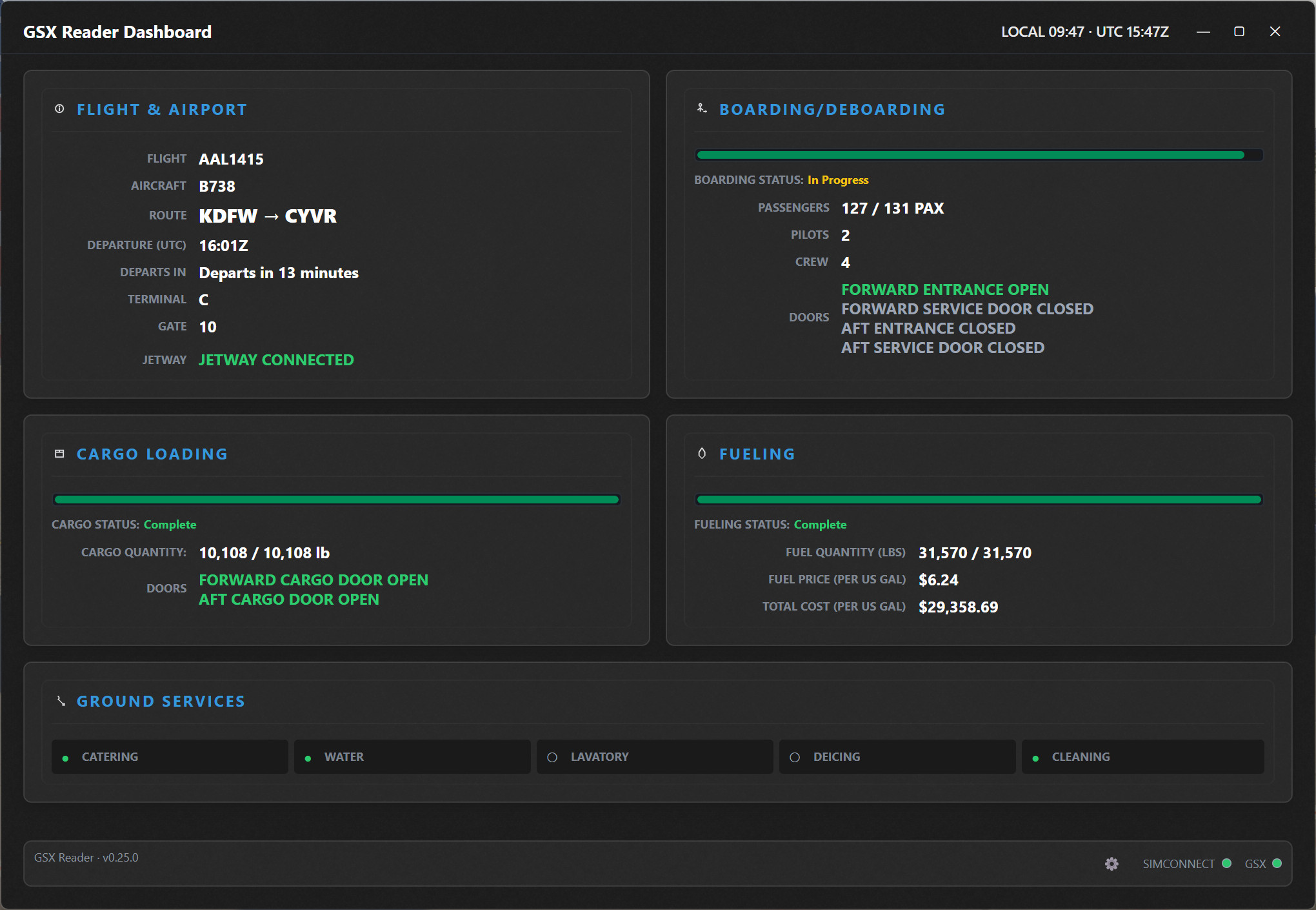
Ramp Status Monitor is a lightweight companion for MSFS that extracts real-time data from FSDT GSX Pro and transforms it into a clean, professional "Glass Cockpit" display. Designed to enhance immersion, RSM allows you to move the ground handling interface out of your simulator and onto a secondary monitor or tablet—just like a real-world turnaround display.
⚠️ WORK IN PROGRESS (WIP)
This application is in active development. Features are being refined regularly. Because RSM relies on GSX Lvars, performance and data accuracy are dependent on GSX stability and the specific aircraft profile being used.
🔥 TOP FEATURES:
Live Boarding Progress: Real-time counts for Pilots, Crew, and Passengers.
Cargo & Fuel Tracking: Monitor loaded weight and get a live ETA for fueling completion.
Tablet Mirroring: Turn any iPad, Android tablet, or Phone into a dedicated "Ground Ops" screen via your web browser—no extra app needed!
SimBrief Integration: Syncs with your OFP for accurate passenger and fuel targets.
Smart Indicators: Visual status for Doors, Catering, Lavatory, Deicing, and Jetway connectivity.
Connection Health: Real-time SimConnect and GSX status lights to ensure your data is live.
💻 REQUIREMENTS:
MSFS 2020 / 2024 & FSDT GSX Pro.
FSUIPC7 (Required for data communication).
.NET 8 Desktop Runtime: Download Here
🛠️ QUICK START GUIDE:
Ensure FSUIPC7 is running.
Launch RampStatusMonitor.exe.
Open the Settings menu and enter your SimBrief Username to sync your flight data.
Ensure GSX is active in your simulator to begin receiving data.
📱 HOW TO CONNECT A TABLET OR SECONDARY SCREEN:
RSM hosts a local web server (Default Port: 5050) to display the dashboard on other devices.
On the same PC: Open your browser and go to http://localhost:5050
On a Tablet or Phone:
Ensure your device is on the same Wi-Fi network as your PC.
Find your PC’s local IP address (Open Command Prompt, type ipconfig, and look for "IPv4 Address"—e.g., 192.168.1.50).
On your tablet's browser, enter: http://[YOUR-IP]:5050
Note: You can change the port in the settings menu if 5050 is already in use.
🔍 WHY USE THIS?
While GSX provides data in its own menu, that overlay can clutter your cockpit view. Ramp Status Monitor is designed for pilots who want a more immersive "EFB-style" experience. By moving the ground handling data to a dedicated screen, you can monitor your boarding and fueling while focusing on your pre-flight checklists and FMC programming.
🔍 TROUBLESHOOTING:
Connection Failed on Tablet: Ensure you have allowed the port (5050) through your Windows Firewall.
Data Not Updating: Verify that the SIMCONNECT and GSX indicators in the bottom right are green.
Missing SimBrief Data: Ensure your SimBrief OFP is generated for your current flight and your username is correctly entered in Settings.
Aircraft Compatibility: Some 3rd party aircraft use custom door logic; RSM works best when the aircraft is properly configured for GSX Pro.
☕ SUPPORT THE PROJECT:
Developing and maintaining this tool takes significant time. If you find it useful, please consider leaving a 5-star rating! It helps the project gain visibility in the community.
Special thanks to the community and fellow developers for the feedback that helped shape this rebranding!
Ramp Status Monitor - GSX Ground Ops Dashboard
Ramp Status Monitor (formerly GSX Reader) is a professional real-time dashboard for GSX Pro. Track boarding, fueling ETAs, and cargo progress in one immersive "Glass Cockpit" display. Mirror the dashboard to any tablet or phone via your web browser for a dedicated "Ground Ops" screen. Featuring SimBrief integration and live status indicators, it's the perfect companion for a realistic and organized turnaround experience in MSFS.


Avis des utilisateurs
3 avis
Historique des versions
Version 1.0.2 (6 February 2026) Arrival / deboarding display — On arrival, the Boarding and Cargo cards now empty out as deboarding progresses. Progress bars and counts go from full (100%) down to empty (0%) as passengers and cargo are unloaded. You’ll see remaining passengers and remaining cargo weight instead of everything staying “full” after landing. Cargo card behavior — Fixed a bug where the Cargo card could show wrong completion or weight. The card now correctly uses the baggage service data so completion and total weight stay accurate. Version 1.0.1 (28 January 2026) Version display — The app and installer now show a single, consistent version number. Settings – diagnostics — You can turn diagnostics and verbose logging on or off in Settings. Choices are saved in your config. You can still override with environment variables if you use them. Settings – logs — Added “Open log folder” and “Clear logs” in Settings. Logs are stored in %LOCALAPPDATA%\GSXReader\Logs. Settings – tablet mirror — The mirror (tablet) server port can be set in Settings (default 5050). If you change it, you’ll be asked to restart the app for it to take effect. Version 1.0.0 (28 January 2026) Initial release. Card-based dashboard: Flight & Airport, Boarding, Cargo, Fuel, and ground services (Catering, Water, Lavatory, Deicing, Cleaning, Baggage, Jetway, Pushback). Optional tablet mirror (HTTP server, default port 5050). Optional SimBrief integration (username in config). Config file: %LOCALAPPDATA%\GSXReader\config.json.
Connectez-vous pour participer à la discussion
Se connecterCommentaires(45)