
Description
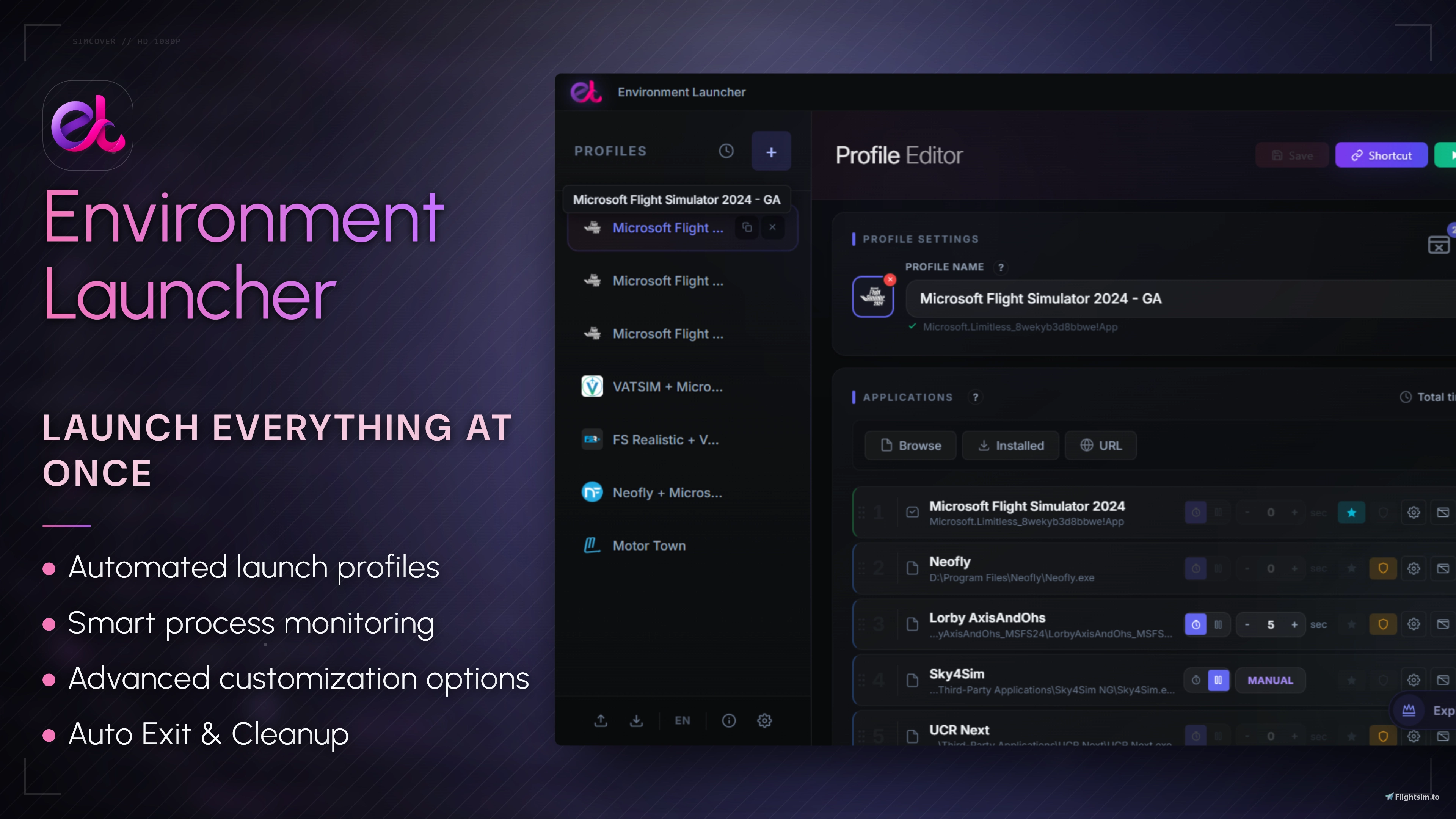
Environment Launcher
A desktop utility designed to automate launching companion apps and tools for flight simulators. Built with Microsoft Flight Simulator 2024 in mind (though it works with any game), it lets you prepare your entire system for a flight with a single click. You can run profiles directly from the app or via desktop shortcuts.
Why I built it
Anyone who flies in MSFS with add-ons like FSUIPC, Navigraph, SimToolkitPro, Volanta, or SPAD.neXt knows the drill: before every single flight, you have to manually click through a dozen background apps. Environment Launcher solves this by launching everything automatically, in the correct order, and based on your custom rules.
Key Features
- Launch Profiles: Create separate app groups for different aircraft types, networks, or flight scenarios.
- Configurable Delays: Set custom pauses between launches to prevent your CPU from spiking.
- CPU Priority Control: Assign specific processor priorities to individual apps within a profile.
- URL Integration: Automatically open required web pages, charts, or flight planners in your default browser.
- Smart Process Monitoring: Detects when the simulator starts and can automatically close all companion apps when you exit the game.
- Resource Recovery: Temporarily shut down unnecessary background programs when a profile starts, and restore them once your flight is over.
- Desktop Shortcuts: Generate direct shortcuts to launch specific profiles without opening the main app window.
- Quick App Toggling: Temporarily disable individual apps in a profile without deleting them from the list.
- MS Store & Xbox Detection: Automatically detects installed Microsoft Store apps and games, including MSFS.
- Intelligent Path Recovery: If an app changes its location after an update, the launcher will attempt to find the new directory and automatically fix the path in your profile.
- Import / Export: Easily backup or share your profiles as JSON files.
- Single UAC Prompt: Requires only one administrator elevation request, even if you are launching multiple apps that need admin rights.
- Lightweight Build: Takes up less than 10 MB on your drive. There are no bloated libraries or telemetry scripts, the app uses virtually zero resources, leaving 100% of your hardware performance for the simulator.
Not Just for Flight Simulation
While designed around MSFS, the launcher works with any combination of Windows applications. It is just as useful for simracing, VR setups, streaming workflows, or software development environments.
How It Works
- Create a profile.
- Add your applications or URLs.
- Set your preferred delays and CPU priorities.
- Launch the profile or run it via a desktop shortcut. Everything starts exactly how you configured it.
Environment Launcher PRO & Plugins
To keep the freeware version as lightweight and clean as possible, advanced and niche functionalities are separated into a modular plugin system exclusive to Environment Launcher PRO.
PRO Features Include:
- Modular Plugin Support: Expand the launcher with specialized add-ons (including an Audio Switcher, Advanced USB Manager, Custom Script Libraries, SimConnect Connection Tracking, and MSFS Cache Cleaner) via a 1-click in-app gallery.
- Shape the Development: PRO users can request specific niche tools. We regularly build and add these as downloadable plugins, ensuring the core app remains 100% clean.
Explore Available Plugins: https://plugins.kscodelabs.com/
Get Environment Launcher PRO: https://www.kscodelabs.com/
Discord: https://discord.com/invite/TcJvWnH35s
Note: The freeware version on Flightsim.to remains fully functional, zero-impact, and will continue to receive core updates and technical support.
Environment Launcher - Start MSFS with all your apps in one click
Environment Launcher is a desktop utility designed to simplify the launch of Microsoft Flight Simulator 2024 and its associated tools. This application allows users to create custom launch profiles that enable the simultaneous startup of essential software with a single click. Key features include configurable launch delays, process monitoring, and the ability to generate desktop shortcuts for quick access. While optimized for flight simulation, the Environment Launcher can also be utilized for any combination of Windows applications.


Avis des utilisateurs
12 avis
Historique des versions
NEW: First-run onboarding guide: Added an introductory guide displayed on the initial launch, covering key UI elements and core launcher navigation. NEW: Profile launch interrupt & quick abort hotkey: Added a configurable hotkey in settings allowing users to immediately abort an ongoing profile launch sequence or terminate running profiles on the fly. NEW: Real-time process priority option: Added an optional "Real-time" priority setting for individual profile apps. Marked as not recommended, as it can cause significant performance penalties on certain configurations and requires launching the profile with administrator privileges (use at your own discretion). CHANGED: Pop-up dialog scaling: Improved the pop-up modal system introduced in the previous release. Modals now scale dynamically to properly match the user-selected interface size. CHANGED: Tooltips architecture: Migrated tooltips to use a unified global class, resolving index calculation mismatches and incorrect rendering behavior. CHANGED: Watchdog engine stability: Reworked the core watchdog monitoring routines to improve tracking stability during non-standard application execution sequences within profiles. CHANGED: Steam icon generation: Steam shortcuts with transparent icons now properly preserve transparency during extraction instead of defaulting to a black background. CHANGED: Mutual exclusion for launch dialogs: Opening the "Close on Launch" or "Auto-Close" configuration modals will now automatically dismiss the other, preventing overlapping windows. CHANGED: Profile Editor unsaved changes guard: Closing the application directly via the Windows taskbar preview ("X" button) while the Profile Editor has pending edits will now trigger a confirmation prompt before exit. FIXED: Quick Exit app exclusion checkbox: Resolved an issue where checking "Don't show for this application" in the Quick Exit dialog failed to persist correctly. FIXED: Admin shortcut update check bypass: Fixed a bug that skipped checking for available application updates when launching a profile from a desktop shortcut requiring UAC elevation.
Similaires
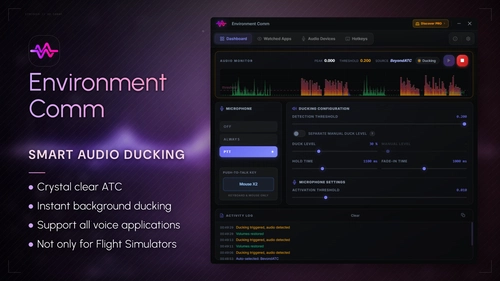
Environment Comm - Hear the Voice, Not the Roar
Environment Comm is an innovative audio management tool designed for flight simulation enthusiasts. It intelligently prioritizes air traffic control communications by automatically lowering background sounds from programs like Spotify, YouTube, and Discord when ATC is speaking. Featuring universal compatibility with various radio clients and ultra-lightweight performance, it aims to enhance immersion without compromising system performance. The application offers multiple setup methods to ensure seamless integration with your audio environment.
par Crisko
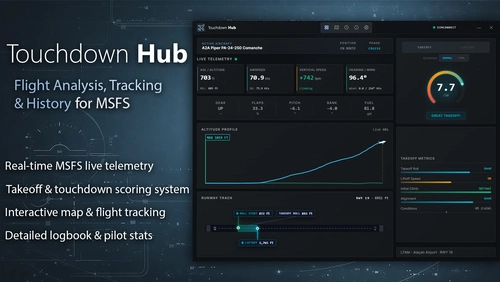
Touchdown Hub - Explore the world, refine your landings, and build your flight history in MSFS
Touchdown Hub is a companion application for Microsoft Flight Simulator that automatically evaluates takeoffs and landings while tracking detailed flight data. Pilots can build an interactive map documenting visited airports and review landing histories for each location. The app provides full approach, takeoff charts, and tailored scoring for different flight types, supporting skill improvement and consistency. Flight data is logged seamlessly, with filtering and rating features to review and assess pilot performance.
par KSCode
Connectez-vous pour participer à la discussion
Se connecterCommentaires(93)
about 7 hours ago
about 1 month ago
Is the proper FSLTL minimization featured in this latest update v1.4.0.0?....does it require the pro version?
Cheers, Ross
about 1 month ago
Yes, the updated Auto Minimize plugin is live alongside v1.4.0.0 and properly handles the FSLTL injector.
As plugins are part of the plugin ecosystem, it does require the Pro version.
Just remember the note from earlier: because of how Windows and the injector spawn, you will still see a split-second flash of the window appearing before the plugin hooks and collapses it to the taskbar.
Let me know if you have any questions or need any help with anything!
about 2 months ago
about 2 months ago
It works as a standalone, universal process manager completely independent of MSFS (in fact, you can use it to automate setups for any game or application). Anything you already have configured in exe.xml will continue to boot through MSFS exactly as it always did.
The only key detail to keep in mind when setting up your profile is to make sure your main game (in this case MSFS) is added to the app list inside the Profile Editor and marked as the Primary App (the turquoise star icon). That tells EL which process is the core application for session tracking and shutdown triggers.
2 months ago
Look forward to the update 1.3.0.6!
I may still consider the Pro version for extra features & supporting your development of such a useful product!
Cheers
2 months ago
Glad the explanation helped. Working hard to get 1.3.0.6 polished and out soon. If you ever have any questions or run into anything once you set it up, feel free to give me a shout here. Cheers!
2 months ago
Currently I have the 'silent mode' enabled but when the injector starts which I've set to run after 240sec so that the sim is running ....it starts with a window over the top of the sim. Thanks
2 months ago
To be completely upfront: if your decision to buy the Pro version depends strictly on this one feature right now, you should probably wait until the next update.
The FSLTL injector behaves quite differently from standard desktop windows, and the current minimization plugin simply struggles to handle it reliably.
I have already rewritten this plugin from scratch on the new native architecture, and the updated build handles FSLTL properly. However, it requires core engine changes that will only roll out with version 1.3.0.6 (planned around the end of the month / early next month), so it cannot be available for 1.3.0.5.
A couple of things to keep in mind once it's out:
Window flash: Windows apps rarely support launching in a pre-minimized state natively unless the original dev built it that way. The plugin catches the window and minimizes it within a split second of launch, so you will still see a brief flash of the window before it collapses.
Better alternative to delays: In the Pro version, you won't even need that arbitrary 240-second delay. You can use the SimConnect Wait plugin, which acts as an automated gate, holding applications startup until MSFS reaches the Main Menu or until your aircraft is fully loaded on the tarmac.
If you find other Pro features useful, you're more than welcome to upgrade now, knowing the proper FSLTL minimization is coming in 1.3.0.6. But if this specific injector behavior is all you care about, feel free to hold off until the next release rolls out!
2 months ago
Is it maybe because this script works in dynamic mode needing included MSFS 2024 in the profil ?
2 months ago
Environment Launcher is built as a universal launcher, a lot of people use it for regular games, productivity tools, or coding setups that have nothing to do with flight simulation. From a UX perspective, forcing MSFS-specific icons and tools into every single profile would clutter the interface and confuse users who don't even fly. Because of that, MSFS-dedicated plugins stay hidden until the simulator itself is actually part of the profile.
If you want to use the MSFS Cache Cleaner inside an update profile without actually running the simulator, there's a very simple workaround:
Add Microsoft Flight Simulator 2024 to your profile's application list (this immediately activates the MSFS context and makes the trash bin icon appear in the top bar).
On the MSFS entry in the list, click the Disable icon (the crossed-out box icon, second from the right).
That way, the profile recognizes MSFS is linked to it, keeping the Cache Cleaner active, but it will skip launching the simulator entirely when you run that profile.
2 months ago
sorry for this question about your answer (due to the fact that my English is not fluent)
"For now, just look for the trash bin icon in the Profile Settings bar at the top of your MSFS 2024 profile, click it, and configure your cache settings from the popup menu"
i don't see a trash bin icon in the opened profil
here a EL screenshot with my "02 MSFS 2024 ADDON UPDATE" profil
Regards
Thierry
2 months ago
Another question for you
Sorry to disturb you , but i don't understand how to use "Extensions" and how it could work in a profil script
I install all your extensions , i flag them in "blue" and they have a mention "Profil" below the title
For example , i want to include "MSFS Cache Cleaner" in my profil script "Start MSFS 2024".
but in the meantime without any intervention of myself, i see now that the "Launch Progress" extension start automatically when i launch any profil
can i have some information about the "Extensions" usage
Regards
Thierry
2 months ago
Plugins aren't standard scripts that you manually add to your profile's application list. Instead, they seamlessly integrate new capabilities into the app just like native core features. Because each plugin is designed for a completely different purpose, there is no single pattern for how they appear:
Profile Settings icons with config menus: Plugins like MSFS Cache Cleaner add a trash bin icon into the top Profile Settings row. Clicking that trash icon opens the plugin's configuration menu, where you can customize its behavior and choose whether it should run only for that specific profile or globally for all MSFS profiles. Other plugins there (like USB managers) work similarly with their own menus.
Contextual elements in the application list: Some plugins, like SimConnect Wait, actually insert a specialized step/gate directly into the profile's app list.
Dynamic triggers: Certain MSFS-specific options only appear if Microsoft Flight Simulator is actually detected inside that profile. If MSFS isn't in the list, the related icons won't show up.
Global UI tools: Extensions like Toggle Theme inject controls into the bottom-left global toolbar.
Automatic background services: Plugins like Launch Progress have no buttons or menus at all. Once installed, they simply run automatically in the background whenever any profile is launched.
I have been planning to create a dedicated Knowledge Base on Discord documenting every single plugin and how to configure it. However, many plugins are still actively evolving based on community feedback, so writing full documentation right now would create a ton of rework. Once the ecosystem matures and features settle down, I'll definitely put together a proper guide.
For now, just look for the trash bin icon in the Profile Settings bar at the top of your MSFS 2024 profile, click it, and configure your cache settings from the popup menu!
2 months ago
Great GSX Pro Update script that accelerate time of script execution if no update in needed
2 months ago
I originally wrote it for my own setup because keeping GSX Pro up to date without wasting time was getting annoying. It would be great if the devs eventually added a proper update check mechanism to their installer, rather than running a full reinstall every single time even when the version hasn't changed. Cheers!