
Description
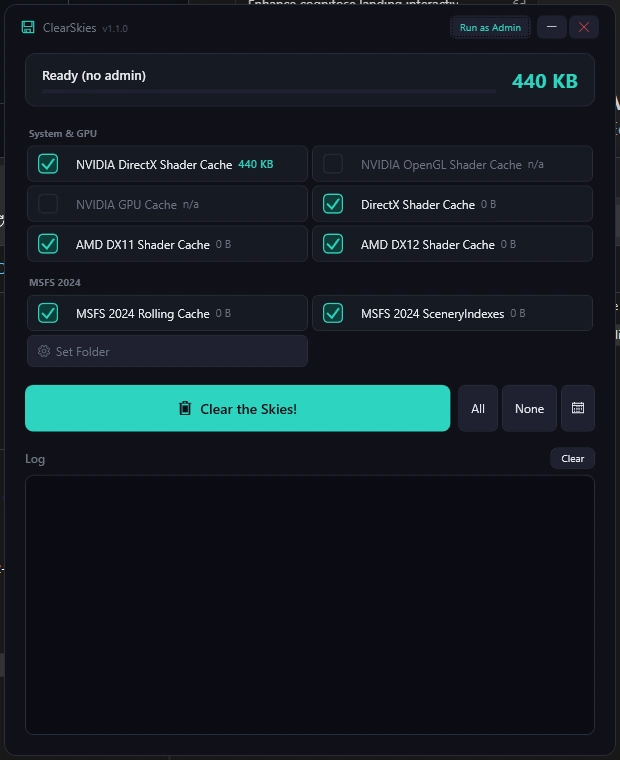
A native, Open Source, Windows application to clean NVIDIA, AMD, and DirectX shader caches, as well as Microsoft Flight Simulator rolling cache data.
GitHub Repository: purcilas/ClearSkies
Disclaimer: This software is provided "as is", without warranty of any kind. Use it at your own risk. The author is not responsible for any data loss, system issues, or other damages that may result from using this application. Always ensure important data is backed up before performing any cleanup operations.
Features
-
Multi-Cache Support: Cleans multiple shader cache types:
- NVIDIA DirectX Shader Cache
- NVIDIA OpenGL Shader Cache
- NVIDIA GPU Cache
- DirectX Shader Cache (D3DSCache)
- AMD Shader Caches (DX11 & DX12)
-
MSFS Auto-Detection: Automatically detects MSFS 2020 and 2024 installations (Steam and MS Store)
- Rolling Cache (.ccc files) cleanup
- SceneryIndexes cleanup (fixes missing scenery and reduces load times)
- Manual folder picker available as fallback
-
Cache Size Display: Shows the size of each cache before cleaning
-
Selective Cleaning: Choose which caches to clean with checkboxes
-
Live Deletion Log: Real-time log showing exactly which files are being deleted
- See every file removed during cleanup
- Track skipped files (locked/in-use)
- View summary statistics
-
Locked File Handling: Files in use are automatically scheduled for deletion on the next system restart (requires Administrator)
-
Automatic Scheduling: Set up automatic cache cleaning using Windows Task Scheduler
- Daily, Weekly, or Monthly schedules
- Custom time selection
Requirements
- Windows 10/11
- Administrator privileges recommended (for locked file handling and scheduling)
Installation
- Download the latest release
- Extract to a folder of your choice
- Run
ClearSkies.exe
Usage
Manual Cleaning
- Launch the application
- Caches are automatically scanned on launch
- Select the caches you want to clean (or use All/None buttons)
- Click "Clear the Skies!" to remove the cached files
- Confirm the deletion when prompted
- Watch the live log at the bottom to see which files are being deleted in real-time
MSFS Cache
MSFS 2020 and 2024 installations are automatically detected (both Steam and MS Store versions). The app will find and display:
- Rolling Cache — large .ccc cache files
- SceneryIndexes — scenery index data that can become corrupted
If auto-detection doesn't find your installation, use "Set Folder" to manually select the MSFS cache directory.
Scheduled Cleaning
- Click the "Schedule..." button
- Enable "Enable Automatic Cache Cleaning"
- Choose frequency (Daily, Weekly, or Monthly)
- Set the time for automatic cleaning
- Click "Apply"
Note: Creating scheduled tasks requires Administrator privileges.
Command Line
The application supports silent cleaning via command line:
ClearSkies.exe /clean
This is used by the Task Scheduler for automatic cleaning.
Why Clean Shader Caches?
Shader caches can accumulate over time and consume significant disk space. Cleaning them can:
- Free up disk space (often several GB)
- Resolve graphics issues or corruption
- Improve game performance in some cases
- Prepare for major game updates
Games will automatically rebuild shader caches as needed, so it's safe to delete them.
Building from Source
Prerequisites
- Visual Studio 2022 or later
- .NET 8.0 SDK
Build
cd ClearSkies
dotnet build
Publish (single-file exe)
dotnet publish -c Release -r win-x64 --self-contained true
Troubleshooting
"Not running as Administrator" warning:
- Some caches require admin rights to access
- Right-click the app and select "Run as Administrator"
Some files won't delete:
- Files in use by running applications are skipped
- When running as Administrator, locked files are scheduled for deletion on reboot
- Close graphics-intensive applications before cleaning for best results
License
This project is licensed under the MIT License.
ClearSkies
ClearSkiesA native, Open Source, Windows application to clean NVIDIA, AMD, and DirectX shader caches, as well as Microsoft Flight Simulator rolling cache data.GitHub Repository: purcilas/ClearSkiesDis


Avis des utilisateurs
14 avis
Historique des versions
v1.1.2 Thanks for the feedback on 1.1.1. This update fixes the two biggest complaints and keeps the safety fixes. Fixed - MSFS installs moved to another drive work again. If you moved your sim with a folder link or junction, 1.1.1 showed 0 bytes and SceneryIndexes and the rolling cache would not clear ("Linked cache folders are not supported"). They work again, like they did in 1.1.0. - A manually selected rolling cache folder works again when it is reached through a link. - If your saved manual cache folder is no longer valid, you now get one warning and it is cleared. Before, the warning appeared every time you opened the app. Changed - Removed the NVIDIA popup that appeared every time you cleaned. The "NVIDIA App instructions" button is still there if you want it. Safety (still in place) - Manual cleanup only ever deletes ROLLINGCACHE.CCC, never anything else in the folder. - Linked folders inside a cache are never followed or deleted. - ClearSkies will not clean a cache folder that actually points to your drive, user folders (Documents, Desktop, Downloads, OneDrive), Windows, Program Files, your Community or Official folder, or your MSFS install. How to update Close ClearSkies and replace your old ClearSkies.exe with the new one. You don't need to install .NET separately.
Connectez-vous pour participer à la discussion
Se connecterCommentaires(39)
about 5 hours ago
1 day ago
2 days ago
8 days ago
3 days ago
20 days ago
20 days ago
19 days ago
21 days ago
20 days ago
about 2 months ago
21 days ago
about 2 months ago
But I’ve noticed that every time I use Clear Skies, the MSFS 2024 Rolling Cache gets reset to 16 GB. I normally have it set to 64 GB, so I have to manually change it back to 64 GB after running Clear Skies.
Is there a setting in Clear Skies that I can change so that the Rolling Cache remains at 64 GB instead of being reset to 16 GB?
21 days ago
21 days ago
about 2 months ago
"MsfsCachePath": "G:\\Documents"
}
Donc en fait je ne sais pas comment cette ligne soit créée dans le setting de Clearskys et apparamment il n'aurait touché que mon dossier Document. Heureusement que j'ai fait la dernière sauvegarde il y a 2 jours. Donc vérifiez votre setting sanchant que pour ma part j'avais mis en place la programmation automatique qui ne se fait qu'en mode Administrateur.
j'ai refais l'expérience en supprimant ce fichier settings donc en laissant par défaut et là pas de problème. Donc c'est en voulant indiquer le chemin en manuel qu'il créer ce fichier settings mais ce chemin "Documents" je ne lui ai jamais indiqué puisque vous cliquez sur le dossier c:\Users\Administrateur.MATRIX\AppData\Local\Packages\Microsoft.Limitless_8wekyb3d8bbwe\. Bref ! c'est très curieux.
Suite...J'ai refais la manip suivante, je lui ai indiqué en manuel le chemin que j'ai mentionné ci dessus qui est le dossier Microsoft.Limitless_8wekyb3d8bbwe\ or là c'est très grave ! Il supprime tout le contenu de ce dossier ! La question que je me pose une question en mode par défaut, quel dossier prend t-il ? DONC RESTER PAR DEFAUT ! Et ne lui indiquer pas un chemin !
21 days ago
Il s’agissait bien d’un problème réel, même si j’avais déjà intégré plusieurs protections dans le code pour éviter ce type de situation. Malheureusement, ce cas particulier n’était pas correctement pris en compte.
Le problème est maintenant corrigé et une nouvelle version a été mise en ligne.
Merci encore pour votre retour et pour avoir pris le temps de le signaler.
about 2 months ago
21 days ago
2 months ago