
Description
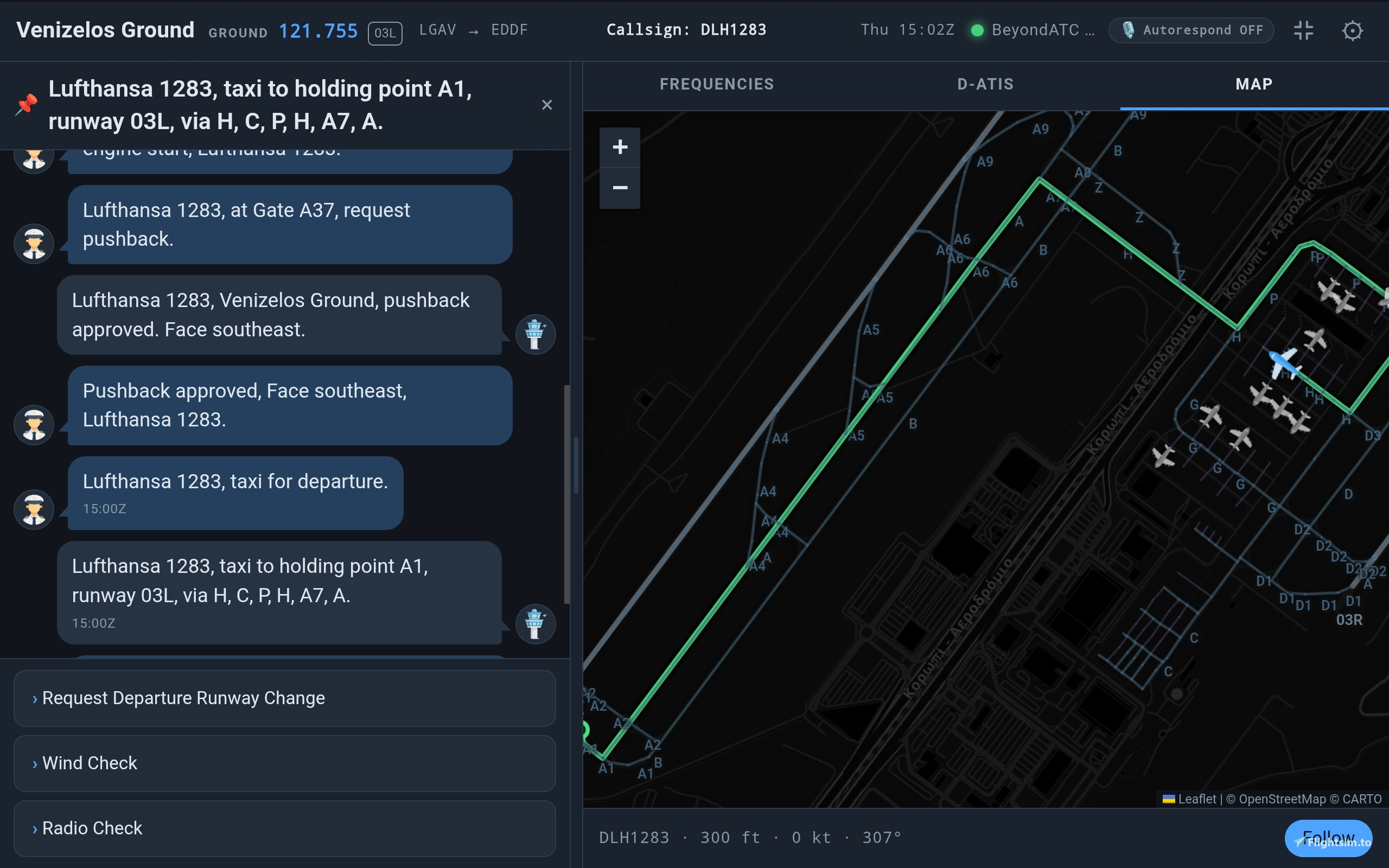
Follow your ATC conversation, change frequencies, answer ATC, request clearances or alterations to your flight, check the weather with D-ATIS, and watch a moving map of your aircraft and the traffic around it — all from your phone or tablet, right next to your flight, without leaning over to read the in-sim toolbar.
Disclaimer:
Click to expand
This is an unofficial, independently developed tool and is not affiliated with, endorsed, or supported by Skirmish Mode Games or the BeyondATC team.
All credit for BeyondATC itself goes to its own developer — Skirmish Mode Games — this app just gives it a second screen.
Support for this app does not come from BeyondATC. Please don't ask about it in BeyondATC's Discord or through any of their other channels — for help, bugs, or questions about this app specifically, use flightsim.to (or wherever you downloaded it) instead.
BeyondATC can update and/or change their app at any time without this app in mind, and a change on their end can break this app until it's updated to match. If that happens, please be patient while it gets fixed, if that is possible.
What it does
Once it's running, any phone, tablet or laptop on your Wi-Fi can open a page that shows, live, as you fly:
- The full ATC conversation, laid out like a chat log
- Every frequency for the station you're at, and the one you're tuned to
- D-ATIS
- A moving map of your aircraft, the trail of where you've been, and nearby traffic
- The airport laid out underneath it — taxiways, runways and stands, with their names — read from your own simulator, so it matches the scenery you have installed
- The taxi route ATC just cleared you for, drawn along the taxiways they actually named
- The same action buttons as the in-game toolbar for answering ATC — requests, confirmations and the like, changing with the situation (for example "Request pushback," "Wilco," "Radio Check") — tap one on your phone and it fires exactly as if you'd clicked it in the app
- GSX Pro remote control (If GSX is installed), for easier and quicker ground control calls.
- Fenix Aircrafts EFB and MCDU on the mobile device/tablet (Tested with A320).
You keep flying MSFS and BeyondATC exactly as you always have. This app doesn't change anything about how BeyondATC behaves — it mirrors what it's already telling you onto a second screen, and reads the airport layout from the simulator itself.
How it works, in short
batc-bridge.exe runs quietly in the background on your gaming PC (a small window, or just an icon in the notification area). While it's running, it makes a small web page available to any device on your home network — no app to install on the phone, just a normal web browser. You open that page once by scanning a QR code, and it stays open like any other tab.
Taxi route (beta)
BeyondATC gives the taxi instruction in words, not as a route. The line on the map is this app's own interpretation: it reads the taxiway layout from your simulator and follows the taxiways ATC named. It can be wrong at airports it hasn't met, and it may break if BeyondATC changes its phrasing. Treat it as a reading aid, not your clearance — and please report any route that looks wrong along with the airport and instruction.
Getting started
- Make sure MSFS and BeyondATC are running.
- Double-click
batc-bridge.exe. It starts serving automatically — you don't need to press anything. - On your phone or tablet (connected to the same Wi-Fi as the gaming PC), open your camera or a QR scanner and point it at the code shown in the window, under "Use this one." Or just type the address shown next to it into your browser.
- That's it — the page opens and starts following the flight.
The window can be left open, minimized to the taskbar, or (see Settings below) tucked away in the notification area. As long as it's running, your devices stay connected.
The first-time certificate warning
The first time you open the address, your phone's browser will likely warn you that the connection "isn't private" or the certificate isn't trusted. This is expected — choose Advanced, then Proceed (wording varies by browser). It only asks once; after that it remembers.
Why this happens: this app issues its own security certificate so that your phone's screen can be kept awake while you fly (see below). Because that certificate isn't the kind an outside website would buy from a public authority, the browser can't fully vouch for it — even though the connection never leaves your own home network. It's safe to proceed.
Why the secure address matters (the "Keep screen awake" setting)
Browsers only allow a web page to keep your screen from locking when the page was loaded over a secure address (the kind starting https:// rather than http://). Without it, your phone will lock its screen after however long you've set it to — typically 30 seconds to a minute — exactly like it would for any other page, and you'll have to keep unlocking it to check the log. With "Keep screen awake" turned on over the secure address, the screen can stay on indefinitely for as long as the page is open.
That's the whole reason this app serves two addresses for the same page: a plain one, and a secure one right below it. The secure one is what lets "Keep screen awake" actually work. It's turned on automatically — you don't need to do anything except use the secure link (which is the one promoted by default) and accept the one-time certificate warning above.
If you don't care about keeping the screen awake and would rather skip the certificate warning entirely, turn https off in Settings (see below). With it off, the app only serves the plain address, there's no certificate to warn about, and your phone will lock its screen on its own timeout as usual.
The Settings screen
Click to expand
- Listen port:
The number at the end of the plain address your devices connect to (default8080). Only worth changing if something else on your PC is already using that number — the app will tell you if so. - https (on/off) + port:
The secure address described above, and its own number (default8081, one higher than the listen port). Leave this on unless you have a specific reason to turn it off — turning it off disables "Keep screen awake" on connected devices. - BeyondATC → On this PC / Another PC:
Almost everyone leaves this on "On this PC" — it means BeyondATC and MSFS are running on the same machine as this bridge. Only switch to "Another PC" (and fill in its address) if you run BeyondATC on a separate networked computer from the one running this app — see the note below. - Start minimized:
Opens straight to the background with no window popping up — useful if you always want it running without seeing it. - Minimize to tray:
When on, clicking Minimize tucks the window into the Windows notification area (near the clock) instead of the taskbar. The bridge keeps running either way; click its icon there to bring the window back. Exit always closes it fully, regardless of this setting. - Auto-start bridge on launch:
Starts serving devices the moment the app opens, with no need to click Start. On by default. - Firewall:
See below.
Changing a setting that affects how devices connect (the ports, or where BeyondATC is) restarts the bridge automatically after you save, so anything already connected reconnects on the new address within a second or two.
Network & Firewall settings
Click to expand
Running the bridge on a different PC from BeyondATC
Example: you install this app on a second PC or laptop instead of your gaming PC, and set BeyondATC's location to "Another PC" pointing at the gaming PC's IP address. This works, but there's one extra step it needs that running everything on one PC doesn't: BeyondATC itself, on the gaming PC, has to be allowed through Windows Firewall there too, so it can accept the bridge's connection coming in from across your network.
This is separate from the Firewall button described below — that one only opens the door to this app, on whichever PC it's installed on. It has no way to reach across and open a rule on a different machine. On the gaming PC, you'll need to add an inbound rule for BeyondATC's own program through Windows Defender Firewall's settings (or allow it if Windows already prompted for it and you dismissed the prompt). Without that, the bridge on your second PC won't be able to reach BeyondATC even though everything else is configured correctly.
NOTE:
- The airport map and the taxi route won't appear in this setup. They're the one thing that doesn't travel across the network. Everything else here
reaches you through BeyondATC, which is happy to talk over Wi-Fi — but the airport layout is read from the simulator itself, and that connection only
works on the machine MSFS is actually running on. - So on a second PC you still get the ATC log, frequencies, D-ATIS, the action buttons, the moving map, the traffic and the trail. You just won't
get taxiways, stand names or the taxi route drawn. Nothing will tell you why — the airport simply won't be there. If you want those, run the bridge
on your gaming PC instead.
Letting devices through Windows Firewall
Windows blocks other devices from reaching this app until you explicitly allow it. The Settings → Firewall row shows whether that's already been done, and one button — "Allow devices through" — does it for you. Windows will ask for administrator permission once; after that, it never asks again.
The permission it adds is deliberately narrow: only this program, only the two ports it's actually using, only on networks Windows considers Private (like your home Wi-Fi), and only from other devices on your own network — not the wider internet.
If your Wi-Fi is marked "Public" in Windows, this rule won't apply and devices still won't be able to connect. Go to Windows' network settings and switch that connection to Private.
BeyondATC itself has no password or login of any kind, so this also matters the other way around: don't open these ports up any wider than your own home network, since anything that can reach BeyondATC can also retune your radio.
Different network connections ("Other network adapters")
Most PCs only have one real network connection at a time — your Wi-Fi or Ethernet — and this app automatically finds and promotes that one as "Use this one." You shouldn't need to think about this section at all.
Occasionally a PC has more than one active network connection: Wi-Fi and Ethernet both plugged in, a VPN, or virtual adapters created by other software (a VM, Hyper-V, etc.). In that case, an "Other network adapters" section appears with the extra addresses listed, collapsed by default. This exists purely as a fallback for the rare case where the automatically chosen address turns out to be the wrong one for your setup — if the promoted address works (it almost always does), you'll never need to open it.
Troubleshooting
Click to expand
- A device can't reach the page at all. Check both devices are on the same Wi-Fi network, that Settings → Firewall shows the rule as present, and that your Wi-Fi is set to Private in Windows (see above). A VPN active on either device can also block a local network like this — try disconnecting it.
- The page loads but says it isn't connected to BeyondATC. Make sure MSFS and BeyondATC are both actually running, and that Settings → BeyondATC is pointed at the right PC.
- "Keep screen awake" is greyed out on my phone. You're on the plain (
http://) address rather than the secure one. Use the promotedhttps://link and accept the one-time certificate warning. - The window won't open, or closes immediately. This app needs the Microsoft Edge WebView2 Runtime, which is already present on almost all Windows 10 and 11 PCs (it ships with Edge). If it's genuinely missing, Microsoft's Evergreen WebView2 Runtime installer will fix it — a quick web search for "WebView2 Runtime download" from Microsoft will find it.
BeyondATC Mobile Bridge
BeyondATC Mobile Bridge allows users to access live ATC conversations, manage frequencies, respond to ATC, request clearances, and view a moving map from any phone or tablet connected to their home Wi-Fi. The map draws the airport itself — taxiways, runways and stands, read live from the user's own simulator — with the cleared taxi route drawn along it. The tool mirrors BeyondATC's interface onto a secondary device without altering simulator behavior. No separate app installation is required, as access is gained through a web browser. Settings are managed via a simple desktop interface.


Avis des utilisateurs
24 avis
Historique des versions
- New GSX tab, showing GSX Pro's own remote screen on your phone (Needs the bridge on the same PC as MSFS). - Fenix A320 EFB and MCDU on the phone (Needs the bridge on the same PC as the simulator).
Similaires
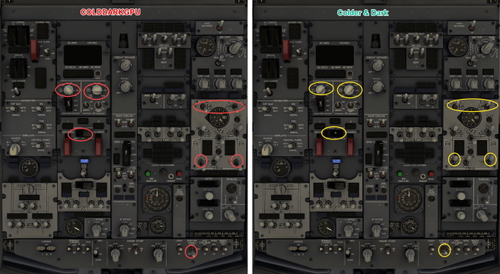
PMDG 737-Series Colder and Darker Panel States
Customize your PMDG 737 Series aircraft with Colder and Darker Panel States, featuring a realistic startup experience with various systems turned off. Choose between versions with the Ground Power Unit connected or disconnected to enhance your simulation immersion.
par maestro_it
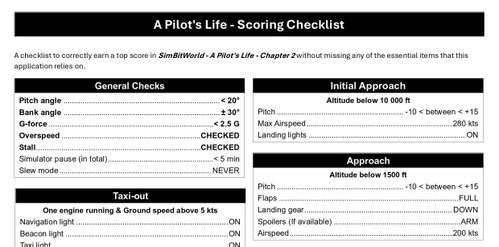
Checklist for SBW - A Pilot's Life Chapter 2
A comprehensive checklist based on the official SBW Manual to help you achieve a top score in SimBitWorld - A Pilot’s Life Chapter 2, ensuring a 100% success rate.
par maestro_it
Connectez-vous pour participer à la discussion
Se connecterCommentaires(66)
2 months ago
- New GSX tab, showing GSX Pro's own remote screen on your phone. Needs the bridge on the same PC as MSFS.
- Fenix A320 EFB and MCDU on the phone. Needs the bridge on the same PC as the simulator.
Both GSX Pro and the Fenix Aircrafts expose their own web interfaces (GSX's remote screen and the Fenix EFB/MCDU), which made it possible to bridge them into the phone app. Support for other aircraft won't be as straightforward — it has to be handled case by case, depending on whether the addon exposes anything similar. Since I mostly fly the Fenix these days, that's what got implemented first. PMDG doesn't offer a web interface at all, so supporting it would mean writing all custom code from scratch. For other aircraft, I honestly don't know yet what's possible — happy to hear suggestions if anyone knows of an addon with a similar interface.
(At this point, it is no longer just BeyondATC Mobile Bridge; maybe I need to change the app name to something else... All these features still depend on the main connection of BeyondATC at the moment; need to rethink how it is implemented and what features go and don't go in it)
v0.9.5
- Better taxi routes for BeyondATC Experimental.
- New map provider, to fix the "API Key Required".
- Streamer mode - hides your PC's address and the QR. The eye in the bridge window turns it on.
- Bug fixes.
about 11 hours ago
13 days ago
13 days ago
13 days ago
Is there any way I can show my appreciation with a donation?
In Dark-Mode the text (like Parking stands, taxiways, etc) in the map is dark-gray on dark background and not really readable. In your screenshots the text has different colors and is perfectly readable. Is that depended on the device (mine is an old iPad) or something I can confogure anywhere?
18 days ago
20 days ago
Ce commentaire a été supprimé
21 days ago
Just one problem. If you use this app on tablet with navigraph open the position of the aircraft in navigraph map doesn't move.
I try in 2 different tablet
28 days ago
about 1 month ago
about 1 month ago
You came up with a pretty good design and it works almost flawless.
A few comments after trying it on my iPad Pro 11 inch with the Fenix A32X in MSFS24 (with BATC Experimental and GSX Pro):
- I did not see the taxi route show up on the map. The flight route did show.
- I cannot use the https connection with the “Kiosk - fullscreen browser” app from the Apple App Store. Is it possible to add an option to choose between a https or http (non-secure) connection? The Kiosk app also keeps the screen alive and always automatically opens the correct address.
- After opening the https connection via Safari and adding it as an “app” to my home screen i noticed that the top of the screen is slightly faded and if I open the EFB I cannot use the menu on the top of the screen.
Let me me know if you need additional info.
about 1 month ago
about 2 months ago
Thank you very much for this great utility; I have a quick question.
for instance , I’ve installed the ‘BeyondATC-Mobile-Bridge-v0.9.9_1LceV’ folder in
...\msfs_2020\mod
If I move this folder to a different location
...\msfs_2020\beyond_ATC
it no longer works; my mobile displays a blank page and, after a while, shows a connection timeout.
How can I get your tool to recognise the new location?
Thank you in advance for your reply
about 2 months ago
This is seriously awesome! Changes my entire display setup in a good way. I'm not sure if BATC would have nailed it like this. You knew exactly what was missing!
about 2 months ago
IFR/VFR? SimBrief/MSFS for flight plan?
Mine works great accept for the Maps, and I cannot work out why?😅 This app is a total game-changer, and the maps are the final thing that will allow me to break out to an iPad without Alt-Tabbing to BATC for taxi/parking on my PC. Thanks!
EDIT - SOLUTION FOUND! So I installed AIG Traffic Models (to enhance airport experience not to fix bridge issue) and I set AIG to be first priority in BATC options. and now for some reason BeyondATC & Mobile Bridge are now both fully connected, maps, taxi routes etc. If anyone has a 'partly connected' issue with the bridge, try this 👍
about 2 months ago
about 2 months ago
Secondly, I'm having some trouble getting the maps & taxi directions to work on the ipad, nothing is showing, but everything else works great. I'm flying VFR, using the Experimental Version of BATC (which I have activated in BATC - v1.10.2), I have tried using both MSFS & SimBrief for the flight plan, but still the maps will not show. The maps & taxi directions show fine on the BATC app, but they don't appear on the Bridge web interface on the iPad?
I have granted access to the ports on the Firewall, I've set my wifi to private, I've added my Simbrief username (however the 'Fetch Now' button is not working, could be related to this issue), I've launched BATC & the Bridge by running as Admin to be sure, I've launched everything in the right order (mfs2024 (on tarmac ready to fly) > BATC > Bridge - and still the Bridge says I am only 'Partly Connected, one BATC port is not answering'. The log also says 'data: could not reach BeyondATC' - Retrying.. ' - I honestly can't work it out, and i'm pretty tech savvy normally! At least i thought I was lol 🤔 ... Any advice please? I'm so close to getting this set up properly.
Would really appreciate your help 💪🏼
about 2 months ago
Download the AIG AI Manager from here
https://www.alpha-india.net/software/
Might work with FSLTL too but didn't check yet:
https://fslivetrafficliveries.com/
2 days ago
Ce commentaire a été supprimé
about 2 months ago
Thank you so much
about 2 months ago