
Description
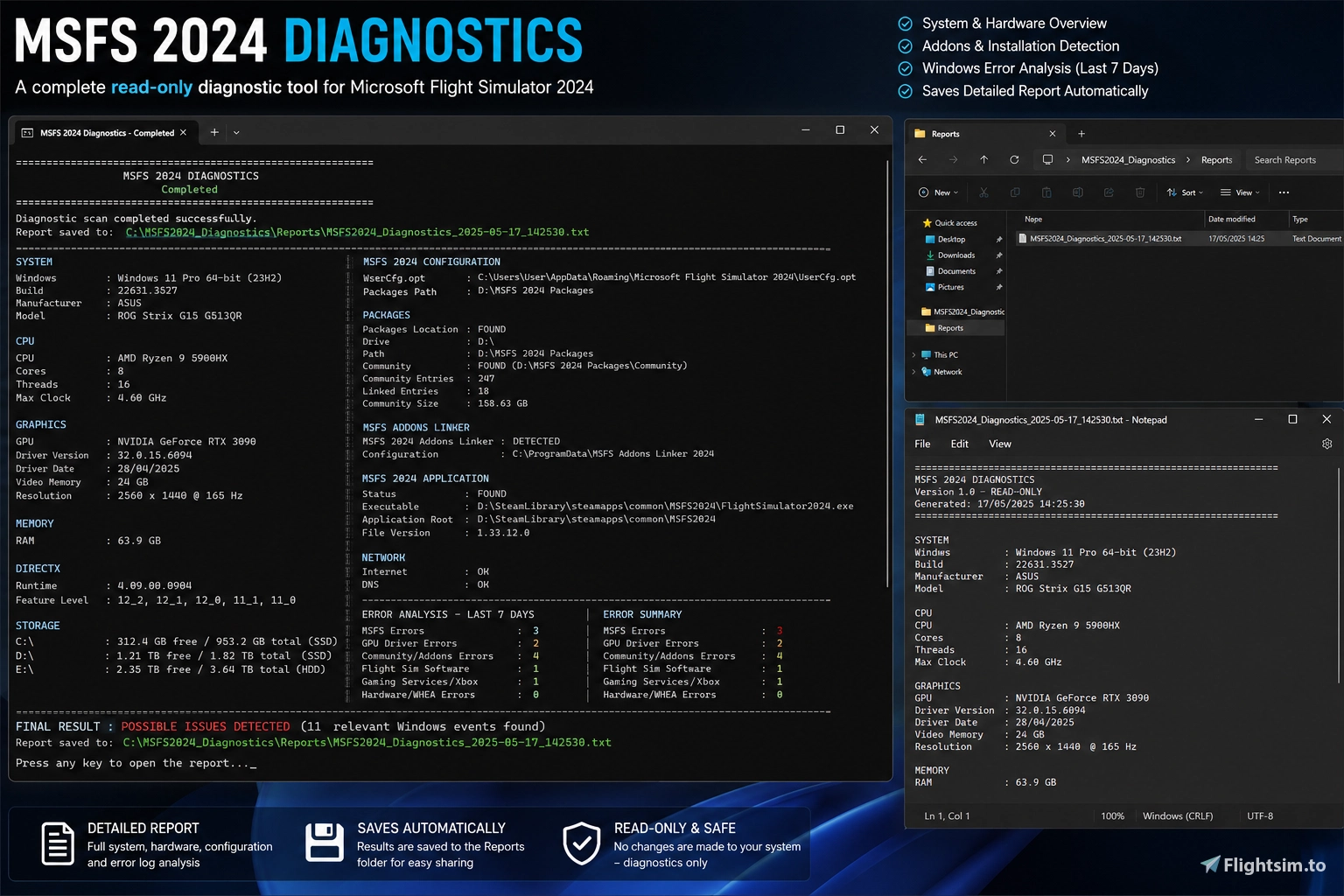
This is my own little basic project that I made to help me troubleshoot MSFS 2024 problems.
I wanted something simple that I could run when something goes wrong, rather than having to go through loads of Windows settings/Event Viewer and different MSFS folders trying to find out what might be happening.
The idea is simple. Run the program, let it do its checks, and it creates a text report with the results.
What it checks:
- Windows version and build
- CPU, cores and threads
- Graphics driver and driver date
- Video memory
- System RAM
- Display resolution and refresh rate
- DirectX information
- Available drives and free space
- MSFS 2024 installation location
- MSFS 2024 package location
- MSFS 2024 Community folder location
- Community addon count
- Linked Community addons
- MSFS Addons Linker information
- DNS/Internet connection test
- Relevant Windows errors from the last 7 days
It also looks through Windows Event Viewer for errors that could be useful when trying to work out what is going wrong.
These are separated into areas such as:
- MSFS errors
- Graphics driver errors
- Community and addon errors
- Flight sim software errors
- Gaming Services and Xbox errors
- Hardware and WHEA errors
The report is saved as a TXT file in the Reports folder and opens automatically when the scan has finished.
The DNS/Internet checks simply report whether the checks are OK or have failed. There is no need to understand connection technical information. The checks are simply there to show whether your PC is able to connect to the internet and resolve websites correctly.
This tool is made specifically for Microsoft Flight Simulator 2024. It may find folders or addons belonging to Microsoft Flight Simulator 2020 while checking your drives, especially if you have both versions installed but MSFS20 is not supported by this diagnostic. The MSFS installation and package checks are intended for MSFS24.
I also use MSFS Addons Linker myself so I want this project to work for people who keep their addons outside of the normal Community folder as well. The Community folder doesn't always show the full picture when Addons Linker is being used, but it counts via the linked addon detection with final results.
How to run:
Make sure MSFS 2024 is closed. Extract the ZIP file and run RUN_MSFS2024_DIAGNOSTICS.bat as Administrator. The diagnostic will run automatically and create a TXT report when finished. The report will open automatically and is also saved in the Reports folder.
This is only a basic project and it is still a work in progress. It isn't meant to fix MSFS automatically or tell you exactly what is causing a problem.
It is mainly there to collect useful information in one place and hopefully make troubleshooting a bit easier.
If you're having problems with MSFS, the report can also be useful to share when asking for help, as it gives people more information about your system and any relevant errors Windows has recorded.
Privacy / Safety information:
- The diagnostic is read-only.
- It does not intentionally change your MSFS installation.
- It does not change Windows settings.
- It does not install anything.
- It does not remove or modify addons.
- It does not modify your Community folder.
- It does not modify MSFS configuration files.
- It does not upload the report anywhere.
- The report is created locally on your own PC.
- Administrator permission is required for some of the system and Windows Event Log checks.
The report may contain your Windows username or folder names from your own PC. Keep this in mind if you decide to share the report publicly. The report is yours and you can decide whether to share it with anyone when asking for help or sending reports.
A note about errors:
The tool can find Windows errors that look related to MSFS, graphics drivers, addons or other flight simulation software.
An error being listed does not automatically mean that it caused your MSFS problem.
For example, an addon or flight simulation utility crashing around the same time as MSFS does not necessarily mean it caused the MSFS crash. The report is there to give you more information to investigate.
MSFS2024 should be closed before running the diagnostic. If MSFS is currently running, the diagnostic will tell you to close it before continuing.
Also available for Prepar3D users:
If you use Prepar3D, I've also made a Prepar3D Diagnostics Tool designed to help troubleshoot P3D related problems in a similar way. If you'd like the P3D version, just get in touch with me and I can provide the download.
Version 2 in Development – More Diagnostics Coming Soon!I'm currently working on Version 2 of the MSFS 2024 Diagnostics Tool.
This is a bigger update than the current version, with more detailed checks to help investigate MSFS 2024 crashes and other problems. Some of the main additions I'm working on include better investigation of MSFS crash reports, GPU and crash dump files, matching related events by time, and clearer explanations of the findings.
I'm also working on a new HTML report, which will be easier to read in your web browser instead of the current plain-text report.
The existing checks aren't being removed. Version 2 builds on what is already there, with more information and improved reporting.
Version 2 is still in development and testing, so there's no release date just yet. I want to test the new features properly before making it available.
I'll post more updates here as work continues. Thanks for checking out the tool!
Current version: Available to download below. Version 2 will be announced here when it's ready.
Antivirus Warning:
Some antivirus software may flag or quarantine this tool because it uses BAT and PowerShell. If this happens, simply restore/allow the file in your antivirus and run it again. The tool is designed to be read-only and does not intentionally make changes to your system.
If your antivirus gives you a warning, please let me know the detection name so I can investigate it.
If you find anything that isn't working correctly, something that is being reported incorrectly, or have an idea for something useful that could be added, please let me know.
Support/Feedback:
Need help, found a problem, or have a suggestion? Visit the Empirekicking Support & FAQ for help and troubleshooting, or head over to the Empirekicking Diagnostics Tool page to leave feedback and suggestions.
Support & FAQ: https://empirekicking.forumspark.net/help/diagnostics-tool-fqa
Diagnostics Tool: https://empirekicking.forumspark.net/pages/diagnostics_tool
26 September: Update version 1.3
MSFS2024 Diagnostics Tool
MSFS2024 Diagnostics Tool is a basic troubleshooting utility designed specifically for Microsoft Flight Simulator 2024. It gathers key system information, checks MSFS installation details, analyzes hardware specifications, and summarizes recent Windows errors relevant to MSFS. The tool generates a local text report with its findings to aid in diagnosing problems. It operates in read-only mode without making changes to the simulator or system files.

Avis des utilisateurs
3 avis
Historique des versions
Added GPU event grouping to reduce repeated Event Log entries. Added colour-coded messages during the diagnostic scan. Added more Information/Support section with updates and support link.
Similaires
Inibuilds Antonov AN225 Camera Views
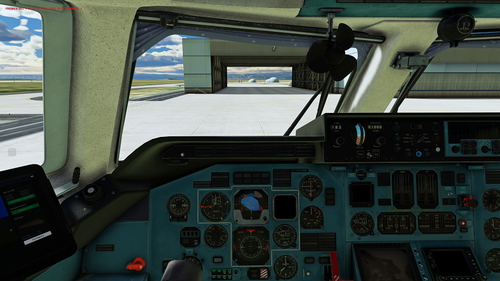
Empire's simple custom views for the Inibuilds Antonov 225, Including 4 different wing angles, Underbelly view with ramp down or viewing wheels & fully Cargo bay view, all 6 engine views included, easy to edit your own And much much more.......................
par Empire

TFDi MD-11 Custom Camera Views (Cargo & Passenger Variants)
This add-on provides custom camera views for the TFDi Design MD-11, catering to both passenger and cargo variants. The views are designed to enhance visibility of the cockpit and instrument panel, along with various exterior views. Users can customize these settings further to fit their preferences, and the installation instructions are included for both Steam and Microsoft Store versions. Compatible with Microsoft Flight Simulator 2020 and tested in MSFS 2024, this package aims to improve the overall flying experience in the MD-11.
par Empire
Connectez-vous pour participer à la discussion
Se connecterCommentaires15
Just a quick update for everyone following the MSFS 2024 Diagnostics Tool. I'm currently working on Version 2, which is shaping up to be a much bigger update than the current version. I'm adding more detailed crash investigations, GPU and crash dump checks, better explanations of diagnostic findings, and a completely new HTML report that's easier to read.
There's still work to do, and I need to test everything properly before release so I can't give a release date just yet.
I'll keep you updated as development continues. Thanks to everyone who has downloaded the tool and taken an interest in the project!
**More to come!**
It reports under Graphics
Resolution: 2560 x 1440 @59 Hz. Windows is running 3840x2160 @ 144 Hz, MSFS2024 Resolution is the same.
No crash detected....
MSFS2024 crashes everyday, multiple times due to NVIDIA Drivers Hangs... the folder "./Microsoft.Limitless_8wekyb3d8bbwe\LocalCache" is full of nvidia gpudumps, also within the LocalState Folder are the AsoboReports generated.
cannot wait to see what you come up with in the future!
The idea is that 0 means no matching errors were found in that period but it doesn't currently confirm that a previous problem has been fixed. The reason is that Windows Event Viewer records events when they happen. The diagnostic can look back at those recorded events but it can't tell from Event Viewer whether an old error has actually been fixed. For example, if MSFS crashed 3 days ago, that event will still be in Event Viewer today, even if you've fixed the problem.
I could add a 24 hour check alongside the existing 7 day check in a future version (Maybe?). That would make it easier to make your changes, run the diagnostic again and see if any new relevant errors have appeared.
Even a zero result wouldn't guarantee that the original problem has been fixed, it would simply mean no matching events were recorded during that period.
The tool uses a BAT file and Powershell to perform its checks, so I know some antivirus programs may flag that behaviour. I'm checking it with Norton to see whether it's a false positive and what exactly triggered it. 👍
I don't have any issues at the moment and your app confirmed that. It will be interesting to see what it shows if any issues do arise in the future though. The output was still quite interesting though.