

Description
A standalone application for Microsoft Flight Simulator 2020/2024 that adds realistic, physics-based head movements (head shake, G-force effects) to the virtual cockpit. It reads aircraft telemetry via SimConnect and injects camera movements using the FreeTrack protocol.
Features
- Physics-Based Movement: Uses a spring-mass-damper physics engine to simulate realistic head movements based on aircraft acceleration and velocity.
- Customizable Effects: Adjust the intensity of lateral, vertical, longitudinal, pitch, and roll movements in real-time via the UI, and many other settings.
- Seamless Integration: Connects to MSFS via SimConnect and injects data via FreeTrack.
- Auto-Start & Auto-Exit: Includes scripts to automatically start with MSFS, and a setting to automatically exit when MSFS closes.
Installation
- Download the latest release.
- Extract the files to your MSFS Community folder (or any other folder of your choice).
- Run AutoStart-Install.bat to register the application in exe.xml to start automatically when MSFS launches.
- Alternatively, you can run MsfsPhysicsCamera.exe manually before or during your flight.
- You'll likely want to disable the built-in camera shake in the MSFS configuration.
- If you launched the app while MSFS is running, you may need to restart MSFS to make it work. This is a one-time thing as it needs to enable the "TrackIR" controller.
FAQ
I do see telemetry and output in the app while moving my airplane ingame, but my camera does not seem to react. Even at x5 multiplier. What gives?
If you haven't already, you might need to restart MSFS. When you launch the app for the first time, it enables the "TrackIR" controller. A restart of MSFS 2024 is needed to make it appear.
Can I use this app together with my head tracker (Tobii / TrackIR / Opentrack)?
Unfortunately, no. Both your head tracker and this tool will send camera offsets to Flight Simulator. Flight Simulator will pick one over the other, or just alternate the inputs, which will manifest into weird behavior.
It feels like the camera is drifting at high speed or in turns
While ascending/descending the gravity weighs on your head while you're pitched up/down. Similarly in turns. Since v1.6 there are two settings that remedy this, of which one is enabled by default.
- The "Return-to-center speed" (defaulting to 0.5) option will make the camera return to center slowly over time.
- Disabling "Simulate gravity" prevents the fake gravity calculation based on pitch/roll angles.
Source available at: https://github.com/martijns/martijns-msfs2024-physics-camera
Questions fréquemment posées
MSFS Physics Camera
MSFS Physics Camera is a standalone application that introduces realistic, physics-based head movements in Microsoft Flight Simulator 2020/2024. It simulates head shake and G-force effects by using a spring-mass-damper physics engine, connecting to MSFS through SimConnect and FreeTrack. Users can customize movement intensities in real-time via the user interface. The app supports auto-start features and requires disabling the simulator's built-in camera shake for best results.
Starred
Sélectionné à la main par notre équipe — cet addon améliore considérablement l'expérience MSFS et est un incontournable de votre setup.
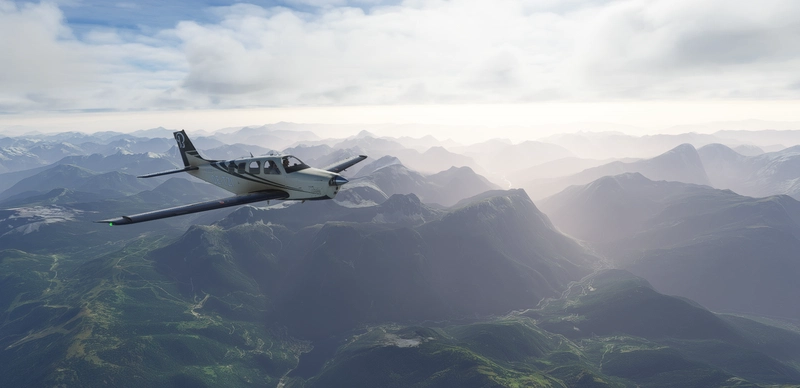
Soutiens

Avis des utilisateurs
55 avis
Historique des versions
Fixed AutoStart. Should now create an exe.xml if it didn't exist yet and thus work for more people.
Connectez-vous pour participer à la discussion
Se connecterCommentaires(187)
about 2 hours ago
about 19 hours ago
I have the A2A Comanche 250. Accu-Sim has its own camera movement and it conflicts with your app, but it doesn't have forward and backward movement. So, I was thinking about saving a Comanche profile to get the best of both worlds.
What do you think?
By the way, thanks for your work—it's a great application!
5 days ago
3 days ago
6 days ago
6 days ago
3 days ago
6 days ago
Edit: now my camera dont move. i uninstalled with the uninstall.bat and nothing works anymore on msfs 2024.
3 days ago
6 days ago
7 days ago
7 days ago
6 days ago
It might not work if you have another headtracker connected (i.e. Tobii or TrackIR) or perhaps conflicting software.
11 days ago
16 days ago
6 days ago
18 days ago
6 days ago