
Description
Where I Left It 2.0 – Your Own Hangar: Persistent Aircraft, Live Map & Flight Book
Park it, leave it, come back to it.
This is something I’ve wanted for ages for immersion. If I fly my Cessna to an airfield, park it askew at the end of the field and shut the sim down, then when I relaunch I don’t want to start in a pre-determined slot. I want my aircraft to be exactly where I left it.
So I made exactly that. Wherever you leave your aircraft, the next time you load into it, it’s teleported straight back to where you left it.
Then I thought: I don’t just fly a Cessna. When I swap into the DC-3, I want to see where my Cessna is. So I added that too. Wherever you leave an aircraft is where you’ll see it in the world, whatever you’re flying. Park a DC-3 on a taxiway and hop into the Fenix, and your DC-3 will still be sitting on that taxiway.
Version 2.0 goes further: your aircraft now live in your own hangar. Give them names, see them all on a map, keep a Flight Book of every flight, and get reminded when they’re due for maintenance.
🎥 Watch the video explaining exactly how it works: https://www.youtube.com/watch?v=nZzuFBjK6CE
What’s new in 2.0
🛩️ Your own hangar. Acquire the aircraft you want to keep. Only those are saved, parked and logged. Your existing saved aircraft are already in it.
🏷️ Name your aircraft. Call your Cub “Betsy” and that’s how it shows up everywhere.
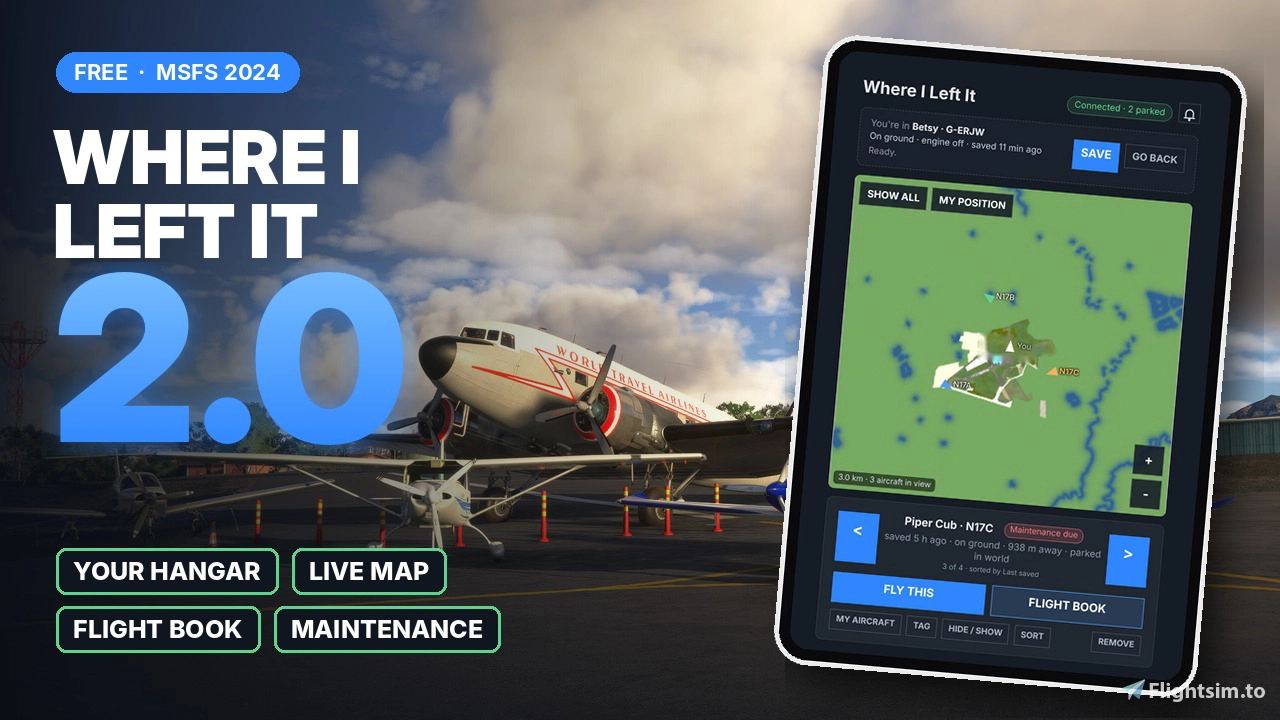
🗺️ A map of your fleet. All your aircraft on the sim’s own map, right in the EFB. Browse them one by one and the map jumps to each.
📒 Flight Book. Flight time, engine time, landings, distance and a flight history with departure and arrival airports, plus your own notes for each aircraft.
✈️ Always logging. Flights are recorded by the in-sim module, even with the tablet closed.
🔧 Maintenance reminders. Set an interval in engine hours and the aircraft is flagged when it’s due.
⛽ Fuel and payload. Fuel left in each tank is put back when you return. Payload restore is optional.
💾 Backups. Export your whole hangar to a file, restore it, or share it with a friend.
🔔 What’s new. A changelog inside the app.
Features
Resume where you parked. Load into one of your aircraft and you’re put straight back at its parking spot, facing the same way, with the fuel you left it with.
Your parked fleet in the world. Your other aircraft appear where you left them, cold and dark with engines off and lights out.
They’re still there when you get back. Parked aircraft despawn when you fly away, to save performance (the distance is customisable), and reappear when you return. Fly a 3-hour trip, come back, and the aircraft you parked earlier is still waiting.
A hangar that feels like yours. Acquire an aircraft, give it a name, a tag (Favourite, Needs fuel, Maintenance due, In storage, Project) and its history so far. Bought a “used” aircraft with 1,500 hours on it? Enter them.
A map of your aircraft. See your whole fleet on the sim’s terrain map, with arrows showing which way each one is parked. Click one to select it.
Flight Book for every airframe. Hours, landings, flights, distance flown, notes, and a history of your latest 100 flights with the airports you flew between.
Routine maintenance. Set “every 50 engine hours” and you’ll be told when it’s due, both on the aircraft and when you climb in.
Works great with cockpit-state persistence. For aircraft that save their own switch states, you now get both location and cockpit state back.
Multiple aircraft, multiple liveries. Aircraft are saved by tail number, or by model and livery, so different airframes of the same type each keep their own spot.
Fly this. Pick any parked aircraft and the app tells you exactly what to load. When you spawn in, you’re put right at its spot.
Built into the EFB. No external app to run. Everything is on the tablet, and the in-sim module works in the background from the moment the sim starts.
Control everything from the EFB app
- Auto-save on a timer, save when you shut the engines down, or save manually
- Teleport automatically, ask first, or do nothing
- Only restore if the saved spot is within 10 nm, 50 nm, or anywhere, so if you deliberately start at another airport it won’t drag you back
- Show parked aircraft within 5, 25 or 100 nm, or everywhere
- Restore fuel levels and payload (each can be switched on or off)
- Show or hide your whole parked fleet with one click
Installation
- Extract the community-whereileftit folder into your Community folder. If you’re updating, replace the old folder. Your saved aircraft and settings are kept.
- Start a flight, open the EFB tablet, and open Where I Left It once so it can set itself up.
- That’s it. From then on it works in the background.
How to use it
1. Acquire your first aircraft
Load into an aircraft and open Where I Left It on the EFB. At the top it says “You’re in … not in your hangar yet”. Press Acquire. Give it a name if you like, a tag, and its history so far (leave everything at 0 for a brand-new aircraft). Press Acquire aircraft and it’s in your hangar.
2. Fly, park and leave it
Fly wherever you like, park, and shut the engines down. The position is saved automatically. To save at any time, press Save at the top of the app.
3. Come back to it
Next time, load a flight in the same aircraft at that airfield. Any parking spot or runway is fine. Once the flight starts, you’re moved straight back to where you parked. In walkaround mode, press Ctrl + C to jump into the cockpit.
If you set “When loading a saved aircraft” to “Ask me”, a prompt appears in the app instead. Choose Teleport there or Stay here.
4. Build your fleet
Acquire any other aircraft the same way. Each one is remembered separately. Fly a different aircraft, and the others appear parked where you left them, as long as they’re within the distance you’ve chosen in Settings.
5. Use the map
The map shows your aircraft around you. Use ‹ and › under the map to go through your aircraft, and the map jumps to each one. My aircraft brings you back to the one you’re in. Show all, My position and + / − are on the map itself.
6. Switch to a parked aircraft
Select the aircraft and press Fly this. The app tells you exactly which aircraft and livery to choose. Go back to the main menu, select it, and start a flight at that airfield. You’ll spawn right at its parking spot, with no prompt.
7. Check its Flight Book
Press Flight Book to see its hours, landings, flights, distance and flight history, and to write notes. Press Edit details to change its name, tag, totals or maintenance interval. When maintenance is due, press Maintenance done after you’ve “serviced” it.
8. Manage your aircraft
- Go back: teleports you to your current aircraft’s saved spot. Handy if you’ve taxied away and want to reset.
- Hide / Show: removes one parked aircraft from the world without deleting it.
- Tag and Sort: label aircraft and sort them by last saved, last flown, nearest or name.
- Remove: takes an aircraft and its Flight Book out of your hangar (you’ll be asked to confirm).
9. Make it yours
The Settings, Backup and Diagnostics buttons are at the bottom of the app. Settings controls how restoring works, when it auto-saves, fuel and payload, and how far away parked aircraft are shown. Backup saves your whole hangar to a file.
Tip: if something isn’t working, open Diagnostics at the bottom of the app and take a screenshot. It shows exactly what the add-on is doing and is the most useful thing to include when you report a problem.
Sim limitations
These come from the sim and its SDK or are bugs in third-party aircraft. I hope the developers will let me improve them in future.
- You can’t jump straight into another parked aircraft. You need to go back to the main menu, select that aircraft and spawn in, and it’s then teleported back to where you left it. The app’s “Fly this” button tells you exactly what to pick.
- Walkaround mode: the character can’t be teleported. When you spawn at the airfield your aircraft is moved, but you’ll need to press Ctrl + C to get into the cockpit and join it.
- Parked aircraft appear in their default state. Doors, covers and switches aren’t restored on parked aircraft; the sim only lets add-ons spawn the model and livery.
- Tail-number decals may not show on parked aircraft, because MSFS 2024 doesn’t reliably apply registrations to spawned aircraft.
- The map uses the sim’s own map, which zooms out to about continent size, so aircraft on the other side of the world won’t all fit in one view.
- Payload restore works, but the sim’s own payload screen doesn’t show weights changed by add-ons. This is an MSFS bug, and the aircraft’s actual weight is correct.
- Each parked aircraft costs a little performance. Lower the range or hide aircraft you don’t need to see.
- Taog’s helicopters don’t appear to listen to a shutdown command, so their rotors are always spinning. Taog will need to fix this for it to work correctly. All default helicopters in the sim work fine :-)
- Carenado C182 seems to be missing the AI model, so it doesn’t appear.
Feedback
Found a bug or have an idea? Leave a comment with the aircraft you were using and a screenshot of the Diagnostics section in the app.
Where I Left It – Persistent Aircraft Positions & Parked Fleet
Where I Left It enables persistent aircraft positions in Microsoft Flight Simulator by saving where you park each aircraft, allowing you to resume future flights from that exact spot. Other aircraft from your fleet appear in their last parked locations, shown cold and dark. The system integrates into the in-sim EFB, requires no external app, and can be configured for auto-saving and display preferences. Limitations include no restoration of cockpit states for some aircraft and possible performance impact with many parked planes.

Avis des utilisateurs
10 avis
Historique des versions
The biggest update yet: your aircraft now live in your own hangar, with a map, a Flight Book and maintenance reminders. Your hangar 🛩️ Acquire aircraft. Only the aircraft you acquire are saved, parked and logged, and the app offers to acquire the one you’re sitting in. ✅ Aircraft you saved with older versions are already in your hangar, so nothing is lost. 🏷️ Give your aircraft their own names (e.g. “Betsy”), shown on the map, the list and the Flight Book. 📋 Set an aircraft’s history when you acquire it (flight hours, engine hours, landings, flights and distance) and edit it any time. ⭐ Tags: Favourite, Needs fuel, Maintenance due, In storage and Project. Favourites are always listed first. 🗑️ Remove from hangar, with a clear confirmation box before anything is deleted. Map 🗺️ A map of all your aircraft on the sim’s own terrain map, right at the top of the app. Works offline. 📍 The map opens on your position. ◀️▶️ Browse your aircraft with ‹ ›, and the map jumps to each one. 🧭 My aircraft takes you straight back to the one you’re in, with a “You’re in this one” badge. 🖱️ Show all, My position, zoom buttons, drag to move, mouse wheel to zoom, and click an aircraft to select it. 🏷️ Labels no longer pile up when aircraft are parked close together. 🔴 Aircraft that need maintenance are drawn in red. Flight Book 📒 Flight time, engine time, landings, flights and distance flown for every aircraft. 🛫 Flight history with date, departure and arrival airport, time, distance and landings for each flight. ✈️ Flights are logged by the in-sim module, so they’re recorded even with the tablet closed. 📝 Notes: write anything you want to remember about an aircraft. 📚 Keeps your latest 100 flights, with Show all to see the full list. Older flights still count in the totals. Maintenance 🔧 Set a routine maintenance interval in engine hours. ⚠️ When it’s due, the aircraft shows “Maintenance due” and the app reminds you when you’re in it. ✔️ Press Maintenance done in the Flight Book to start the count again. Fuel, payload and backups ⛽ Fuel left in each tank is saved and put back when you return. 🧳 Optional payload restore for passengers and cargo. 💾 Export your whole hangar and Flight Books to a backup file, then import it again or share it with a friend. Newer saves always win. 🔀 Sort your aircraft by last saved, last flown, nearest or name. New layout 🎨 A map-first design: the aircraft you’re in, Save and Go back sit at the top, with your aircraft under the map. 🔔 A What’s new bell (top right) shows the full changelog, with a dot when there’s something new. 👋 A one-time welcome card explains what’s new after you update. ⚙️ Settings, Backup and Diagnostics are tucked away at the bottom. 🩺 Diagnostics now shows fuel and payload restores and whether the Flight Book is being logged. Fixes 🔌 Fixed the app not being able to talk to the in-sim module on some systems. 🛬 Fixed take-offs and landings sometimes showing coordinates instead of the airport name. ⏱️ Fixed flights staying “in progress” after landing. Known issue ⚖️ The sim’s own payload screen doesn’t show weights changed by add-ons. This is an MSFS bug, and the aircraft’s actual weight is correct.
Similaires

World Update III - Flap / Lift Community Hotfix (Standard Edition) (No longer needed)
Fix the lift dynamic issue caused by World Update III with this hotfix. Adjusts lift coefficients for standard aircraft to restore flying experience. Compatibility with Working Title Garmin Mods but not with certain aircraft mods. Easy installation in PackagesCommunity folder.
par Yetty
Cockspur Phenom 100EV - Enhancement Mod (CFD & Ground Handling, New Flight Model)
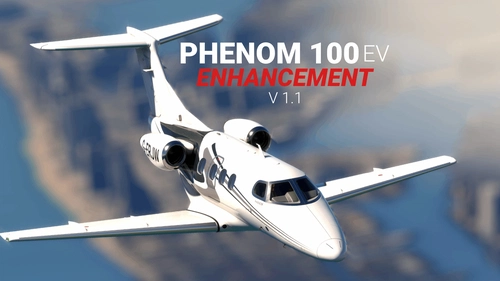
This mod changes the Phenom 100 to make it closer to the Phenom 100 EV which increases the power of the engines, increasing range, whilst also increasing fuel economy.
par Yetty
Glastonbury Tor
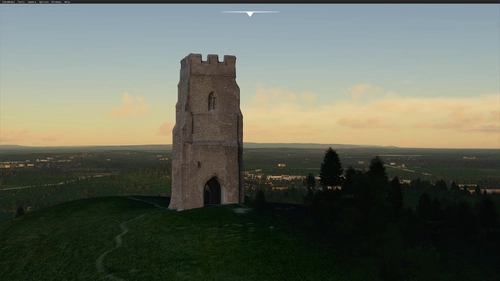
Explore the iconic Glastonbury Tor, a hill steeped in Celtic mythology and spiritual significance, now available in Microsoft Flight Simulator. This add-on features the roofless St Michaels Tower, a Grade I listed building managed by the National Trust. Immerse yourself in the enduring mythological associations and historical charm of this sacred site.
par Yetty
Stafford Castle, England
Explore the ancient Grade II listed Stafford Castle in Staffordshire, England. This castle, with roots dating back to the Norman Conquest, has a rich history including being held by the Royalists during the Civil War. Featuring a 14th-century stone keep and Gothic Revival style renovations from the 19th century, this add-on brings historical charm to Microsoft Flight Simulator. Keep an eye out for the little ghost easter egg hidden within the castle grounds.
par Yetty
Connectez-vous pour participer à la discussion
Se connecterCommentaires(82)
about 3 hours ago
2 days ago
3 days ago
4 days ago
7 days ago
6 days ago
7 days ago
7 days ago
Now if only someone could find a way to remove and return the copilot with a mouse click or button.
Thanks again for this great app and for making it available to the community for free.
8 days ago
Ce commentaire a été supprimé
8 days ago
8 days ago
One feature does not work for me. It has never automatically moved my airplane from my launch position to my saved position. I have to press the restore button each time I start the Sim. Not a showstopper, but with each update I keep hoping that it will start working as you intended.
I fly the A2A Comanche exclusively, I guess the fact that A2A runs separate from MSFS and have their state saving may be the problem.
Thought I would share here, incase someone else has the same issue and may have a solution.
I will also leave this information in the diagnostics section of the app.
Thanks again for a great app.
Cant figure how to leave comments in the app.
9 days ago
I'm finally able to see my planes 'where I left them'!
9 days ago
Thanks for sharing it!
10 days ago
Out of curiosity, where are recorded the saved data? I've noted that deleting the files in the community folder and adding a new version doesn't reset the parked fleet.
I'm afraid that it could be technically difficult, but if you're willing to go farther with the persitence, it would be great to save the fuel level, wear & tear and dirt & scratches as well.
Thanks again.
9 days ago
MS Store / Xbox app: %LOCALAPPDATA%\Packages\Microsoft.Limitless_8wekyb3d8bbwe\LocalState\WASM\MSFS2024\community-whereileftit\work
Steam: %APPDATA%\Microsoft Flight Simulator 2024\WASM\MSFS2024\community-whereileftit\work
(Paste the path into File Explorer’s address bar. If it’s not there, search your user folder for community-whereileftit.)
I can save fuel and payload, but not dirt as its not in the SDK :(
This is an option in 1.6.1 now
9 days ago
10 days ago
I'm encountering a problem with the TFDi MD-11, where the LOD at any distance greater than approximately 35m is including only the interior cargo cabin and flight deck (no exterior). The LODs on it are exceptionally poor when not actually in the aircraft itself. Is this a limitation of the "AI model" used, and if so, could there be an option (or individual workaround that I personally could change in the aircraft's .cfg's you're aware of) to not use the AI model and render the aircraft normally? I understand it could be resource-intensive but worth a shot. I checked in TFDi's Discord and it seems that it's an issue (albeit few/limited) where pilots will use that model for model matching, with no real results on solutions to the LODs...
Thanks regardless and it works flawless with every other addon I'm aware of!
10 days ago
The LOD issue is an issue with the model of the MD-11. The plugin uses the AI version of the plane, so TFDI haven't got the right LODs for the AI version of its aircraft.