
Description
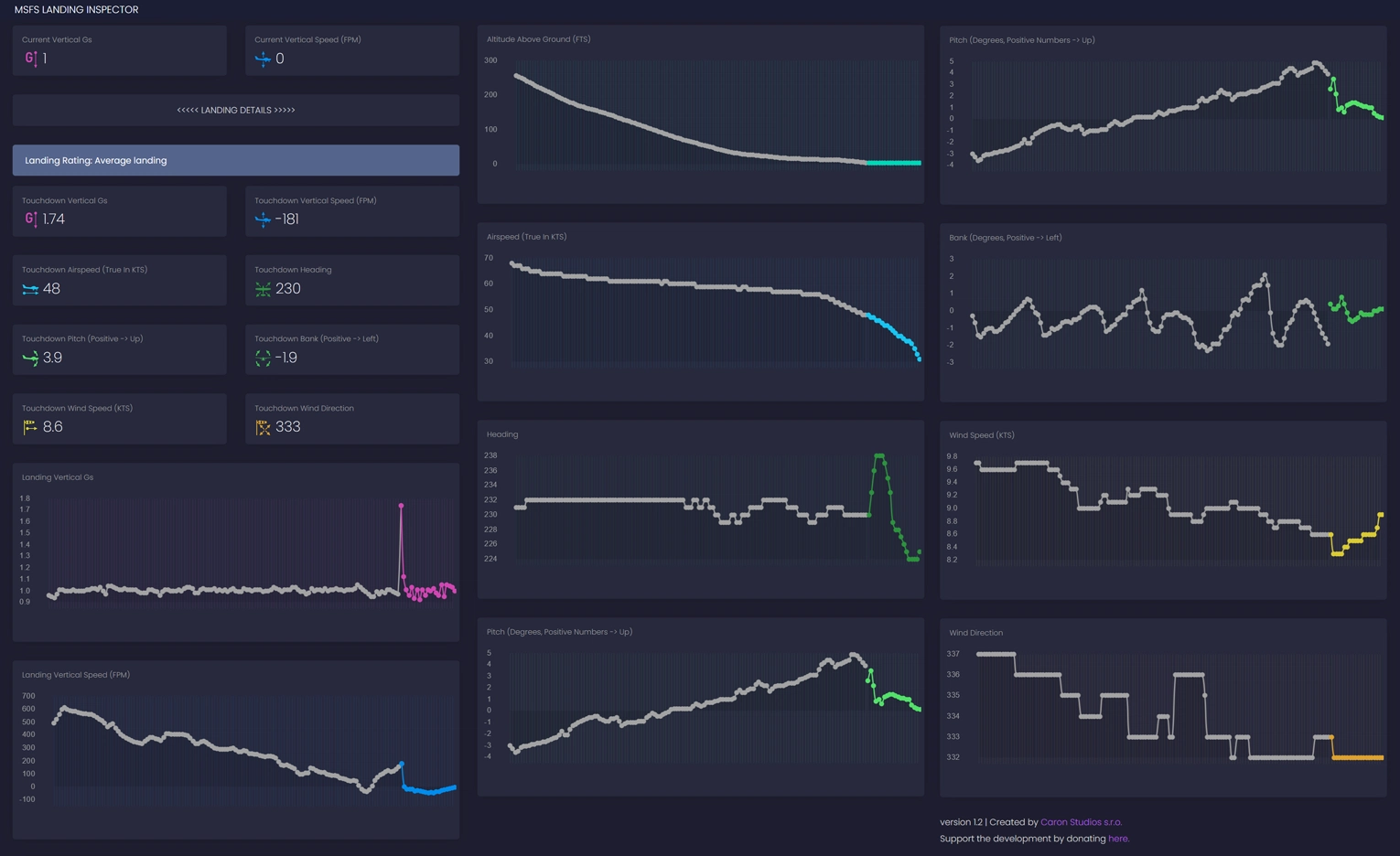
MSFS Landing Inspector MSFS Landing Inspector is a tool for analyzing landings in Microsoft Flight Simulator 2020. It reads the airplane’s telemetry data via SimConnect and displays relevant information about your landing in a web browser. The MSFS Landing Inspector is free to use.
MSFS Landing Inspector displays the following data:
- Current vertical G force
- Current vertical speed
- Touchdown G force
- Touchdown vertical speed
- Touchdown airspeed
- Touchdown pitch, bank and heading
- Touchdown wind speed and direction
- Graph showing G forces during landing
- Graph showing vertical speed during landing
- Graph showing altitude above ground during landing
- Graph showing airspeed during landing
- Graph showing pitch, bank and heading during landing
- Graph showing wind speed and direction during landing
1. Running MSFS Landing Inspector
- Start a flight in Microsoft Flight Simulator. You have to start a flight first otherwise the tool may not work.
- Launch MSFS Landing Inspector by running "MSFS Landing Inspector v1_2.exe". This should launch a Command Prompt window. Don't close this window.
- Allow private network access in the Windows Security Alert Window.
- Open your browser and load the site localhost:5000. This should load up the MSFS Landing Inspector in your browser.
2. Running MSFS Landing Inspector on Your Mobile Device
- Make sure your PC and your mobile device are connected to the same local network and that your home network is set to Private in your Network Profile settings.
- Run Command Prompt. Do this by pressing Win + R.
- In the Command Prompt window type ipconfig and press Enter. Look for the line IPv4 Address and write down the IP address. In my case, it's 192.168.0.120. You will most likely have a different IP address. Close the Command Prompt window.
- Start a flight in Microsoft Flight Simulator
- Launch MSFS Landing Inspector by running "MSFS Landing Inspector v1_2.exe". This should launch a Command Prompt window. Don't close this window.
- On your mobile device, load the following site in the browser: :5000. In my case, this would be 192.168.0.120:5000. MSFS Landing Inspector should now load on your mobile device.
3. Credits MSFS Landing Inspector uses the Python SimConnect library and the CSS theme Black Dashboard by Creative Tim for the web front-end.
4. GitHub You can follow the development of this tool on GitHub. MSFS Landing Inspector is written in Python.
5. Donation If you like this tool and would like to support the development, please consider donating here.
MSFS Landing Inspector
Analyze your landings in Microsoft Flight Simulator 2020 with MSFS Landing Inspector. This free tool reads telemetry data to display key information like G forces, vertical speed, airspeed, and more in a web browser interface. Enhance your flight analysis with detailed graphs and mobile device compatibility.

Avis des utilisateurs
6 avis
Historique des versions
Aucun historique de version disponible.
Connectez-vous pour participer à la discussion
Se connecterCommentaires(25)
over 1 year ago
over 1 year ago
is there a way to change the Port ?
My Port 5000 is blocked from another Progam ( Prosim737 )
about 3 years ago
Does anyone else experience this? @Caron are you going to pick up the development of this nifty little debrief helper again or is this a forever abandoned project now?
about 4 years ago
I have really been enjoying this add on. However, it now always comes up pointing to 0.0.0.0:5000 and forces me to run the browser on the same machine as where I am running flight sim. And this happened suddenly. It was nice always letting me know that I need to point to my IP address. It seems like it is having trouble reading that info now. I still think this is a 5 star product!
almost 5 years ago
It's a really nice looking tool, but it consistently gives me very different results to other tools. I understand each tool can give different answers because they're sampling the data at slightly different times/rates. But MSFS Landing Inspector is really an outlier.
Landing challenge test #1
MSFS: -243
Sim Brief: -275
LRM: -289
Landing Inspector: -332
Landing challenge test #2
MSFS: -288
Sim Brief: -214
LRM: -225
Landing Inspector: -110
I'd love to see this tool fixed :-)
over 1 year ago
I can not find this...where did you get the number from ?
almost 5 years ago
been a looong time since any update on this. does it work in latest verasion?
about 5 years ago
Hi there, i receive the following message: FileNotFoundError: Could not find module (path) simconnect.dllc (or one of its dependencies). Try using the full path with constructor syntax. The above expection was the direct cause of the following exception ... failed to load dynlib/dll . Most probably this dynlib/dll was not found when the application was frozen.
How can i fix this?
about 5 years ago
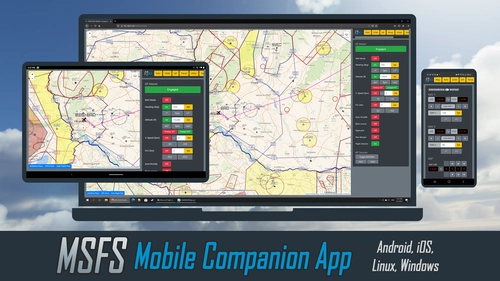
Have you tried my other app - the MSFS Mobile Companion App (https://flightsim.to/file/2828/msfs-mobile-companion-app)? It is based on a similar code.
I've seen users having similar issues with freshly installed Windows systems. Please try installing the vc_redist.x64.exe from https://support.microsoft.com/en-gb/help/2977003/the-latest-supported-visual-c-downloads
Let me know if this worked.
Btw, the MSFS Mobile Companion App will show you the three last vertical speeds at touchdown.
about 5 years ago
Thanks for your quick help, installing vc_redist.x64.exe did the job for me. I also installed the mobile companion app. Works brilliant!
about 5 years ago
Great! Happy to help!
about 5 years ago
I love it. I wish it had top score and top score based on plane
over 5 years ago
Hi,
Merci: Really interesting and very useful tools to improve landings. When do the curves start? (time or distance from touchdown?)
Jean Noel
over 5 years ago
Thanks! The time depends on your FPS to a certain degree. But it should be somewhere between 5 to 10 seconds before the first contact with the ground.
over 5 years ago
over 5 years ago
But is there a way for me to change the port? Cause other apps are using :5000 already.
over 5 years ago
app.run(host='0.0.0.0', port=5001, debug=False, use_reloader=False)
Or whatever port you choose. The git has instructions for installing python, flask, and requirements - it's very easy, but it does require using the command prompt.
Let me know if you have any problems with this, I'd be happy to help
over 5 years ago
over 5 years ago
over 5 years ago
Only improvement I could suggest for now is a "connected; listening for landing" type of note so that the user knows it's working.