
Description
Fenix has released the great V2 Block update which includes a remote MCDU natively. It is superior in every aspect, you should definietly use that over this. I will keep this app on flightsim.to if anyone needs it for an older fenix version.
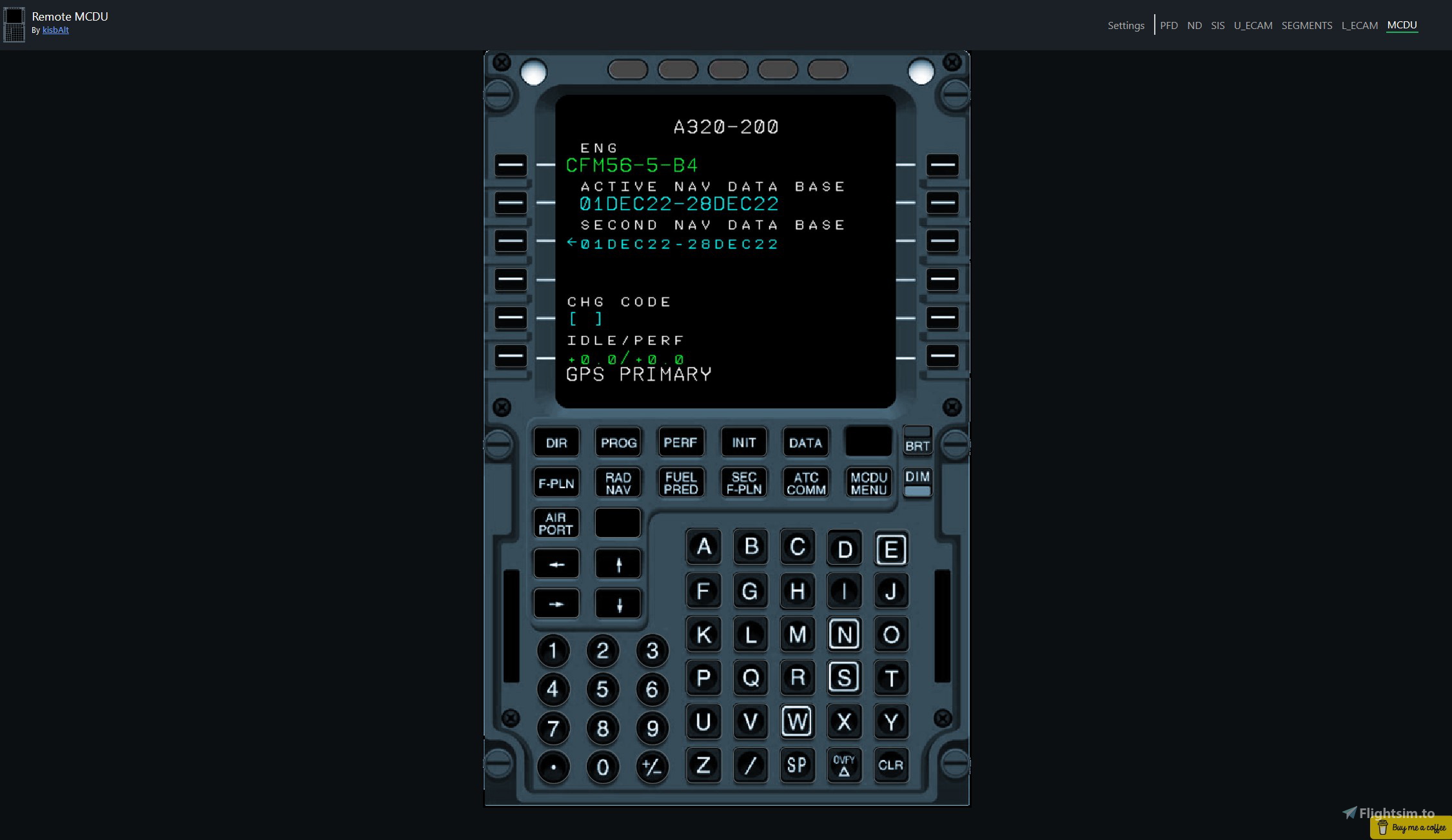
The powerful, yet lightweight remote MCDU for the Fenix A320 in Microsoft Flight Simulator. With this app you can not only interact with the MCDU in a browser but also view many other displays (PFD, ND, UPPER_ECAM, LOWER_ECAM, SIS, Quartz displays) - all in real-time. You can easily control and view your aircraft's instruments from any of your devices on your home network, simply by
scanning the QR code in the app.
The app is easy to use - simply download and extract the files, start up the app, and connect to the webapp.
Features:
- Control your MCDU from your browser from a 2D replica of an A320 MCDU
- The ECAM control panel is also modelled, you can select which pages to display on the Lower ECAM.
- The app recognises which instruments you popped out in the sim and display these on the frontend accordingly.
- You can select from multiple refresh rate modes, to fit your system performance
- The app can hide the pop-out instruments from your screen, so it won't block your view in the simulator. This is automatically done, but can be disabled in the Settings page by un-ticking the auto-hide option.
- The app is not only highly performant, but also small in size.
- QR code generation for your ip, and port.
Instructions:
1. Download the .rar file containing the app and the wasm module.
2. Extract the folders from the .rar file.
3. Put the wasm module (remotemcdu-wasm folder in the .rar file) into the Community folder of Microsoft Flight Simulator. (How to locate the community folder: https://helpdesk.aerosoft.com/hc/en-gb/articles/5023507568925-How-to-locate-the-Community-folder-in-Microsoft-Flight-Simulator)
4. Start up the app by opening the executable a320_remote_mcdu.exe file.
5. At first start a windows security alert for the firewall could pop up, you should click the Allow access button. This ensures that other devices on the network can also access the webapp.
6. Launch Microsoft Flight Simulator and select the Fenix A320 aircraft.
7. Pop out the displays in MSFS you want to view in the browser by clicking on the instrument's display in the cockpit while holding RIGHT ALT. For e.g. if you want to use the remote MCDU, you have to click on the MCDU display in the cockpit to pop out the window, only then will the app recignise the display. Supported instruments: MCDU, PFD, ND, UPPER_ECAM, LOWER_ECAM, SIS, Quartz displays
8. Click the start server button in the app.
9. Open the url in your browser, or scan the QR code on your devices.
10. Recognised instruments will appear on the menu bar, you can select one of the instruments by clicking on it.
That's it! Enjoy using your remote MCDU for the Fenix A320 in Microsoft Flight Simulator.
Issues:
- If a display won't get recognised correctly:
- Make sure that in the cockpit you have the display brightness on 100% until you click the rescan instruments button on the settings page.
After this you can lower the brightness as you like. - Make sure that if you have the alternate renderer enabled in the fenix app, enable the option on the remote mcdu setting page too.
- Make sure that when you are clicking the rescan instruments button you have al the displays aligned and ready to go.
- Make sure that in the cockpit you have the display brightness on 100% until you click the rescan instruments button on the settings page.
- The pop out windows are not visible after using the app: This app moves the pop-out windows to a hidden away location to make sure it doesen't block the view of the main sim window. MSFS saves this location so the next time you are popping out windows it will automatically place it to this hidden away location. To bring the windows back and save the visible location do the following: Load up the fenix and the remote MCDU app, and pop out the instruments. On the web-app click on the restore windows button which should make the pop-outs visible on your main screen where MSFS is running. Exit to the main menu but don't close the pop-out windows. Now MSFS should remember the visible on-screen pop out window locations, but it is important to exit to the main menu while the pop out windows are still opened and visible on your main screen.
If the issue is still present try with the following:
- delete the contents of the folder "C:\Users\username\AppData\Local\Packages\Microsoft.FlightSimulator_8wekyb3d8bbwe\LocalState\packages
- Launch the simulator in normal mode (not in administrator mode) and load the A320 Fenix in a ready-to-take-off situation,
- Launch the remote MCDU application,
- do "Alt+left mouse" on all the screens of the dashboard, (they are always hidden),
- launch the web application,
- click the restore windows button which should make the popups visible on their last
display screen. Attention, they can be "stacked", "unstacked",
- leave the simulator screen by ESC and click on "Main menu" but without closing the pop-up windows.
- Retry A320 Fenix loading, now MSFS should remember the locations of popups visible on the screen. - Popping out the panels may cause an FPS drop. Few users experiencing smaller performance hit than others, and for some it is not even noticeable. Sadly this is an issue with MSFS, so we have to wait for the devs to resolve it with a sim update. Until then: you can try enabling DX12 in MSFS settings, it could help with the fps drop.
- If the app is still having issues recognising the instruments make sure that the displays are initialized and are in an operational state. (for e.g. the ND won't be recognised while the "HDG MAP NOT AVAIL" state is showing)
- Unticking the "Maximum performance" option in the settings page may use less cpu, but currently it is very unstable and will be improved later. I recommend leaving this option ticked.
Future plans:
- Add keyboard support for MCDU (to use your computers physical keyboard for MCDU input)
- Implement more instrument panels (like the MCDU or L_ECAM control panel)
If you like the app and you would like to support my work on Buy Me a Cofee, Click here
Thanks for reading :)
Remote MCDU for the Fenix A320
The powerful, yet lightweight remote MCDU for the Fenix A320 in Microsoft Flight Simulator. With this app you can not only interact with the MCDU in a browser but also view many other displays (PFD, ND, UPPER_ECAM, LOWER_ECAM, SIS, Quartz displays) - all in real-time. You can easily control and view your aircraft's instruments from any of your devices on your home network, simply by scanning the QR code in the app.


Avis des utilisateurs
60 avis
Historique des versions
Always delete the "data" folder in the remote MCDU directory before updating a previous version. v1.6 - Added calibration for display recognition. Now recognition should be 100% accurate after calibration. Now at first start you will be asked to calibrate, and select the correct instruments manually. - Removed option from settings for selecting the render method from the fenix app - Fixed typos - The app will now turn up all display brightness in the cockpit to 100% for recognising displays
Similaires
Airport Finder
Have you ever spent too much time choosing Departure / Arrival airports for your flight? This application provides a solution for this problem by suggesting airports that you can fly from or fly to considering several factors. The application can scan your MSFS Community folder looking for airport addons. With this information the app can help you utilize your addons, and plan flights with these airports, which can be very helpful for players with a lot of addon.
par kisbAlt
ReachFMS - Universal remote FMS for MSFS
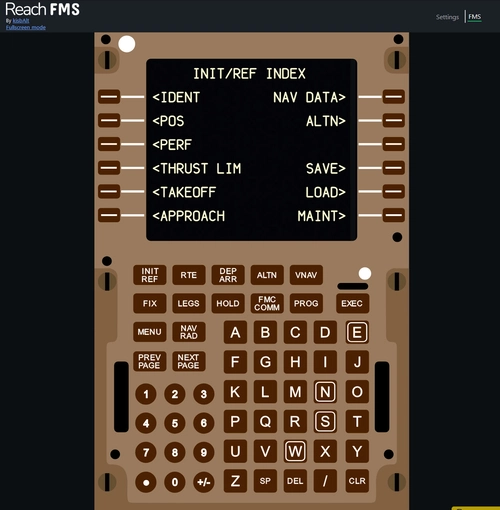
ReachFMS is a universal flight management system (FMS) application designed for Microsoft Flight Simulator that allows users to access remote FMS functionality for a variety of supported aircraft with minimal resource usage. It operates efficiently on lower-end systems, consuming only 0.1-1% of CPU, while providing an option to reduce the refresh rate for further resource conservation. The add-on currently supports multiple aircraft models including those from PMDG, iniBuilds, and Aerosoft, with plans for future updates to increase compatibility with more aircraft and instruments.
par kisbAlt
Connectez-vous pour participer à la discussion
Se connecterCommentaires(309)
6 months ago
9 months ago
about 1 year ago
over 1 year ago
over 1 year ago
almost 2 years ago
about 2 years ago
Moreover, the way the pop out instruments are captured and forwarded means you can develop this for multiple aircrafts. This is actually where I see merit in your implementation.
I’d love to connect and help make this universal. Imagine g1000 or fbw’s mcdu being casted to iPads the same way.
about 2 years ago
In the last couple of months I have been working on developing the app to support multiple other addon aircrafts (and many other improvements) too as you mentioned.
Most of the popular addons already has remote fms implemented (like the FBW a320, or any PMDG aircraft), and also a lot 3rd party apps for this can be found here, at flightsim.to.
But supporting as many other aircrafts (which doesn't have this implemented) as I can in one single app would be very nice, this is why I started working on this. Also adding some Garmins would be cool, good idea!
Some help would be great, thank you! I didn't progress much to in the last few weeks.
over 2 years ago
about 2 years ago
about 2 years ago
In the interface you have to pop out the windows and restore them in the Interface. Until its done, go to your main menu of msfs and restart your sim. Then it should be normal!
over 2 years ago
How can i unistall the app. I erased already the files. But the screens like ND, PFD, MCDU, still doesn´t pop up on my secondary screen. They seems to be open, but i can´t find where they are.
Thank you !
over 2 years ago
A quote from the description, hope it helps.:
The pop out windows are not visible after using the app: This app moves the pop-out windows to a hidden away location to make sure it doesen't block the view of the main sim window. MSFS saves this location so the next time you are popping out windows it will automatically place it to this hidden away location. To bring the windows back and save the visible location do the following: Load up the fenix and the remote MCDU app, and pop out the instruments. On the web-app click on the restore windows button which should make the pop-outs visible on your main screen where MSFS is running. Exit to the main menu but don't close the pop-out windows. Now MSFS should remember the visible on-screen pop out window locations, but it is important to exit to the main menu while the pop out windows are still opened and visible on your main screen.
over 2 years ago
I am following your instructions. i can´t fin the "restore windows button" . I tried on the web app and on the ipad and still not find it.
Could you please give me a hand.
Thank you!
over 2 years ago
about 2 years ago
over 2 years ago
I like the option of having individual screens poped out on its own, even if on Fenix V2 we now have the native MCDU.
I created a small html file to have PFD and ND side by side
(unfortunately I do not manage to upload the code in this box)
over 2 years ago