
Description
© 2020–2026 Skypat
https://www.twitter.com/Skypat
ModManFX manages your mods for all games, handles all necessary file backups with a single click, and automatically resolves file conflicts.
It always restores the original vanilla game file, even if several mods overwrite the same file.
ModManFX includes dedicated features for MSFS 2020, MSFS 2024, Starfield, Cyberpunk 2077, and Valheim.
For MSFS, it uses symbolic links to install mods.
For Starfield, it manages both the game folder, the documents folder, and the Starfield.ini file.
📦 Archive File Formats
Supported archive formats: .zip
For mods in .rar or .7z, ModManFX will extract them automatically and create a folder in:
Code
.\ModManFX\profiles\YOUR_PROFILE_NAME\mods
Examples:
D:\ModManFX\profiles\FS2020\mods\MOD_NAMED:\ModManFX\profiles\Starfield game\mods\MOD_NAMED:\ModManFX\profiles\Valheim\mods\MOD_NAME
🔓 Fully Unlocked Features for All Users
All features are free for everyone.
You may donate via PayPal to support sustainable development.
Important note:
ModManFX is free — if you don’t like it, simply don’t use it.
The wonderful world of the internet lets everyone find the tool that suits them best.
ModManFX is a portable application.
- Extract the ZIP archive.
- Place ModManFX64.exe anywhere on your hard drive.
Do NOT place it in:\Windows\...\Program Files\...- Your game folder
Recommended:your_drive:\ModManFX\ModManFX64.exe
- Launch the application.
Windows may display a blue “Unknown product” warning — simply bypass it. - On first launch, ModManFX will automatically create its subfolders.
Some antivirus programs may warn you due to the use of shell command utilities (https://www.autoitscript.com/site/).
To update:
Just overwrite ModManFX64.exe. Nothing else is required.
If MSFS is installed on a non‑NTFS drive (e.g., FAT or exFAT), symbolic link installation is not possible.
ModManFX will fall back to classic file copy mode, which is slower.
1 — First Launch
ModManFX will ask you to create a profile.
Click Add FS20xx in the Game Profile menu, then select your MSFS Community folder.
You may rename the profile.
It will then ask you to add your first mod (optional at this stage).
3 — ZIP Files or Folder Mode
If you allow ModManFX to unzip archives, you never need to worry about ZIP structure.
ModManFX detects the correct subfolder automatically.
If you disable auto‑unzip, ZIP files must have a correct internal structure.
4 — Sorting Mods with Categories
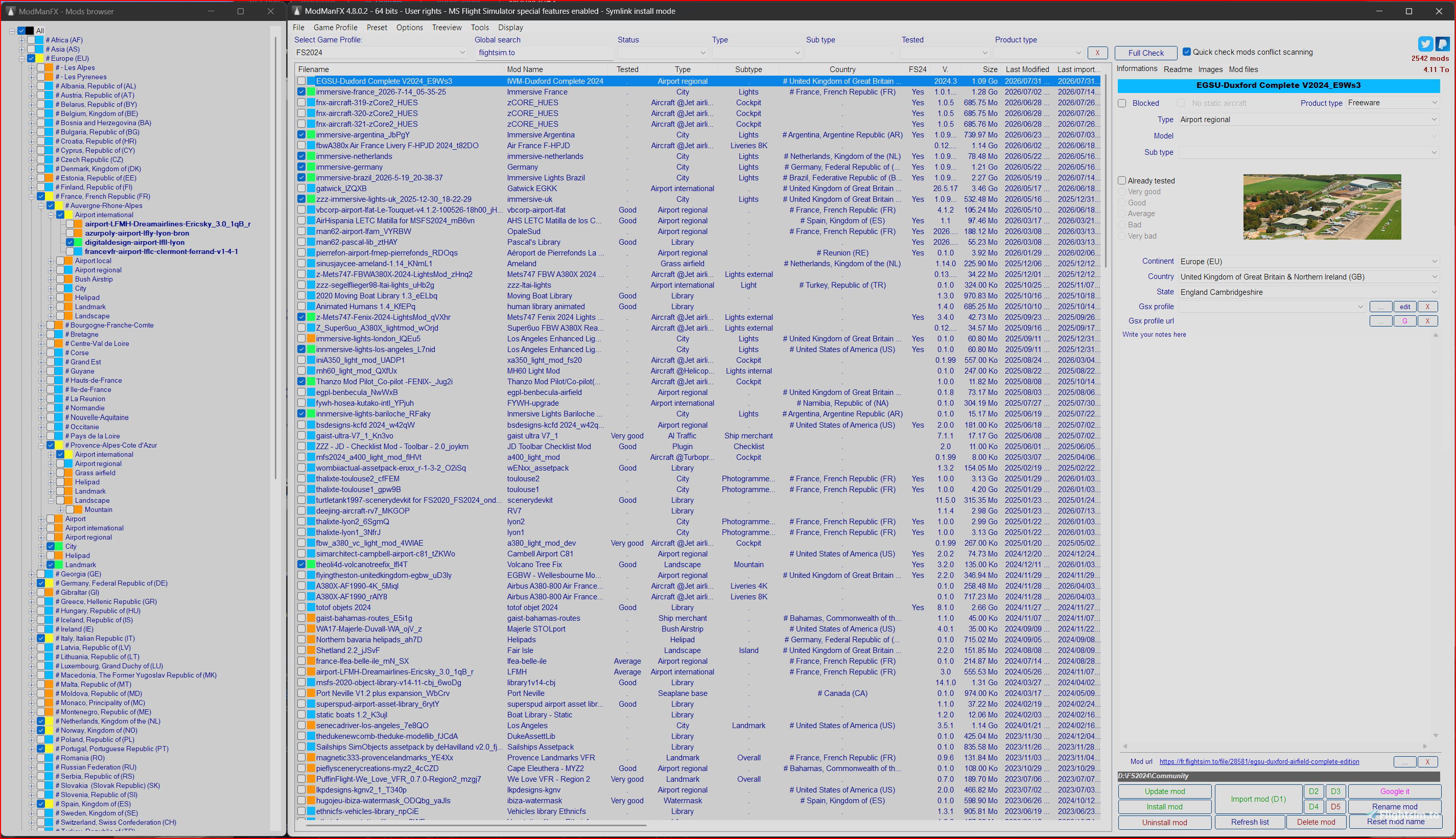
For MSFS, you can sort mods by type, model, subtype, continent, country, or state (right side of the interface).
This allows you to install/uninstall all European mods, or all mods from a specific country, with one click using the treeview browser.
Multi‑selection with CTRL and SHIFT is supported.
5 — Purging MSFS Cache (Automatic or Manual)
Purging cache improves MSFS stability.
Added menu items:
- Tools → MS Flight Simulator — Purge sceneries cache now
- Tools → MS Flight Simulator — Purge packages cache now
Added automatic options:
- Options → Purge sceneries cache automatically
- Options → Purge packages cache automatically
If enabled and MSFS is not running, cache is purged automatically whenever you install or uninstall a mod.
You may also choose to delete cache directly instead of using the recycle bin.
9 — GSX Pro Profile Management
- Use ... to add a GSX profile for the selected airport (.ini, .zip, .rar, .7z supported).
- Use Edit to modify the selected profile.
- Use X to remove a profile.
- Use the combo list to associate a profile with an airport.
- You can store a GSX profile web URL for manual update checks.
- Installing an airport installs its GSX profile to:
C:\Users\your_name\AppData\Roaming\virtuali\GSX\MSFS - Uninstalling removes it.
ModManFX checks if the GSX profile matches the airport.
For other simulators supporting GSX Pro:
- Add
gsw=1in profiles.ini - Add
gsx_profile_dir = pathto define the GSX directory
ModManFX manages mods for both:
- Starfield game folder
- Starfield documents folder
Two profiles — switch with one click.
1 — First Launch
Click Add Starfield in Game Profile.
Then:
- Add Starfield documents folder (
C:\Users\YOU\Documents\My Games\Starfield). - Add Starfield game folder (select Starfield.exe).
- Name each profile.
- Optionally add your first mod.
You now have two separate Starfield profiles.
2 — BA2 File Management
When installing BA2 files, ModManFX automatically adds required entries to Starfield.ini or StarfieldCustom.ini.
When uninstalling, entries are removed.
Even if the Data folder is missing in the archive, ModManFX installs files correctly.
It also handles incorrect root folder structures in most cases.
3 — StarfieldCustom.ini
ModManFX automatically creates:
Code
bInvalidateOlderFiles=1
sResourceDataDirsFinal=""
You can install/uninstall individual files using the Mod Files tab (multi‑selection supported).
🧩 HELP & TIPS — GENERAL1 — First Launch
Choose a game in Game Profile, then add your first mod.
2 — Each Launch
If the mod list is empty, ModManFX will ask you to add a mod.
3 — Adding Mods
Use D1, D2, or D3 buttons — the safest method.
You may enter the mod’s home URL (optional but useful for update checks).
Updating a mod preserves all your sorting and metadata.
4 — Custom Mod Folder Locations
You can define up to three mod folders (D1, D2, D3).
Paths can be edited in profiles.ini.
Colors:
- Red = invalid path
- Green = valid path
You can move mods between folders anytime — just restart ModManFX or click Refresh Mod List.
5 — Sorting Mods
Use the dropdown lists (MSFS only).
Changes are saved instantly.
You can add personal notes.
6 — Refreshing Treeview Browser
Click Refresh by countries/type/etc to update the treeview.
7 — Mod Evaluation
Rate mods using the evaluation checkboxes.
8 — Screenshots & Readme
ModManFX displays included .txt, .jpg, and .png files in dedicated tabs.
9 — Blocked Mods
Blocked mods are excluded from automatic treeview installation.
They appear with a purple square.
10 — Custom Combo List Entries
Create *.ini.custom files to add custom entries.
They are preserved across updates.
11 — Treeview Colors
- Black = selected
- Blue = all mods uninstalled
- Yellow = some installed, some not
- Dark green = blocked mod not installed
- Light green = all installed
12 — Custom Mod Folders (Duplicate Section)
Same as section 4.
13 — Mod Preset List
Save presets from selected mods.
Load presets later — missing mods are listed.
You can add selected mods to an existing preset.
ModManFX displays .jpg and .txt files found anywhere inside the ZIP.
Place ZIP archives or mod folders in:
Code
...\ModManFX\profiles\YOUR_MSFS_PROFILE\Mods
ZIP and RAR files can be extracted automatically (ModManFX will ask).
Using IMPORT MOD is the safest method.
ModManFX
ModManFX free for ever generic mod manager utility. ModManFX manage your mods and do all necessary files backup in one click. ModManFX have dedicated features for MSFS 2024/2020 and use symbolic link to install mods. (c)2025-2026 Skypat. https://www.twitter.com/Skypat



Avis des utilisateurs
36 avis
Historique des versions
NEW: for MSFS profiles, some parameters were adjusted by default and grayed to optimize ModManFX performance NEW: Item menu *Don't calculate mod size" renamed to "Allow caching mod size" to calculate mod size only after an import or update (always ON for MSFS) FIXED: hotfix minors bugs
Similaires

Fenix A32x immersive pilot view
Enhance your Fenix A32x experience with the immersive pilot view mod. This mod provides three alternate perspective of the main cockpit for both pilot and copilot, compatible with IAE and CFM engines. Easy to install and uninstall for a more engaging flight simulation experience.
par Skypat
WINCTRL AGP MobiFlight profile enable TERR ON ND button CPT side for Fenix A32X
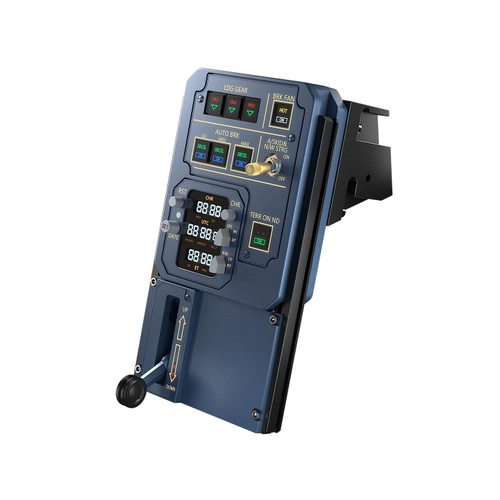
The WINCTRL AGP MobiFlight profile allows the activation of the TERR ON ND function on the Captain (CPT) side of the FENIX A32X in Microsoft Flight Simulator. This functionality expands upon the standard capacity of the WINCTRL AGP module, which only operates the First Officer (FO) side. The profile requires the WINCTRL 32 AGP Metal hardware, SimAppPro for device management, and MobiFlight to facilitate operation. This add-on effectively bypasses limitations by routing necessary events and offsets to ensure seamless synchronization.
par Skypat
Connectez-vous pour participer à la discussion
Se connecterCommentaires(202)
2 months ago
2 months ago
2 months ago
2 months ago
No amount of unzipping, renaming, moving and unblocking resolves the problem - Smart App Control blocks it and deletes the main .exe
There must be a way of resolving this. Windows 11 doesn't let you 'bypass' it as in the readme.
Can you help please? Thanks
2 months ago
try with version 4.7.1.1, i just uploaded it.
i changed some parameters and used native windows Zip utility instead of 7zip
Thanks in advance
2 months ago
2 months ago
Also listed on Virus-Total:
DeepInstinct:
MALICIOUS
Gridinsoft (no cloud)
Trojan.Heur!.02016023
Huorong:
HEUR:Trojan/Injector.g
Kingsoft
Win32.Troj.injector.g
Microsoft:
Trojan:Win32/Wacatac.B!ml
Rising
Trojan.Injector!8.C4 (CLOUD)
SecureAge:
Malicious
Skyhigh (SWG)
BehavesLike.Win64.Dropper.wc
Trellix ENS:
Artemis!B0F9CC2007E5
TrendMicro-HouseCall
Trojan.Win64.Gen.TL0101H226YP
Webroot:
W32.Malware.Gen
Acronis (Static ML)
Undetected
2 months ago
"Some sensitive antivirus can warn you, it's due to some shell command software used (https://www.autoitscript.com/site/)."
can't do nothing about it.
2 months ago
2 months ago
could you try with version 4.7.1.1, i just uploaded it.
i changed some parameters and used native windows Zip utility instead of 7zip.
Thanks
2 months ago
4 months ago
I’ve been using this great program for years. After reinstalling it, selecting the "add MS Flight Simulator 2024" game profile, and choosing the Community folder directory, the program refuses to display the correct list of types. Instead, it shows me the list of types for a different game ("audio, car characters, combat," etc.). What is happening? I am running Windows version 25H2 (?).
4 months ago
4 months ago
7 months ago
9 months ago
I'm still enjoying your app since 2021, great work!
9 months ago
thanks
just for sorting mods in catégories (for left treeview).
nothing else