
Description
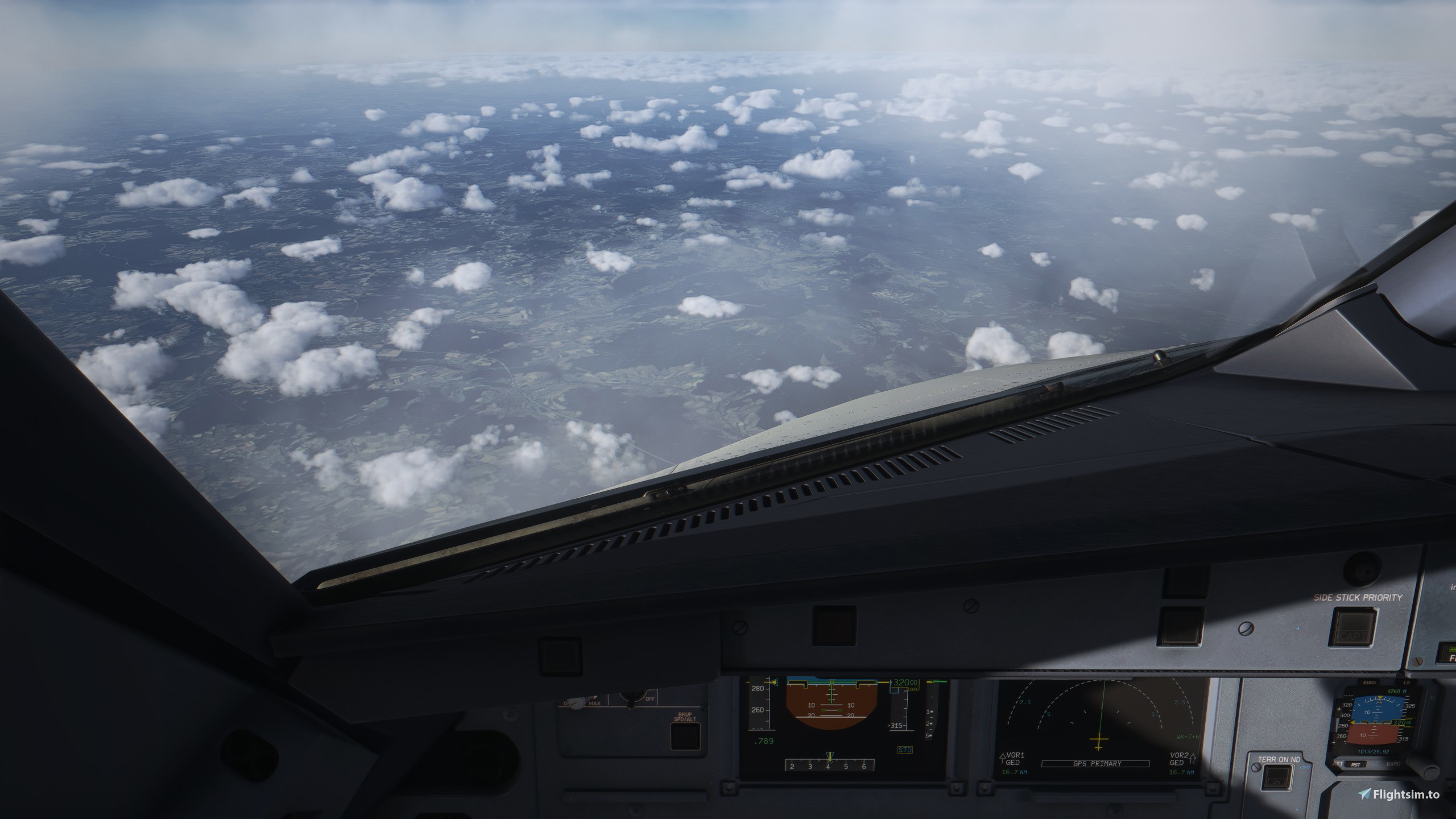
The TrueEW reshade preset is designed to enhance Microsoft Flight Simulator 2020 and 2024 with a focus on realism and cinematic quality. It optimizes lighting, contrast, and sharpness while maintaining a natural and immersive feel.
Key Features:
Enhanced Lighting & Shadows:
Boosts ambient lighting for a more realistic atmosphere.
Adjusts shadow depth to create a dynamic and immersive cockpit view.
Sharpening & Clarity:
Uses adaptive sharpening to improve cockpit instrument readability.
Enhances terrain details, making landscapes crisper and more defined.
Color Grading & Contrast:
Refines colors with a subtle vibrance boost to prevent oversaturation.
Improves contrast, especially in clouds and ground textures, for a more dramatic look.
Sky & Cloud Enhancements:
Fine-tunes cloud brightness and definition for a more volumetric feel.
Adjusts atmospheric haze to balance realism and visibility.
Cockpit Realism:
Slightly darkens cockpit shadows for better depth without losing detail.
Reduces overexposed glare while maintaining realistic reflections.
Performance Optimization:
Balances visual enhancements with minimal FPS impact.
Optimized settings for smooth gameplay without excessive processing load.
Best Use Cases:
Ideal for realistic VFR flying with enhanced ground textures.
Works well in high-altitude flights, keeping cloud layers visually stunning.
Enhances cinematic screenshots without needing heavy post-processing.
Install Process:
Run reshade -> Select MSFS gamelauncherhelper in the MSFS Directory ("A:\XboxGames\Microsoft Flight Simulator 2024\Content\gamelaunchhelper.exe") -> select DX10/11/12 -> Install the .ini file -> Install the necessary shaders (they will have a tick next to them)
Thank you so much for choosing TrueEW reshade
MS2024/2020 TrueEW Reshade
The MS2024/2020 TrueEW Reshade preset enhances Microsoft Flight Simulator 2020 and 2024 by optimizing visuals for realism and cinematic quality. It improves lighting, contrast, and sharpness while maintaining a natural atmosphere. Key features include enhanced shadows, improved clarity for cockpit instruments, and refined color grading. The preset is designed to boost visual fidelity with minimal impact on performance, making it suitable for both immersive flying and stunning screenshots.

Avis des utilisateurs
2 avis
Historique des versions
Aucun historique de version disponible.
Similaires
KURO 787 Realistic Cockpit Textures V2
Enhance the realism of your Kuro 787 cockpit with this texture pack created in Photoshop. Download now for a more immersive flight experience.
par jasonthegod
Boeing 787 Custom Cockpit Textures
Customize the cockpit of your Boeing 787 with these custom textures. Easy installation process - simply drag and drop the files into your community folder. Experiment with different textures for a personalized flight experience.
par jasonthegod
Connectez-vous pour participer à la discussion
Se connecterCommentaires(21)
7 months ago
about 4 hours ago
about 1 year ago
about 1 year ago
about 4 hours ago
over 1 year ago
over 1 year ago
over 1 year ago
over 1 year ago
I have downloaded this file, where do I need to install it?
I inserted the INI file directly into the content folder, is that correct?
Thank you very much for your answer.
Kind regards
Lorenz
over 1 year ago
over 1 year ago
over 1 year ago
over 1 year ago
over 1 year ago
Thank you very much for the information.
over 1 year ago
It should be on your C: drive -> xbox games -> Flight Simulator -> Content -> Choose the gamelauncher helper exe and follow the reshade instructions
over 1 year ago
It doesn´t exist in my computer .
Steam folder yes but not the rest.
Also Reshade warns you about possible problems with multiplayer games.
over 1 year ago
over 1 year ago
Follow the instructions in description and in reshade