
Description
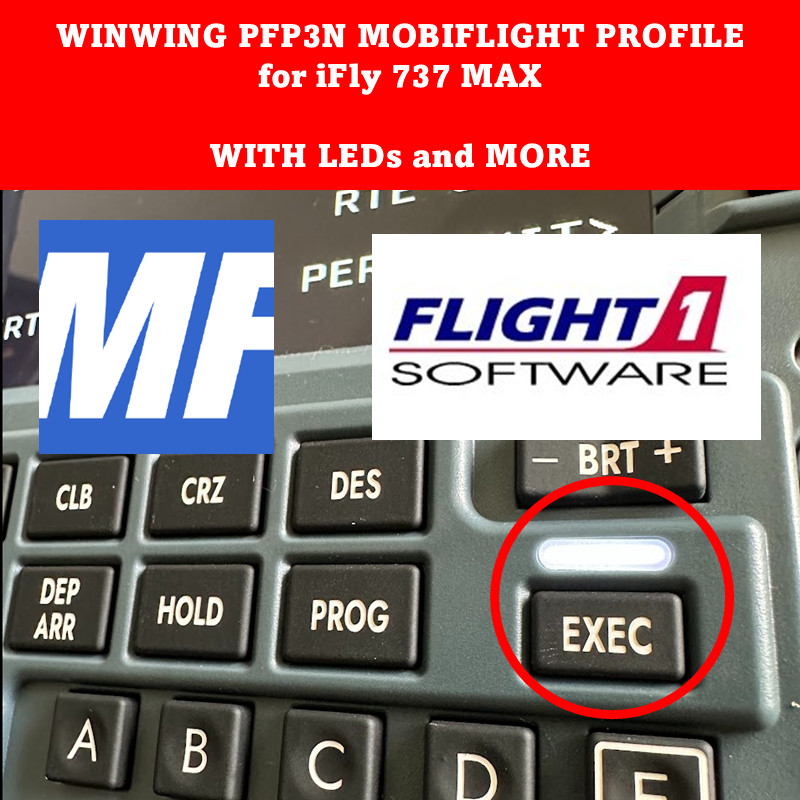
This mobiflight profile builds on the example that was provided by CSTGaming. This one has:
1. Working LED lights (EXEC, MSG, OFST, CALL, FAIL)
2. Working screen brightness buttons. Press or press and hold and you'll see the display brightness change both in the physical device and in the simulator
3. Sync up backlight with the simulator. When you change the cabin lights in the sim from the center pedestal you'll see the physical device respond and match up with the one in the sim.
4. The display and backlights sync up with the battery such that if the battery is not on, then the physical device appears as if it was off.
Installation instructions
The download here only includes the mobiflight profile. It assumes you have already followed CSTGaming's setup instructions which guides you through installing python and mobiflight. Please watch his video or follow the instructions in his flightsim.to page linked above.
To point mobiflight to this new profile, save it somewhere (such as in your Community folder, or My Documents, or wherever) and then in Mobiflight go to File -> Open. You will get a message saying that the device referenced in the profile can't be found. If you have your PFP3N connected, I think mobiflight will offer to replace all the device IDs in the downloaded profile with your PFP3N's unique device ID. If it offers this as an option, use it. If you don't do this then the profile will not work. It needs to be referencing your PFP3N which has its own unique ID.
Troubleshooting
Personally when I was first learning how to use mobiflight with the PFP3N I ran into a few issues with the LCD doing weird things. Whenever this happens I would do the following:
1. ensured SimAppPro was not running (check your system tray and task manager to ensure its not running)
2. close out of mobiflight
3. Disconnect pfp3n (unplug)
4. Reconnect pfp3n
5. Launch mobiflight
6. Click Run button
Also, in mobiflight make sure on the bottom "Sim Status" is green. If it mentions something about WASM unavailable but you already went into Tools -> MSFS -> Install WASM Module then launch MSFS and go to Content Manager (or Marketplace -> My library) and search for "WWTWASM WINWING" and disable it and re-enable it (or just enable it if you see it already disabled). This is what I had to do to get a green Sim Status in mobiflight.
Finally, please remember to click RUN in mobiflight in order for the profile to work!
WinWing PFP-3N profile for iFly 737 Max WITH LEDS and more
The WinWing PFP-3N profile for the iFly 737 Max integrates advanced functionality for enhanced simulation realism. This add-on offers features such as operational LED lights, screen brightness controls, and synchronized backlighting with in-simulator cabin lighting adjustments. It is compatible with MobiFlight, requiring prior setup to utilize the unique profile effectively. Installation and troubleshooting guidance are included to assist users in achieving optimal performance.

Avis des utilisateurs
3 avis
Historique des versions
Fixes an issue where during night flights the screen brightness would be capped at 30% which could be problematic if in real life you're in a bright environment and require higher brightness on your PFP3N. With this new version, the physical device will always allow you a range of 10-100% brightness regardless of what time of day is set in the sim. The brightness buttons on the PFP3N will continue to also update the virtual cockpit's FMS brightness and similarly if you were to press the BRT+/- buttons on the virtual FMS, both the virual FMS and the PFP3N's brighness will change. In other words, they still speak to eachother and "sync" but the virtual cockpit will not limit your PFP3N's device from a full brightness range of 10-100%.

Connectez-vous pour participer à la discussion
Se connecterCommentaires18
How are you trying to open it? What I do is launch Mobiflight and then go to File->Open and browse to the iFlyFMS-with-lights-v2.1.mfproj file.
Are you able to use other mobiflight profiles successfully or is this the first time you try using it?
Use instead an interpolation, where:
Input value 0.1 maps to 0
Input value 0.3 maps to 100
We never go full black (since the minimum raw value I can register is 0.119999), like the real one :)
The workaround I've used when I want max brightness and it isn't working is to just double click the Screen Brightness row and at the bottom of the popup window click "Test" (where it is 'testing' a value of 100 by default)
EDIT: Yeah I can consistently reproduce different max values depending on the time of day in the sim. At night it is 0.3. Sunrise/sunset 0.4, and daytime 1.0.
I'm going to see if I can come up with a solution to this.
But yeah as far as I can see it'll be difficult to fix perfectly since the window where the range changes is also seasonal (eg different in summer than winter) and based on where in the world you are. Really wish iFly just kept a single range, but I understand what they're trying to do by lowering max brightness in dark environments within the sim. At minimum it would have been nice to know what the current max is so you know what "range" the plane is using and adapt accordingly. But right now for example when I see 0.4 I don't know if that's the minimimum brightness during daytime or max brightness during dawn/dusk.
Thanks for pushing me to crack this project back open and find a solution for it! I don't think there are any more known issues so this should be the final update.
Feel bad for anyone who was notified about the update earlier today and then re-notified about this latest update on the same day. But yeah this is a complete solution and better than the earlier one, so it was worth re-publishing.
Final version number is 2.1.