
Description
FlightDeck Bridge for vPilot The Ultimate AIO EFB Bridge!! Now w/ BEYONDATC, VOICE ATC, CPDLC AND HOLDDECK™️
Stream Deck plugin now included!! From v2.5 the download comes with the FlightDeck Stream Deck plugin and ready-made profiles for Stream Deck (15 keys) and Stream Deck +.
v2.5 · Developed by ClearedToCode
Nine tools in one:
- BeyondATC (new in v2.3) – BeyondATC calls show up in Live Radio with the readback, its request menu becomes buttons on your tablet, and your readback goes back through BeyondATC. Nothing to set up.
- Voice ATC (new in v2.2) – controllers on voice are written out in your Radio feed, and calls with your callsign get the Say back readback. Speech is turned into text on your own PC; nothing is sent anywhere.
- Hoppie CPDLC (new in v2.1) – datalink clearances and telex on your phone, your tablet and the in-sim panel, with the reply buttons ATC offered.
- Comms leveler (new in v1.5) – stops one loud controller taking your head off, with meters and dials on your tablet.
- Tablet & phone bridge – ATC text, private messages, SELCAL alerts, nearby controllers, ATIS and METAR on any device on your home Wi-Fi. Scan a QR code and you're connected, with nothing to install on the tablet.
- SimBrief radio kneeboard – a printable, phase-by-phase radio script for your flight, built from your latest SimBrief plan and whoever is online on VATSIM right now. It opens automatically when vPilot starts.
- Stream kit for OBS (new in v1.4) – theme and overlays that put your live flight, ATC and readbacks on stream.
- In the cockpit and on SayIntentions – FlightDeck on the MSFS 2024 EFB tablet, in the sim toolbar over any aircraft (new in v1.5), and SayIntentions.AI alongside VATSIM, with or without vPilot.
- Readback assistant (new in v1.2) – when ATC calls you, it shows exactly what to say back, and can read it aloud. Callsigns are read the way they are actually said — airline flight numbers, N-numbers and foreign registrations each their own way (fixed in v1.5.1).
Stream Deck plugin (included from v2.5)
https://clearedtocode.com/addon/6ab722f2b428d2863277fccd
FlightDeck Bridge for Stream Deck puts all of this on your keys and dials. It is in the download from v2.5: run "ClearedToCode Stream Deck Setup" from the Stream Deck folder. FlightDeck Bridge itself works fully without a Stream Deck.
- vPilot / VATSIM – tune COM1/COM2 on a dial, the live ATIS letter on a key, squawk ident, Mode C, radio and private messages, METAR, and a Readback key that sends the reply to the last call for your callsign
- SayIntentions.AI – clearance, taxi, departure, climb, descent, flight following, go-around or your own words, one key each
- BeyondATC – the ATIS and your requests on keys, and Readback sends through BeyondATC's own menu
- Hoppie CPDLC – log on and off, the latest uplink on a key, WILCO / UNABLE / STANDBY
- HoldDeck holds – when ATC clears you to hold, the racetrack, fix and entry are drawn on the key, with an EFC countdown, turns flown and one-press hold calls
- Stream Deck + – turn a dial through the hold diagram, entry and EFC on the touch strip; the ATC dial shows the last call for you with its readback, push to send it
- Four colour-coded pages – VATSIM (green), SayIntentions (yellow), BeyondATC (purple) and Holds (cyan), with a one-click ClearedToCode installer that adds the plugin and ready-made profiles for Stream Deck (15 keys) and Stream Deck +
It runs through FlightDeck Bridge 2.3 or newer on the same PC, so install this first. The installer tells you when it finds the plugin.
NEW in v2.5 – More connected, more in control
Position reports – the Datalink tab, the EFB and the toolbar panel have a ready-made Hoppie position report built from the sim and your SimBrief route: last fix and time, level, next fix with ETA and the fix after. Check it, edit it if you like, and tap Send position. When you pass a fix while logged on, the tablet offers it. Nothing is sent without your tap.
Live kneeboard – the radio script follows your flight: it highlights where you are (before taxi, taxi and takeoff, climb out, en route, arrival, final, taxi in), scrolls along, and shows the next station with a Tune standby button.
Flight log – every message of each session (text ATC, private messages, CPDLC, telex and Voice ATC) is saved on your PC. Read it on the new Log tab, print it, or save a PDF on the PC.
Voice ATC model choice – Fast (78 MB) for older or busy PCs, Balanced (the default) or Accurate (488 MB) for fast CPUs.
Optional full-screen alerts – SELCAL, private messages and datalink cover the screen until you tap.
Stream Deck included – the Stream Deck plugin and profiles now come in the download.
NEW in v2.4 – Less typing, fewer slips on frequency
- One-tap tune – when ATC says "contact Jacksonville Center 132.45", the Say back card shows "Tune COM1 132.45". The new frequency goes active and the old one stays on standby, so you can flip back if nobody answers.
- One-tap squawk – "squawk 4521" gets a "Squawk 4521" button.
- vPilot dot commands – .metar KMCO, .atis KMCO, .msg DAL425 hello, .com1 132.45, .x 4521, .ident, .ctaf KMCO and .unicom KMCO right from the message box. A line starting with "." is never sent on frequency by mistake.
- Bigger text – tap A− / A+ at the top of FlightDeck in the EFB or toolbar panel (80–250%). Your size is remembered.
- MSFS 2020 toolbar panel – the installer now adds the FlightDeck toolbar panel to MSFS 2020 too. The EFB tablet app stays MSFS 2024 only.
- Update notice – the tablet and EFB tell you when a newer FlightDeck Bridge is out.
- Toolbar fixes – the panel connects more reliably, says which port failed and why with a Retry button, and the blank toolbar icon is fixed.
NEW in v2.3 – BeyondATC
FlightDeck now works with BeyondATC as well as VATSIM and SayIntentions. Start BeyondATC and FlightDeck connects to it – no settings to change.
- Live Radio – every BeyondATC call appears in the Radio feed, with the Say back card for calls to you.
- Requests on your tablet – BeyondATC's request menu shows up as buttons on the tablet, the EFB and the toolbar panel.
- Read back in BeyondATC – one tap sends the readback through BeyondATC's own menu.
- Radio tuning and ATIS – the bridge can now tune COM1/COM2 and set your squawk through SimConnect, and finds the live VATSIM ATIS letter for the airport you are tuned to (used by the Stream Deck edition).
NEW in v2.2 – Voice ATC
FlightDeck Bridge now listens to vPilot's radio – and nothing else – and writes every call out in the Radio feed, so controllers on voice get the same readback help as text.
- For you, not everyone – every call on frequency is shown, but only the ones with your callsign get the Say back card. Works on the tablet, the EFB, the toolbar panel and the Stream Deck, and HoldDeck picks up holds given by voice.
- On your PC – speech is turned into text locally with whisper.cpp. No account, no cloud, nothing leaves your PC.
- Route-aware – with your SimBrief plan loaded, fix names come out spelled right (CAMRN, not "Cameron").
- One switch – tablet Settings → Voice ATC → On. The first time it downloads the speech engine and English model (about 160 MB). Needs Windows 10 (2004) or 11, 64-bit.
NEW in v2.1 – Hoppie CPDLC + a new installer
CPDLC and telex – the new Datalink tab logs on to the Hoppie ACARS network and shows CPDLC and telex on your phone, your tablet and the in-sim panel.
Only the replies ATC offered – each uplink gets exactly its own reply buttons: WILCO, UNABLE, STANDBY and the rest of that message.
Your logon code stays on your PC – add your Hoppie logon code in Settings. If your aircraft MCDU already uses Hoppie, leave Datalink logged off: two clients on one logon code fight each other.
Redesigned installer – the same one-click install with a new look. Installing over 1.5.1 keeps your settings and pairing key.
NEW in v1.5 – Comms leveler + FlightDeck in any cockpit
Comms leveler – one controller whispers, the next one clips. Switch the leveler on and FlightDeck rides vPilot’s or SayIntentions’ own volume: loud transmissions come down fast, and the level eases back between calls so the next quiet station is still audible.
- Meters on your tablet – a level meter for each radio app, showing the peak, your target, and how much is being taken off right now.
- Three dials – Target (how loud ATC ends up), Max cut (the most a shout is pulled down) and Recovery (how fast it comes back). Natural, Balanced and Strong set them for you.
- Nothing else is touched – no microphone, no recording, no virtual audio cable. Only that one app’s volume slider moves, and your own level goes back when you switch it off.
- In the cockpit too – the same switch, presets and meters on the EFB’s new Audio tab.
FlightDeck in any cockpit – FlightDeck now also installs as a sim toolbar panel, so it opens over any aircraft: click the FlightDeck icon in the MSFS toolbar. That includes airliners with their own EFB, such as the Fenix A320 and iniBuilds aircraft, where an EFB app cannot appear. The EFB app is still there on aircraft that use the standard MSFS 2024 EFB.
NEW in v1.4 – Free stream kit for OBS
Streaming your flights? The download now includes a Stream Kit (OBS) folder: a ClearedToCode theme for OBS and ready-made overlays that put your real flight on screen.
- Flight bar – callsign, route, the latest ATC call and the exact readback to say, plus cruise, ETE and which network you are on.
- Live ATC panel – the last few transmissions, each with its readback underneath.
- Webcam box and corner frame – a framed window for your camera, with your callsign and route on the plate.
- Lower third and scene cards – your name and links, plus Starting Soon (with a countdown), Be Right Back and Ending screens.
- OBS theme – the whole of OBS in the FlightDeck colours.
It reads your flight straight from FlightDeck Bridge on VATSIM or SayIntentions.AI, and everything stays on your own PC: your pairing key and SimBrief ID never appear on screen. Sized for 4K with a one-line switch for 1080p. Nothing installs itself - the kit's README.txt walks you through it.
NEW in v1.3 – FlightDeck in your EFB + SayIntentions.AI
- On the MSFS 2024 EFB tablet – open the FlightDeck app in the cockpit: Live Radio with Say Back readbacks, your SimBrief flight plan, the radio kneeboard and nearby ATC, right on the in-sim tablet. No second screen needed. The installer adds it to your Community folder (Microsoft Store and Steam).
- SayIntentions.AI support – ATC calls from SayIntentions show up in Live Radio with the readback, and Send talks to SayIntentions. FlightDeck follows whichever network you are flying: VATSIM or SayIntentions.
- Runs without vPilot – SayIntentions-only pilots get FlightDeck Bridge as a small tray app that starts with Windows. With vPilot, the plugin covers both networks and the tray app steps aside automatically, so your tablet link never changes.
- Smarter readbacks – understands numbers written out as words ("four thousand", "one one niner point four five").
NEW in v1.2 – Readback assistant
When ATC calls your callsign, the tablet shows exactly what to say back, right under the message and pinned above the send box.
ATC: DAL425 radar contact, climb and maintain FL240, turn right heading 110, contact Atlanta Center 132.450
Say back: Climb and maintain flight level two four zero, turn right heading one one zero, contact Atlanta Center one three two point four five, Delta four two five
- Covers the calls that matter – IFR clearances, climbs and descents (including climb/descend via), headings, speed and Mach, direct-to, frequency changes, squawk, altimeter/QNH, pushback, taxi routes, hold short, line up, and takeoff, landing and approach clearances
- Real radio phraseology – callsigns spoken the radio way (DAL = Delta, BAW = Speedbird, N123AB = November one two three Alpha Bravo), niner, flight levels and frequencies read correctly
- Hear it – reads the readback aloud so you hear the wording before you key the mic
- Send as text – one tap puts the readback on frequency for text pilots; an IDENT button appears when ATC asks for one
- ATC said… box – type what the controller said into ATC said… on the tablet, or click Dashboard + Listen in the setup window so the PC listens for you (Edge speech recognition, hears your default recording device)
- Hints, not just readbacks – radar contact, ident and "say altitude" calls tell you what to do
Works offline, no AI or account needed. It is a practice aid – always listen to ATC.
Radio kneeboard
Generate your flight on SimBrief, start vPilot, and your kneeboard is waiting. It tells you who to call, when, on which frequency, and exactly what to say and read back, from ATIS through taxi-in.
- Flight card – route, runways, SID/STAR, filed altitude, ETE, your callsign spelled phonetically, an ATIS copy table and a CRAFT clearance box
- Who you'll talk to – every phase with its station and frequency, marked Live, Top-down, UNICOM or Charted
- Radio script – your call, ATC's reply and your readback for clearance, taxi, takeoff, departure, en route, approach, landing and taxi-in, with values to dial in highlighted in magenta
- VATSIM mode – follows live coverage: if Ground is offline it tells you Tower or Center is covering top-down, and with nobody online it switches to UNICOM 122.8 self-announce calls
- SayIntentions mode – uses charted frequencies for the airports on your plan
- Quick reference – readback items, first-call structure and how to say your numbers
- On the tablet – its own Kneeboard tab next to your messages
- Save PDF / Print – letter landscape, two kneeboard pages per sheet with a cut line. PDFs go to Documents › FlightDeck Bridge › Kneeboards.
- Always current – rebuilds when you connect to VATSIM, and one tap on Refresh before you call for clearance picks up who just logged on
You need your own SimBrief Pilot ID (simbrief.com → Account Settings → Pilot ID). Enter it in the installer, in the setup window, or on the kneeboard page the first time it opens.
Tablet & phone bridge
- Live message feed – frequency text, private messages and broadcasts, with your callsign highlighted when ATC calls you
- SELCAL & private message alerts – flashing banner, optional chime and vibration
- Send from the tablet – text on frequency or private messages; tap a message to reply
- ATC list – nearby controllers and frequencies, one-tap ATIS request
- Weather – request METARs for any airport
- Transponder – squawk ident, Mode C / standby
- Add to Home Screen – opens full screen like an app on iPad, iPhone and Android
Built to fix the usual bridge problems
- One-click beginner installer – finds vPilot automatically and ticks off each step
- Pop-out setup window with a QR code – opens when vPilot starts, with a live checklist that tells you exactly what's wrong if the tablet can't connect
- "Plugin doesn't load" – removes the Windows downloaded-file block that silently stops vPilot plugins loading (and fixes it for your other plugins too)
- "QR code points nowhere" – picks your real Wi-Fi address and skips Bluetooth, VPN, Hyper-V and Docker adapters
- "Tablet can't connect" – sets up Windows Firewall for home networks and removes old rules that block vPilot. It asks for permission once.
- Port conflicts – automatically uses the next free port (7830–7839)
- Stays connected – reconnects by itself after the tablet sleeps or vPilot restarts
- Safe for vPilot – plugin errors can never crash vPilot mid-flight
Requirements
- Windows 10 or 11 with Microsoft Edge (built in)
- For VATSIM: vPilot (tested with 3.12.1). For SayIntentions.AI: the SayIntentions desktop app – vPilot is not needed
- For the EFB app: Microsoft Flight Simulator 2024 (the tablet and phone pages work with MSFS 2020 too)
- A SimBrief account for the kneeboard
- For CPDLC (optional): a free Hoppie ACARS logon code
- For Voice ATC (optional): Windows 10 version 2004 or Windows 11, 64-bit
- For the tablet: a tablet or phone on the same Wi-Fi as your PC (guest networks won't work)
Installation
- Right-click the downloaded zip and choose Extract All
- Close vPilot (if you use it)
- Double-click Install FlightDeck Bridge
- Type your SimBrief Pilot ID in the box (optional – you can add it later) and click Install
- When Windows asks for permission, click Yes (this is only for the firewall)
- Click Finish. vPilot starts, the QR code window pops up, and your kneeboard opens
- Open your tablet's camera, scan the code and tap the link
Two desktop icons are added: FlightDeck Bridge Setup (QR code and checklist) and FlightDeck Kneeboard.
Note: this is not an MSFS Community folder addon – don't put it in your Community folder. The installer places it in vPilot's Plugins folder.
Troubleshooting
- Check the setup window's checklist – anything red says what to fix
- Kneeboard says "Unknown UserID"? Re-check your SimBrief Pilot ID and make sure you've generated a flight
- Tablet and PC must be on the same Wi-Fi; turn off VPN / iCloud Private Relay on the tablet
- Run the installer again – it repairs firewall problems
- Log file:
%LOCALAPPDATA%\FlightDeckBridge\bridge.log
Privacy & safety
Everything stays on your home network. The bridge only goes online to fetch your SimBrief plan, the public VATSIM data feed and public airport frequency data (OurAirports), plus the Hoppie ACARS network while you are logged on to Datalink. The QR code contains a private pairing key, so other people on your Wi-Fi can't send messages under your callsign or see your flight plan. Anyone who scanned it by mistake can be locked out with New key in the setup window.
For flight simulation use only. The kneeboard is a practice aid, not a substitute for real charts or ATC instructions.
Uninstall
Double-click Uninstall FlightDeck Bridge or use the Start menu entry. vPilot and your other plugins are not touched, and saved kneeboard PDFs stay in your Documents folder.
Credits
Developed by ClearedToCode. Flight plans from SimBrief, live controllers from the VATSIM data feed, charted frequencies from OurAirports. QR code generation uses qrcode-generator by Kazuhiko Arase (MIT licence); QR Code is a registered trademark of DENSO WAVE INCORPORATED. Not affiliated with VATSIM, SimBrief, SayIntentions, Hoppie or the vPilot developer.
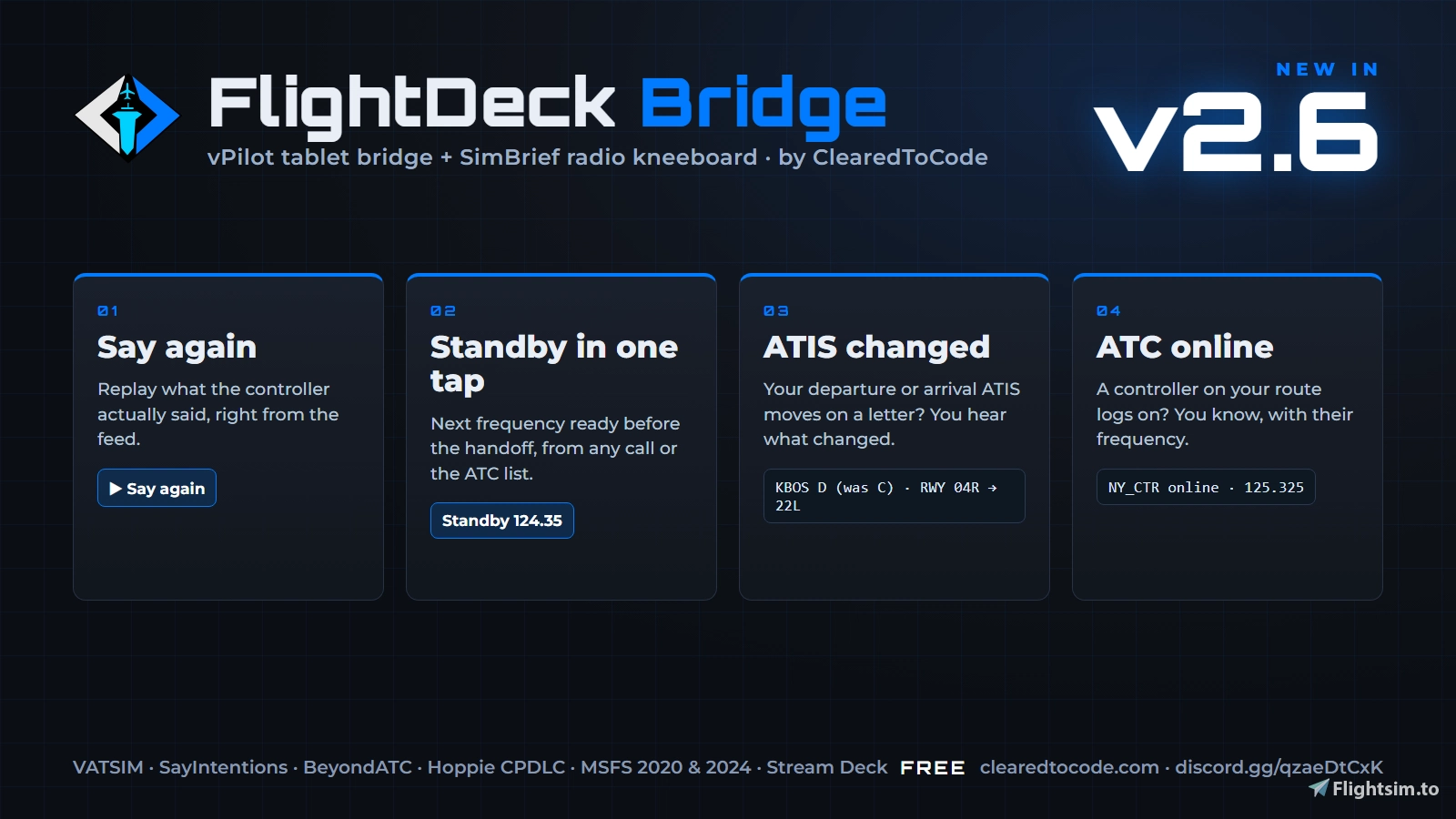
FlightDeck Bridge - vPilot Tablet Bridge + SimBrief Radio Kneeboard V 2.6 Now with Stream Deck!!
Stream Deck plugin now included!! FlightDeck Bridge puts ATC, readbacks, your SimBrief plan and a radio kneeboard on your tablet, phone, the MSFS 2024 EFB and your Stream Deck. Works with VATSIM (vPilot), SayIntentions.AI and BeyondATC. When ATC calls you, it shows exactly what to say back. NEW in v2.6: Say again replays what the controller actually said, one-tap Standby for the next frequency, and alerts when your departure or arrival ATIS changes or a controller on your route logs on. One-click installer, QR code pairing. Requires Windows 10/11.


Avis des utilisateurs
5 avis
Historique des versions
2.6.1: Typing in the MSFS toolbar panel no longer fires sim keys (pressing g no longer moves the gear in MSFS 2024). Thanks to bud for the report. -ClearedToCode
Similaires
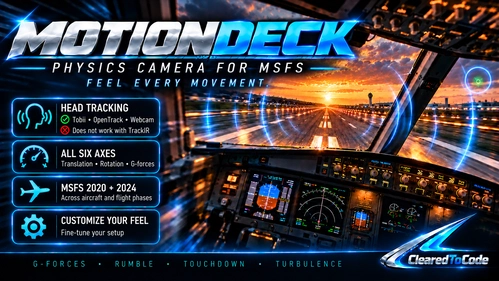
MotionDeck by ClearedToCode - Physics Camera with Head Tracking (MSFS 2020 & 2024)
MotionDeck (formerly Physics Camera) adds realistic head movement and inertia driven by the aircraft's real physics in Microsoft Flight Simulator 2020 and 2024: runway rumble by surface, touchdown jolts, turbulence and G-forces on all six axes, with automatic presets per aircraft type. Works on its own or on top of head tracking via opentrack (Tobii, webcams, TrackHat); not together with TrackIR. Cockpit view only, hotkeys, live readouts, easy install.
par ClearedToCode

Vantage - Camera Views, Live Cams, Cinematics & Spotting for MSFS 2024
Vantage is a standalone camera utility for Microsoft Flight Simulator 2024, offering advanced camera controls and cinematic features. The app allows users to save, group, and hotkey unlimited custom camera views per aircraft, as well as operate live chase, orbit, fly-by, tower, and runway cams. It includes an automatic cinematic director, aircraft spotting tools for AI and network traffic, and a transparent window overlay for use during flights. Optional Stream Deck integration provides hardware control of views and camera movement.
par ClearedToCode

CheckRide - AI Flight Instructor & Checkride Examiner (MSFS 2020/2024)
CheckRide is an AI-powered flight instructor and checkride examiner add-on for Microsoft Flight Simulator 2020 and 2024. It evaluates complete flights, grading everything from startup procedures to landings based on real-world standards such as FAA and airline SOPs. Users receive detailed debriefs, oral feedback on mistakes, and optional AI-generated conversational analysis. A pass certificate with detailed performance metrics is issued for successful checkrides or high scores.
par ClearedToCode
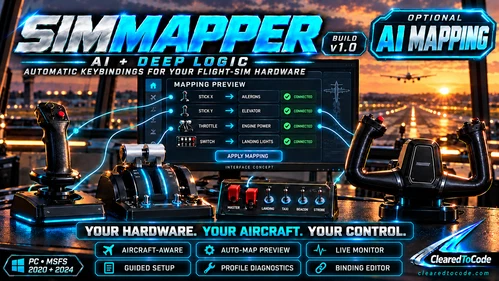
SimMapper 1.0.0 - Hardware mapping for MSFS 2020 and 2024
SimMapper is a Windows application for mapping flight simulator hardware to Microsoft Flight Simulator 2020 and 2024 using native SimConnect. It automatically detects loaded aircraft and assigns relevant control profiles, supporting various device types and aircraft categories. The tool offers live monitoring, a binding editor, auto-mapping functions, and compatibility with certain payware aircraft through additional modules. Only Microsoft Store editions of MSFS are supported, and profile writing features remain experimental.
par ClearedToCode
Connectez-vous pour participer à la discussion
Se connecterCommentaires(33)
about 1 month ago
Thank you!
15 days ago
15 days ago
20 days ago
19 days ago
26 days ago
19 days ago
26 days ago
26 days ago
-clearedtocode
25 days ago